. .

st4u

ST 4U 103: Online Help for VA Smalltalk

July 6, 2011 9:43:23.106

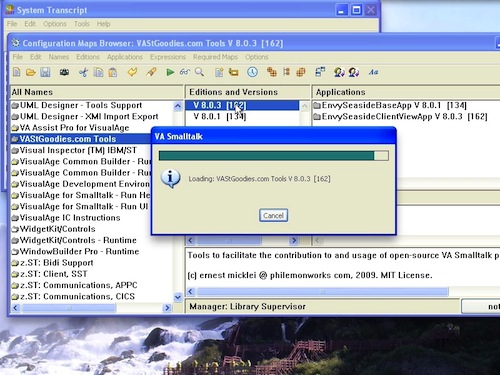
Today's Smalltalk 4 You looks at the help system that comes with VA Smalltalk. The only trouble you may have with it is the warning about loading "active content" into your browser; we'll cover that in the tutorial. If you have trouble viewing it here in the browser, you can also navigate directly to YouTube. To watch now, click on the image below:
VA Help.

If you have trouble viewing that directly, you can click here to download the video directly. If you need the video in a Windows Media format, then download that here.

You can also watch it on YouTube:


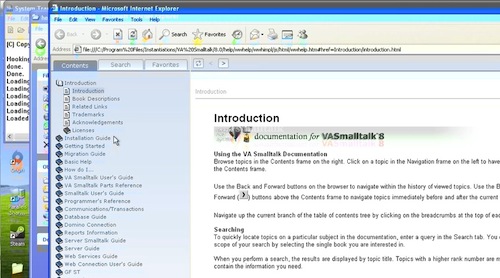
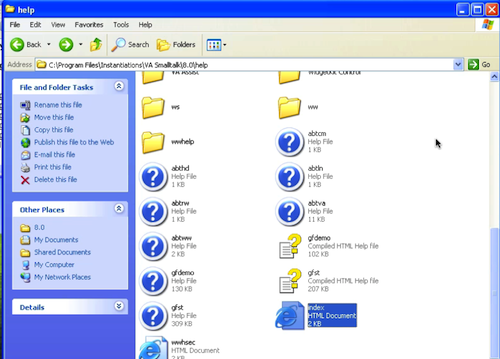
Today we'll look at the help system that comes with VA Smalltalk. It's standard Windows help - we'll go to the help directory and open that up:
Help

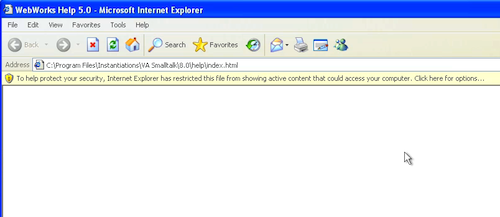
Depending on the browser you use, you may get a warning about loading active content. Since this content is local, and comes from a trusted vendor, we'll just ok it:
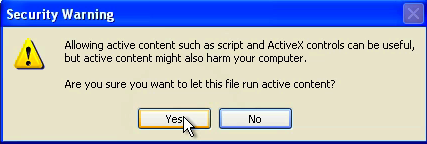
Accept Help

Accept Help

This opens up to the index page for VA help. From here, you can peruse all of the available topics:
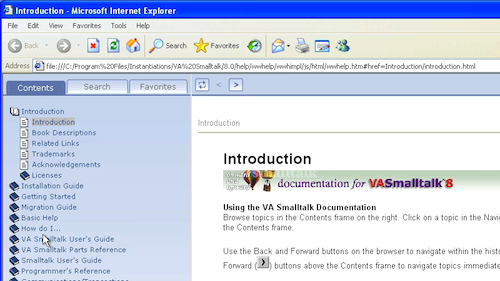
Browse Topics

For example - say you wanted to get started with a database application - just dive into that topic:
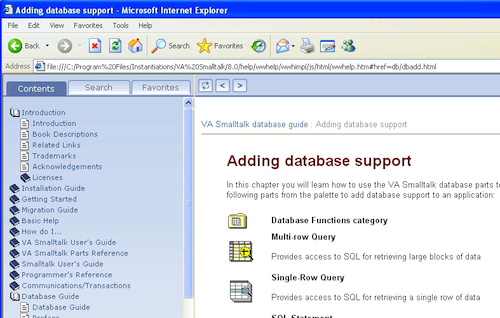
Browse Help

Need more help? There's a screencast for other topics like this which you may want to watch. Questions? Try the "Chat with James" Google gadget over in the sidebar.

Technorati Tags: , ,

Enclosures:
[st4u103-iPhone.m4v ( Size: 2590278 )]

posted by James Robertson

 Share Tweet This

st4u

ST 4U 102: Pharo 1.2.1 and Projects

July 1, 2011 9:36:52.731

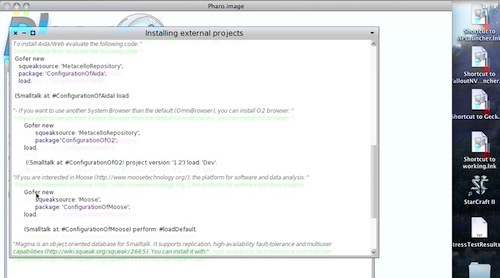
Today's Smalltalk 4 You takes a look at Pharo 1.2.1, and how it highlights using MetaCello to load projects. If you have trouble viewing it here in the browser, you can also navigate directly to YouTube. To watch now, click on the image below:

Pharo 1.2.1

If you have trouble viewing that directly, you can click here to download the video directly. If you need the video in a Windows Media format, then download that here.

You can also watch it on YouTube:

Technorati Tags: , ,

Enclosures:
[st4u102-iPhone.m4v ( Size: 3746920 )]

posted by James Robertson

 Share Tweet This

st4u

ST 4U 101: Exploring Editions with Trailblazer

June 29, 2011 11:21:59.923

Today's Smalltalk 4 You continues our exploration of the Trailblazer tools, looking at the Application Editions Browser. If you have trouble viewing it here in the browser, you can also navigate directly to YouTube. To watch now, click on the image below:

Trailblazer.

If you have trouble viewing that directly, you can click here to download the video directly. If you need the video in a Windows Media format, then download that here.

You can also watch it on YouTube:


Today we'll continue our overview of the Trailblazer tools, examing the Applications Editions browser. Go to the launcher and open that up:

Trailblazer

Like the configuration maps tool with Trailblazer, the lower pane configures itself based on your "trail" through the tool:

Application Editions

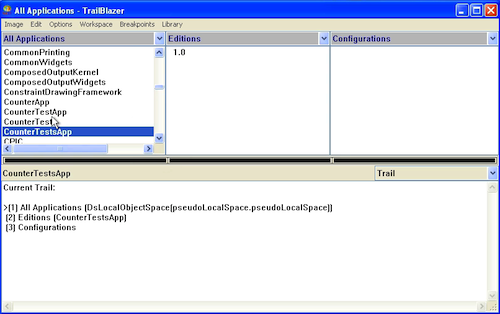
To give you an idea as to how it operates, let's scroll down to one of the Applications we created in an earlier screencast - CounterTestsApp:

Select an App

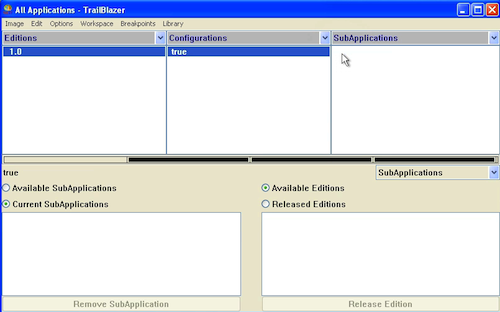
Next, select the true in the configuration expressions pane. At first, you'll think that most of the panes shifted contents, but in fact, you've scrolled right to the selected tab. If you have a wide enough display setting, you may not even notice:

Config Expressions

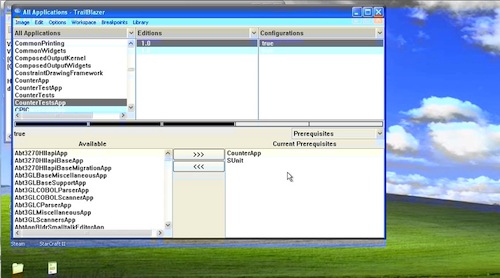
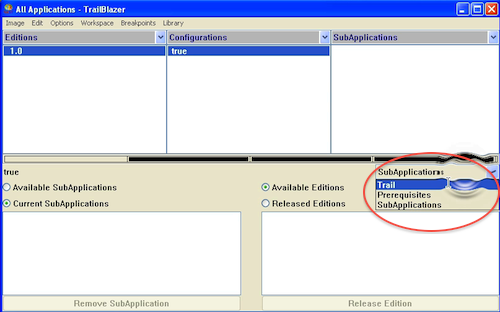
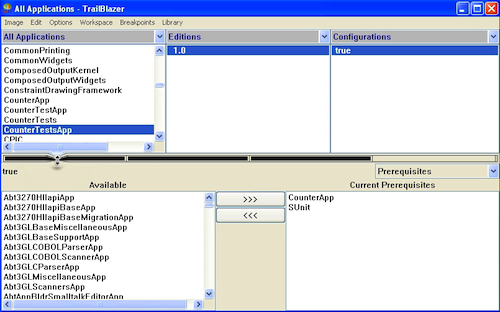
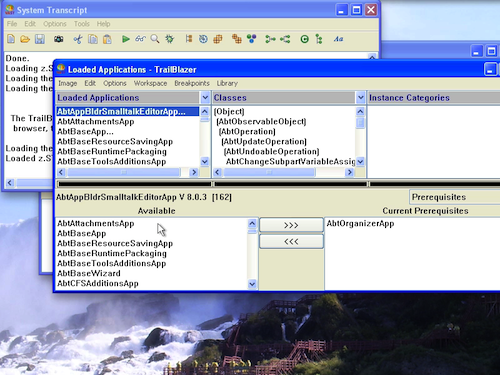
Notice the menu at the bottom. If you select Trail, you'll see where you are, logically speaking. If you select SubApplications, you'll see nothing (there are none for this application). Select Pre-Requisites, and you'll see a nice selector for those:

History

PreReqs

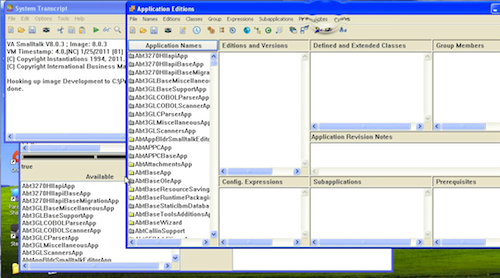
If you turn Trailblazer off in the launcher (note the checkbox in the tools menu), you can bring the original Application Editions browser up for comparison purposes. It's quite a bit busier than the Trailblazer version:

Compare Tools

Remember that you can now toggle this on and off from the Tools menu - if you end up preferring the base tools, just turn Trailblazer off.

Need more help? There's a screencast for other topics like this which you may want to watch. Questions? Try the "Chat with James" Google gadget over in the sidebar.

Technorati Tags: , , ,

Enclosures:
[st4u101-iPhone.m4v ( Size: 4996090 )]

posted by James Robertson

 Share Tweet This

st4u

ST 4U 100: Exploring Trailblazer

June 27, 2011 8:54:39.373

Today's Smalltalk 4 You takes a closer look at Trailblazer, focusing on the Configuration Map Browser. If you have trouble viewing it here in the browser, you can also navigate directly to YouTube. To watch now, click on the image below:

Trailblazer.

If you have trouble viewing that directly, you can click here to download the video directly. If you need the video in a Windows Media format, then download that here.

You can also watch it on YouTube:


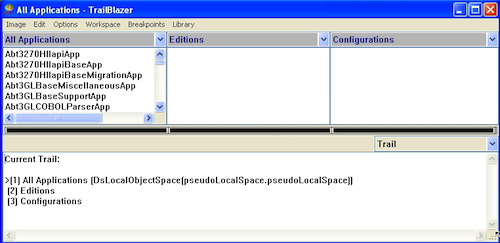
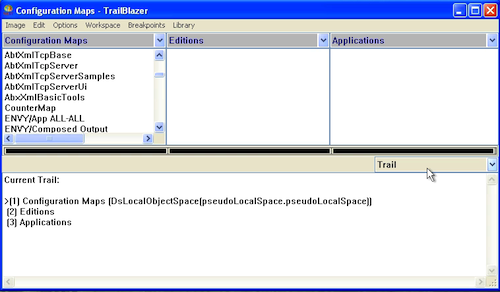
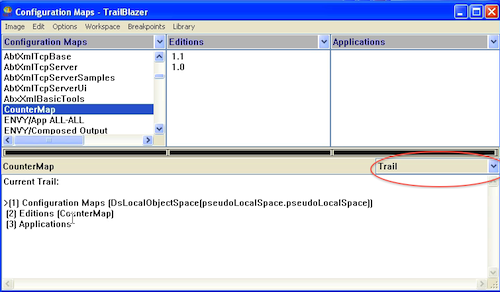
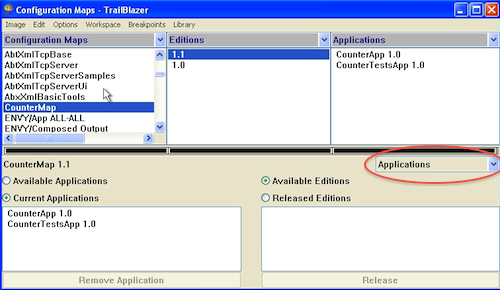
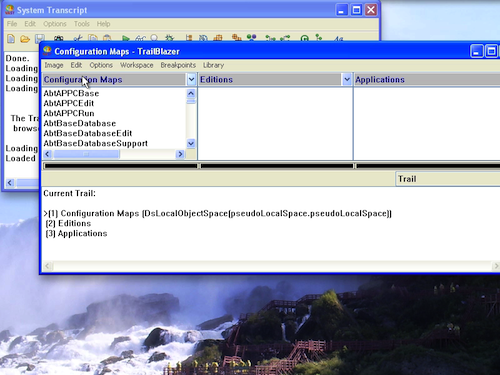
Once you've turned on the Trailblazer tools, you can start to see where the name comes from. Open up the Configuration Maps browser, and look at the drop down menu highlighted below. In the main text area below it, you'll see the "trail" that brought you here:

Trailblazer

Next, scroll down, select Trailblazer, and move it to the right:

Select Trailblazer

Select Trailblazer

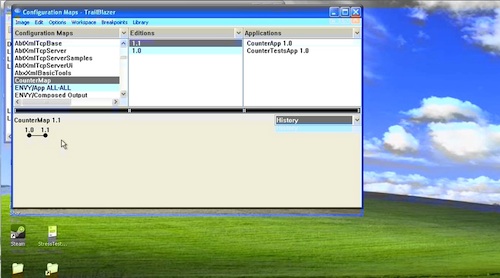
Now, select one of the editions for the map - notice how the view below chages. Now that you are looking at a specific edition, you can see more than History and Trail:

Applications off

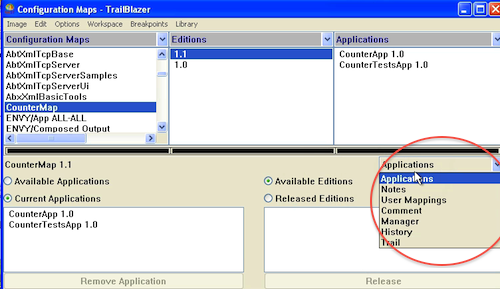
Expand that menu, and you'll see that you can view notes, comments, and a number of other things specific to the selected edition. Go ahead and select each one, and look at how the view changes for each:

Explore Options

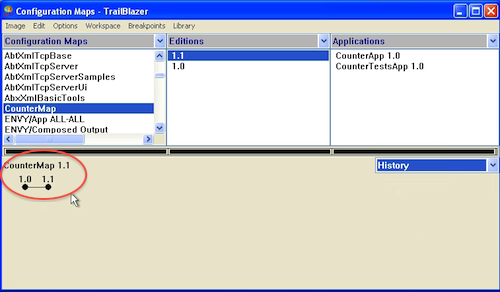
For long lived projects, one of the more interesting views is History. Select that and you can see all of the branch history, from the origin of the selected edition to where it is now:

History

Finally, select Pre-Requisites. For the CounterMap I'm using here, you won't see any - recall that I set those at the map level, and we are looking at the applications that make up the map. The point is that Trailblazer lets you drill down to that level right here:

PreReqs

Remember that you can now toggle this on and off from the Tools menu - if you end up preferring the base tools, just turn Trailblazer off.

Need more help? There's a screencast for other topics like this which you may want to watch. Questions? Try the "Chat with James" Google gadget over in the sidebar.

Technorati Tags: , , ,

Enclosures:
[st4u100-iPhone.m4v ( Size: 4279178 )]

posted by James Robertson

 Share Tweet This

st4u

ST 4U 99: VW Project Launcher

June 24, 2011 7:17:14.832

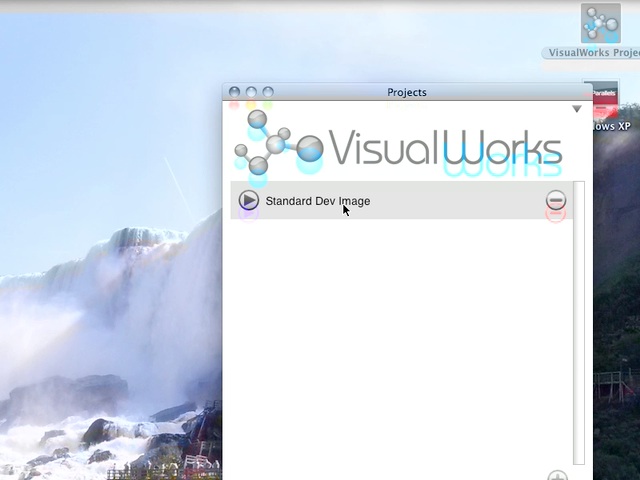
Today's Smalltalk 4 You looks at the Project Launcher in VisualWorks - a promising new tool that simplifies the way you set up Smalltalk projects. If you have trouble viewing it here in the browser, you can also navigate directly to YouTube. To watch now, click on the image below:

Project Launcher

If you have trouble viewing that directly, you can click here to download the video directly. If you need the video in a Windows Media format, then download that here.

You can also watch it on YouTube:

Technorati Tags: , ,

Enclosures:
[st4u99-iPhone.m4v ( Size: 6176065 )]

posted by James Robertson

 Share Tweet This

st4u

ST 4U 98: Trailblazer Browsers

June 22, 2011 7:43:18.470

Today's Smalltalk 4 You looks at the Trailblazer tools in VA Smalltalk - specifically, how to load them and turn them on. In future screencasts, we'll take a closer look at them and explore their functionality. If you have trouble viewing it here in the browser, you can also navigate directly to YouTube. To watch now, click on the image below:

Trailblazer.

If you have trouble viewing that directly, you can click here to download the video directly. If you need the video in a Windows Media format, then download that here.

You can also watch it on YouTube:


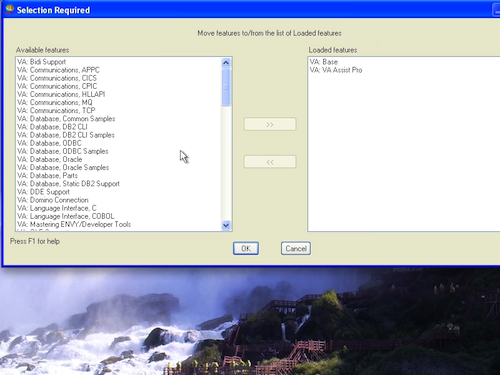
The basic browsers in VA Smalltalk are not your only option - you can also load the Trailblazer tools, which look and behave a little differently. Today we'll look at a few basics for Trailblazer, starting with how to get the tools loaded. First, open the Load features UI:

Load Features

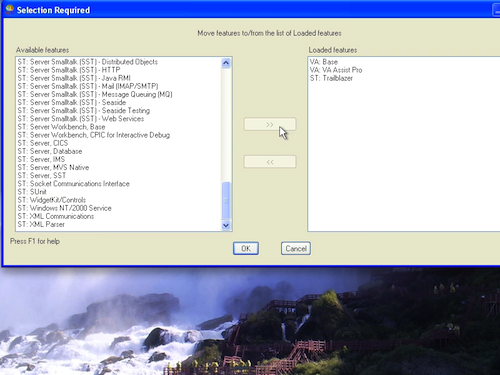
Next, scroll down, select Trailblazer, and move it to the right:

Select Trailblazer

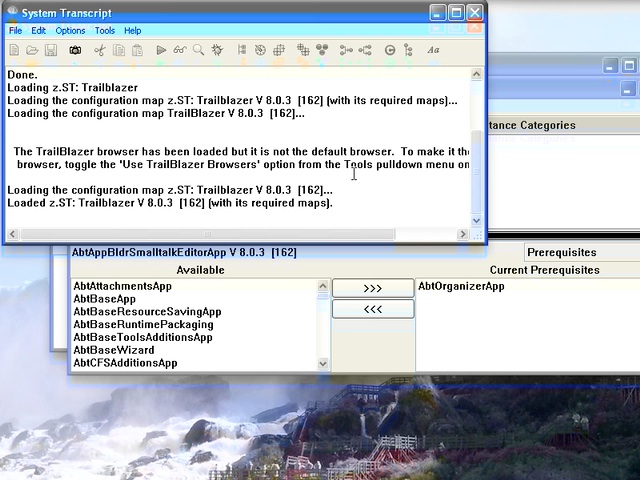
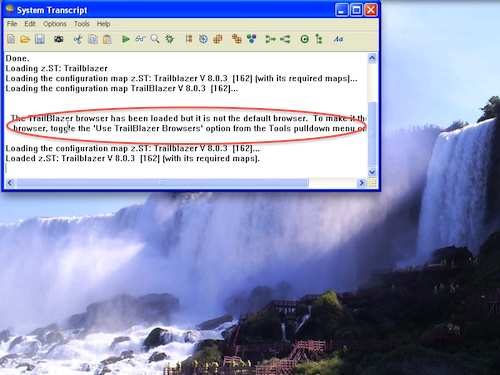
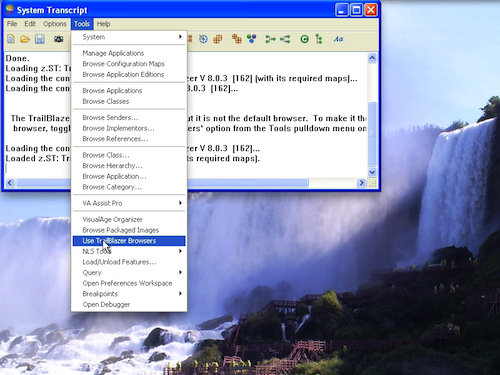
Note the message in the transcript - the Trailblazer tools are not on by default. To turn them on, go to the Tools menu, and toggle the Trailblazer option on:

Trailblazer off

Trailblazer on

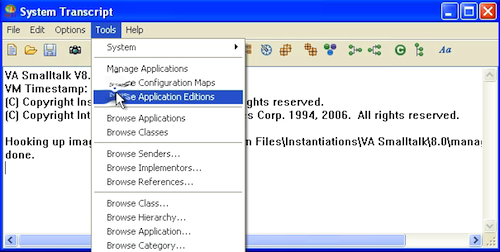
Now, open the Configuration Maps Browser, and you'll see a different tool than what we've looked at previously:

Trailblazer Tool

Try opening the Application browser - you'll see that's different as well:

Trailblazer Tool

Remember that you can now toggle this on and off from the Tools menu - if you end up preferring the base tools, just turn Trailblazer off.

Need more help? There's a screencast for other topics like this which you may want to watch. Questions? Try the "Chat with James" Google gadget over in the sidebar.

Technorati Tags: , ,

Enclosures:
[st4u98-iPhone.m4v ( Size: 5764051 )]

posted by James Robertson

 Share Tweet This

st4u

ST 4U 97: Publishing to VAST Goodies.com

June 20, 2011 4:07:09.007

Today's Smalltalk 4 You looks at how you use the VASTGoodies.com tools to contribute code back to the VA Smalltalk community. It's pretty easy, as you'll see in the video. If you need more details, visit the place I learned about this! If you have trouble viewing it here in the browser, you can also navigate directly to YouTube. To watch now, click on the image below:

Contributing Code.

If you have trouble viewing that directly, you can click here to download the video directly. If you need the video in a Windows Media format, then download that here.

You can also watch it on YouTube:


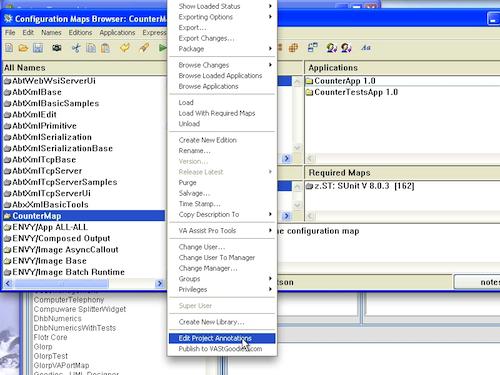
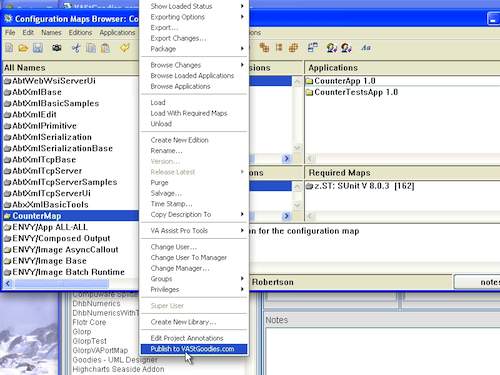
Today we'll be going back to the VASTGoodies.com site, and walking through the process of contributing code to the site. Using the tools we downloaded last time, this is pretty easy. First, we load the goodies into our image. Then, in a Configuration Maps Browser, select a configuration and note the two new items towards the bottom:

Configuration Maps

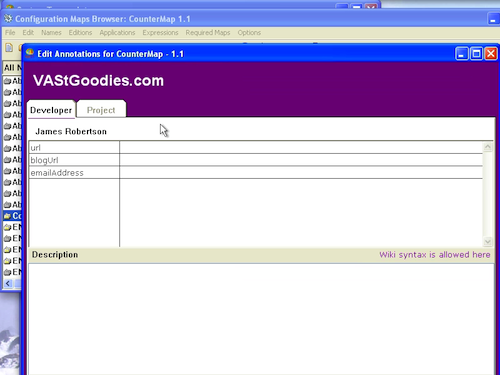
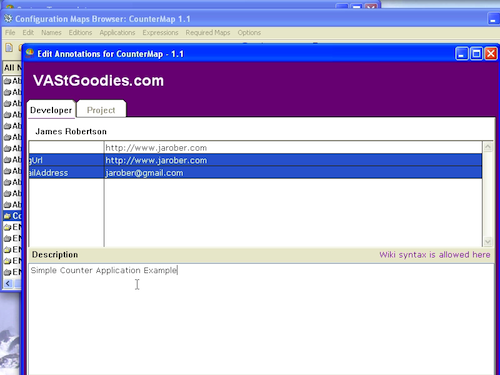
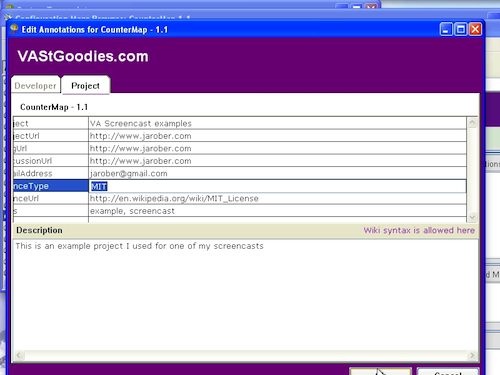
Select Edit Annotations to bring up a properties window. This is how you specify the various bits of information that appear on the website itself, giving information to other users about you:

Developer Details

Developer Details

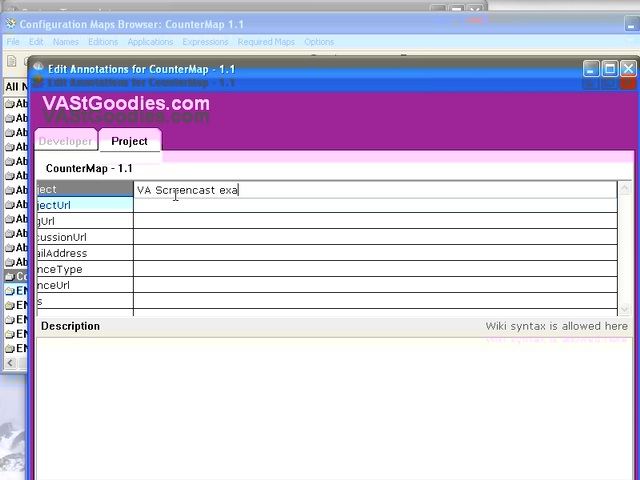
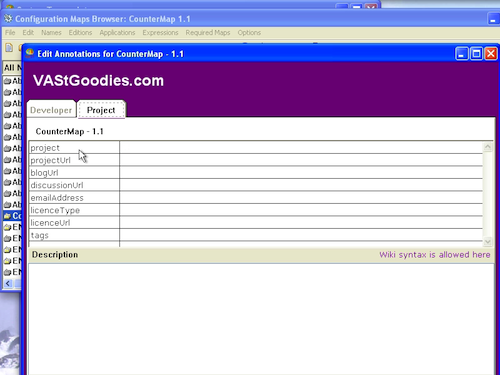
Select the Project tab to fill in details about your project:

Project Details

Project Details

Now, hit the Ok button, and go back to the Configuration Map Browser. Select the Publish to VASTGoodies.com option in the menu:

Publish

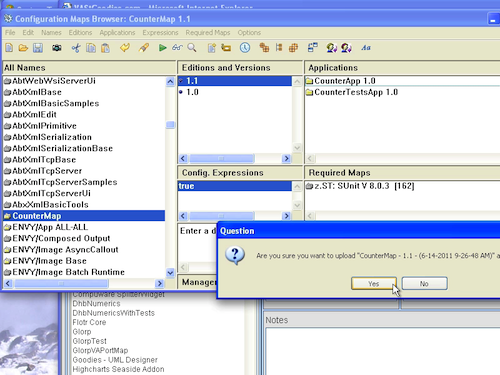
You'll get a confirmation dialog - just hit Ok:

Confirm Publish

Now go back to the web browser and refresh the page - you should see your project in the list. That's all there is to it.

Need more help? There's a screencast for other topics like this which you may want to watch. Questions? Try the "Chat with James" Google gadget over in the sidebar.

Technorati Tags: , , ,

Enclosures:
[st4u97-iPhone.m4v ( Size: 8191217 )]

posted by James Robertson

 Share Tweet This

st4u

ST 4U 96: Launching Another Image

June 17, 2011 11:15:58.839

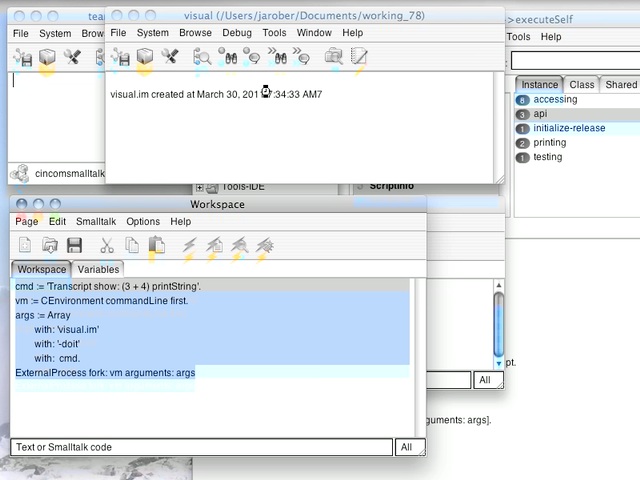
Today's Smalltalk 4 You shows you how to launch one VW image from within another VW image. This is useful for many tasks beyond multi-core support for distributed jobs; I use this to launch images sequentially from a "driver" image to do automated builds. If you have trouble viewing it here in the browser, you can also navigate directly to YouTube. To watch now, click on the image below:

Launching VW Images

If you have trouble viewing that directly, you can click here to download the video directly. If you need the video in a Windows Media format, then download that here.

You can also watch it on YouTube:

Technorati Tags: , ,

Enclosures:
[st4u96-iPhone.m4v ( Size: 4947941 )]

posted by James Robertson

 Share Tweet This

st4u

ST 4U 95: Specifying Configuration Map Pre-Reqs

June 15, 2011 8:27:48.491

Today's Smalltalk 4 You looks at specifying the prequisites for a configuration map. For the example map we created for the Counter application, we'll need to make sure that the SUnit library pre-loads. If you have trouble viewing it here in the browser, you can also navigate directly to YouTube. To watch now, click on the image below:

Config Map Pre-Reqs.

If you have trouble viewing that directly, you can click here to download the video directly. If you need the video in a Windows Media format, then download that here.

You can also watch it on YouTube:


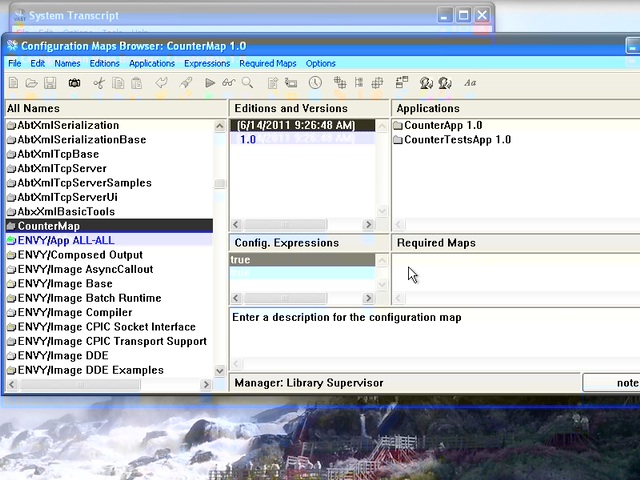
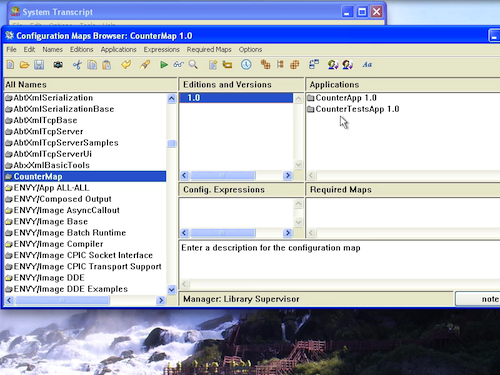
Today we'll be going back to the configuration map browser in VA Smalltalk. We created a Configuration Map to load our Counter application and tests together - but we didn't set it up to load the SUnit library if that wasn't already in the image. Today we'll go back and address that. First, open up the browser on the map:

Configuration Maps

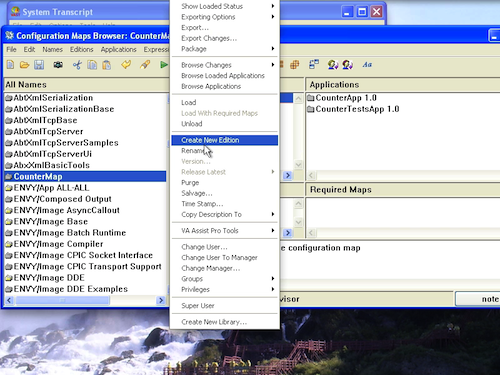
To specify pre-requisites, we need to create a new edition. Right click on the 1.0 release, and select Create New Edition:

New Edition

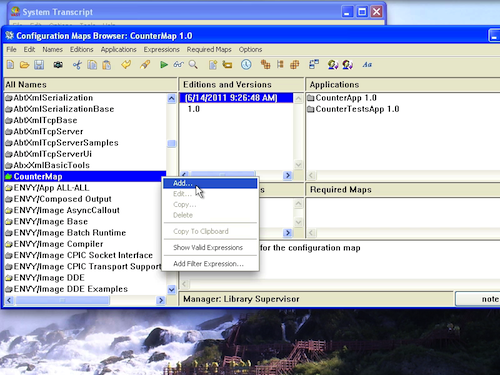
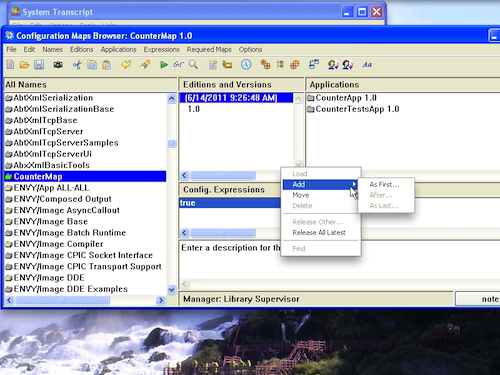
Move the cursor down to the expression pane below, and select Add from the context menu:

Add Configuration Expression

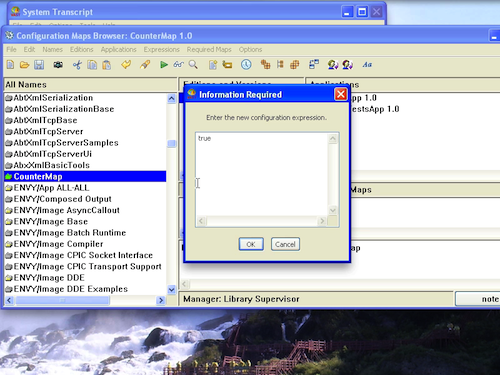
We have to specify a boolean expression here - if it evaluates to true, then the pre-requisite maps in the next pane will be loaded. Typically, we just set this directly to "true", but you can add more complex expressions:

Configuration Expression

Moving one pane to the right, we can now specify configuration maps that should be loaded before the one we are working on - and the load order for them. Pop up the context menu and select Add First. We only have one pre-requisite here - you can change the order if you have more:

Add Pre-requisite

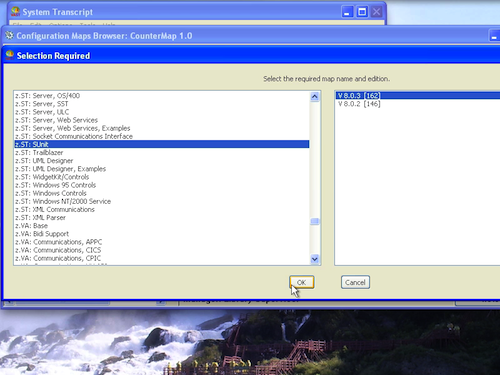
In the window that pops up, move the libraries you need loaded from the left to the right, and then hit "Ok":

Select the Libraries

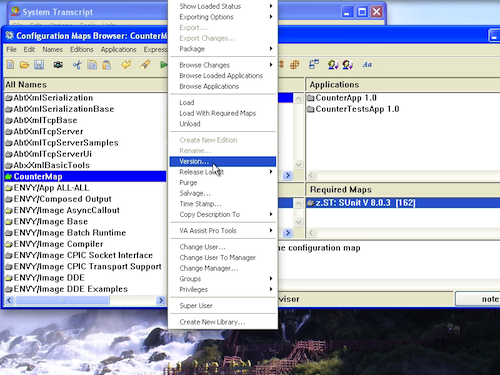
Now that we've specified the new pre-reqs, we need to release a version. Select the edition in the upper pane and right click - then select Version:

Release New Version

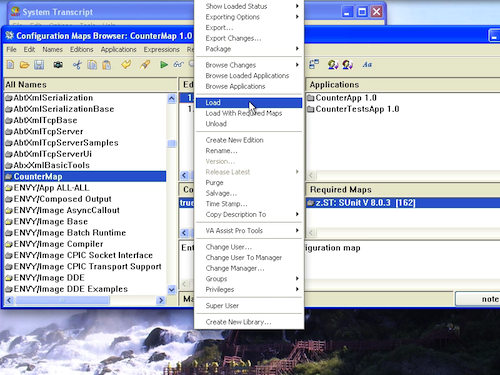
We have been doing all of this work without our library load. With the new edition selected, pop up the context menu again and select Load:

Load

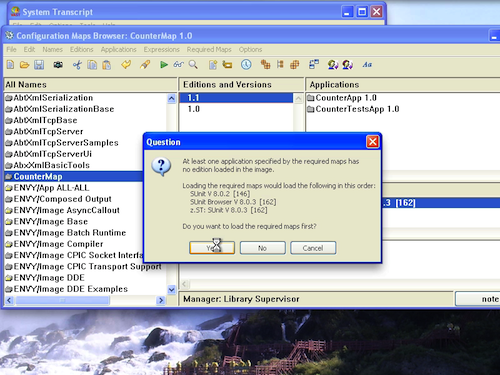
A small window will pop up to tell you what's about to be loaded, and in what order. Simply proceed by pressing "Ok":

Loading

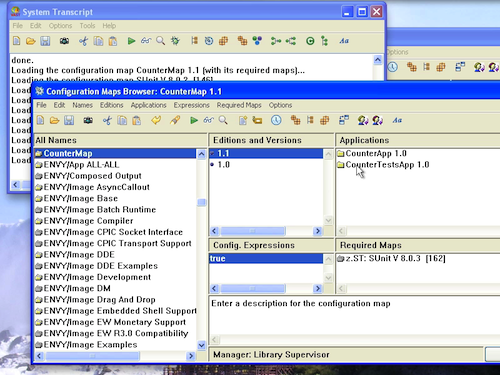
And that's it - we've just loaded the new version, along with its pre-reqs.

Loaded

Need more help? There's a screencast for other topics like this which you may want to watch. Questions? Try the "Chat with James" Google gadget over in the sidebar.

Technorati Tags: , , ,

Enclosures:
[st4u95-iPhone.m4v ( Size: 7692706 )]

posted by James Robertson

 Share Tweet This

st4u

ST 4U 94: VAST Goodies

June 13, 2011 9:42:22.086

Today's Smalltalk 4 You looks at the VAST Goodies site - a VA Smalltalk seaside powered side used to share community provided VA code. If you have trouble viewing it here in the browser, you can also navigate directly to YouTube. To watch now, click on the image below:

VA Goodies.

If you have trouble viewing that directly, you can click here to download the video directly. If you need the video in a Windows Media format, then download that here.

You can also watch it on YouTube:


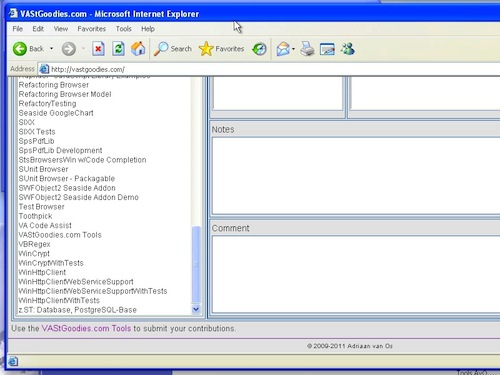
Today we'll look at the VAST Goodies site - it's both an example of a VA Smalltalk application (using Seaside), and a useful site for getting (and contributing) community provided Smalltalk code. In order to make use of it, you first need to download the tools - which will also serve as an example of how to download and load code from the goodies repository into VA Smalltalk. First, visit vastgoodies.com:

VAST Goodies

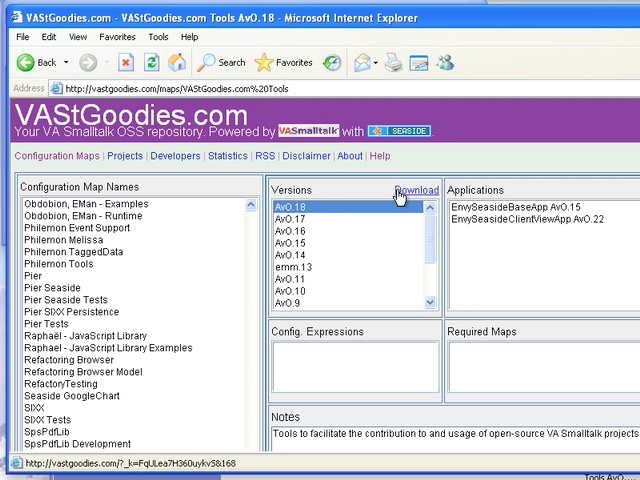
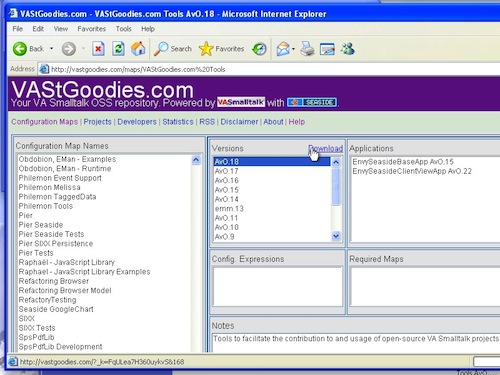
Scroll down, and select the Tools link. That will select the configuration map to download in the view. Scroll back up, and select the Download link:

Download

Download

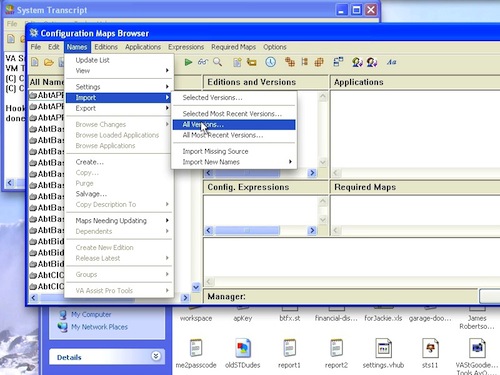
Next, open up a Configuration Map Browser, and under Names, select Import, all versions.

Import

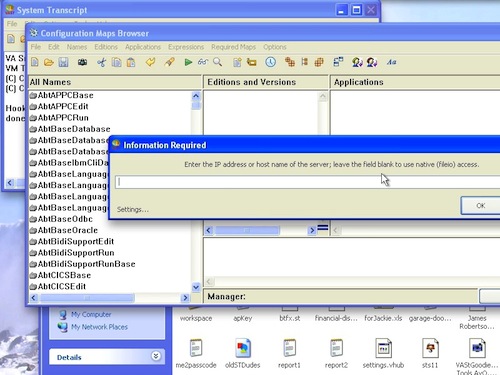
This will pop up a dialog that you can easily misinterpret. To select an import file, just don't enter anything and hit ok:

Import

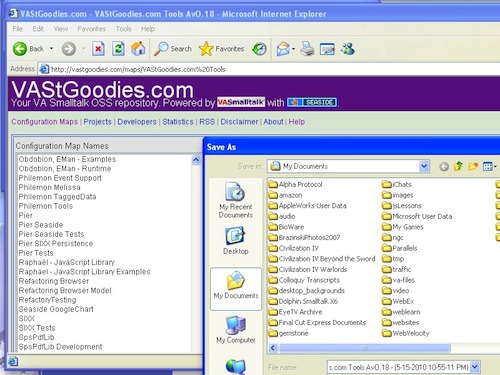
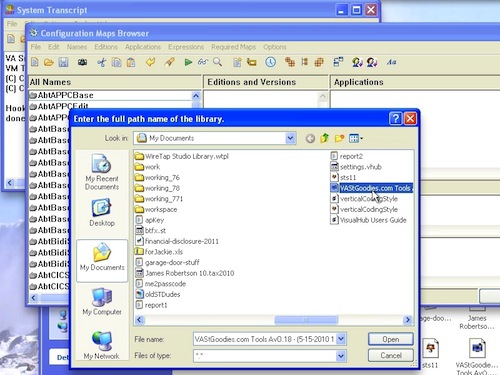
Now select the file and hit ok in the standard dialog:

Select the File

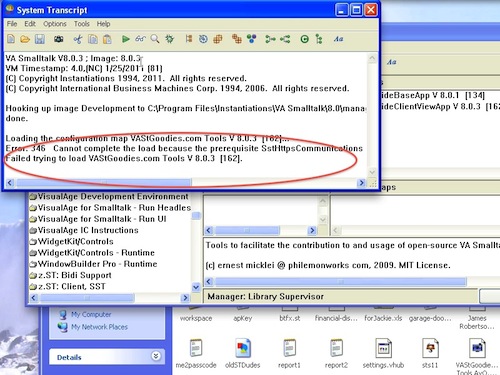
That added the file to your ENVY library - but an attempt to load from the Configuration Map Browser you have open fails - due to a pre-req that wasn't specified:

Load Failed

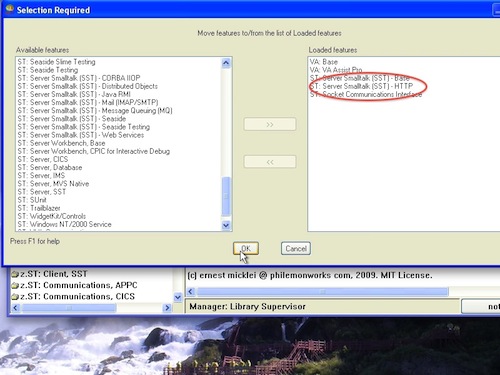
Go back to the feature import tool, select SST HTTP, and move it to the right. Then load that:

Pre-Reqs

Now return to the Configuration Map Browser and load the Goodies tools - they'll come in just fine now:

Load Goodies Tools

That gets the tools in - we'll look at how to make use of them in another tutorial.

Need more help? There's a screencast for other topics like this which you may want to watch. Questions? Try the "Chat with James" Google gadget over in the sidebar.

Technorati Tags: , , ,

Enclosures:
[st4u94-iPhone.m4v ( Size: 8660083 )]

posted by James Robertson

 Share Tweet This

Previous Next (554 total)