. .

st4u

ST 4U 143: insert and Query in VA Smalltalk

October 10, 2011 10:46:13.927

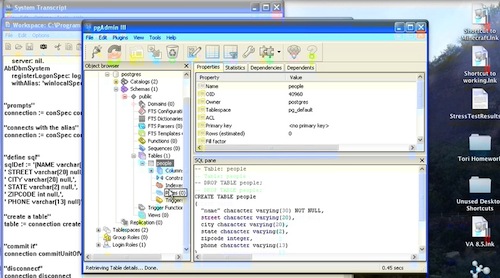
Today's Smalltalk 4 You looks at inserting data into tables, and querying data from tables, in VA Smalltalk. If you have trouble viewing it here in the browser, you can also navigate directly to YouTube. To watch now, click on the image below:
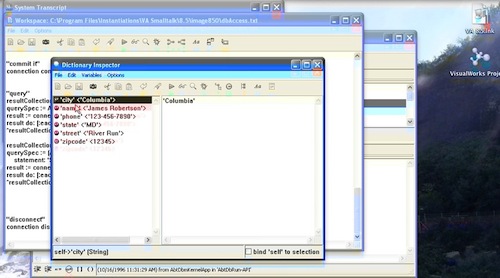
Insert and Query.

If you have trouble viewing that directly, you can click here to download the video directly. If you need the video in a Windows Media format, then download that here.

You can also watch it on YouTube:


Today we'll look at inserting and querying data from a database in VA Smalltalk - to see how to connect, please go back to this tutorial, as we are building on it here.

Once you have a connection to your database set up (with a user who has permissions to make changes), you can insert data pretty easily. Get a reference to the table (as we did for creating it), and then create a new row object:


table := (connection openTableNamed: 'PEOPLE').
newRow := table emptyRow.

Now that you have a row, add data (as you would using a dictionary), and then tell the table to add the row. Don't forget to commit the changes:


newRow 
	at: #name put: 'James Robertson';
	at: #street put: 'River Run';
	at: #city put: 'Columbia';
	at: #state put: 'MD';
	at: #zipcode put: 12345;
	at: #phone put: '123-456-7890'.
table addRow: newRow.


"commit it"
connection commitUnitOfWork

Next, we'll query the database for the data we just inserted. Set up a query spec. For simple "select *" type queries, there's a convenience method:


"query"
resultCollection := OrderedCollection new.
querySpec := AbtQuerySpec forEntireTable: table.
result := connection resultTableFromQuerySpec: querySpec.
result do: [:eachRow | resultCollection add: (eachRow)].
^resultCollection first asDictionary

There are a number of things going on there. First, we create a query spec. Then we take the results and gather them into a collection. The results are a collection of AbtRow objects - which is where the #asDictionary API comes from:
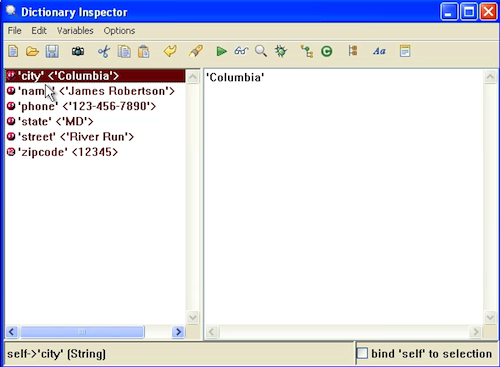
AbtRow

You should take a bit of time to browse that class and look at the APIs. What if you want to use arbitrary SQL, and not an implied "Select *"? Use something like this:


resultCollection := OrderedCollection new.
querySpec := (AbtQuerySpec new)
	statement: 'SELECT * FROM PEOPLE'.
result := connection resultTableFromQuerySpec: querySpec.
result do: [:eachRow | resultCollection add: (eachRow)].
^resultCollection first asDictionary.

That pretty much wraps it up for today - we'll look at some more examples next time.

Need more help? There's a screencast for other topics like this which you may want to watch. Questions? Try the "Chat with James" Google gadget over in the sidebar.

Technorati Tags: , ,

Enclosures:
[st4u143-iPhone.m4v ( Size: 6430069 )]

posted by James Robertson

 Share Tweet This

st4u

ST 4U 142: Using SQL in VA Smalltalk

October 7, 2011 12:00:33.950

Today's Smalltalk 4 You looks at using VA Smalltalk to interact with a relational database. Today, we add a new table from Smalltalk - to see how to connect, please go back to this tutorial. If you have trouble viewing it here in the browser, you can also navigate directly to YouTube. To watch now, click on the image below:

Adding a Table.

If you have trouble viewing that directly, you can click here to download the video directly. If you need the video in a Windows Media format, then download that here.

You can also watch it on YouTube:


Today we'll look at creating a table in VA Smalltalk - to see how to connect, please go back to this tutorial, as we are building on it here.

Once you have a connection to your database set up (with a user who has permissions to make changes), set up your SQL to create a table:

"connects with the alias"
connection := conSpec connectUsingAlias: 'winlocalSpec'.


"define sql"
sqlDef := '(NAME varchar(30) NOT NULL,',
' STREET varchar(20) null,',
' CITY varchar(20) null,',
' STATE varchar(2) null,',
' ZIPCODE int null,',
' PHONE varchar(13) null)'.

This sets up the SQL to create a simple table. Now we need to tell the connection to send it to the database:


"create a table"
table := connection createTableNamed: 'PEOPLE' definition: sqlDef.

At this point, you aren't quite done. Since this is a database change rather than just a query, we need to commit the change:


"commit it"
connection commitUnitOfWork

Finally, after working with your database, make sure you close the connection:


"disconnect"
connection disconnect.

We'll look at querying and binding query results in a future tutorial.

Need more help? There's a screencast for other topics like this which you may want to watch. Questions? Try the "Chat with James" Google gadget over in the sidebar.

Technorati Tags: , ,

Enclosures:
[st4u142-iPhone.m4v ( Size: 4475151 )]

posted by James Robertson

 Share Tweet This

st4u

ST 4U 141: Unit Testing in VW

October 5, 2011 8:19:50.536

Today's Smalltalk 4 You looks at SUnit (SUnitToo, actually) testing in VisualWorks. If you have trouble viewing it here in the browser, you can also navigate directly to YouTube. To watch now, click on the image below:

SUnit in VW

If you have trouble viewing that directly, you can click here to download the video directly. If you need the video in a Windows Media format, then download that here.

You can also watch it on YouTube:

Technorati Tags: , ,

Enclosures:
[st4u141-iPhone.m4v ( Size: 5495128 )]

posted by James Robertson

 Share Tweet This

st4u

ST 4U 140: Connecting to a Database with VA Smalltalk

October 3, 2011 8:12:49.496

Today's Smalltalk 4 You looks at basic database connectivity in VA Smalltalk - what to load, and how to connect. In future screencasts, we'll look at using the connection for things like queries. If you have trouble viewing it here in the browser, you can also navigate directly to YouTube. To watch now, click on the image below:

Database Connectivity.

If you have trouble viewing that directly, you can click here to download the video directly. If you need the video in a Windows Media format, then download that here.

You can also watch it on YouTube:


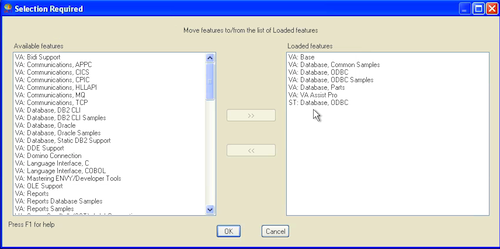
Today we'll look at basic database connectivity in VA Smalltalk. Rather than using the parts based connector technology, we'll be diving into the code. To get started, you'll want to load the database support into VA; in the screen capture below, we show the ODBC connectivity (and example) packages loaded. Note that you need to define an ODBC connection, and have a database locally accessible:

Database Connectivity

Next, you'll need to set up the connection, using code like this:


"Create the Connection Specification"
conSpec := AbtDatabaseConnectionSpec
forDbmClass: #AbtOdbcDatabaseManager
dataSourceName: 'winlocal'.
dict := (Dictionary new).
dict 
	at: 'winlocal' put: (conSpec dataSourceName);
	at: 'DBManager' put: (conSpec dbmClass);
	at: 'Prompt?' put: (conSpec promptEnabled).

That sets up a connection specification, saving it under the logical name winLocal. We can then refer to this connection specification by name in our code. Next, if you want to login with a prompt, simply do this:


"prompts"	
connection := conSpec connect.


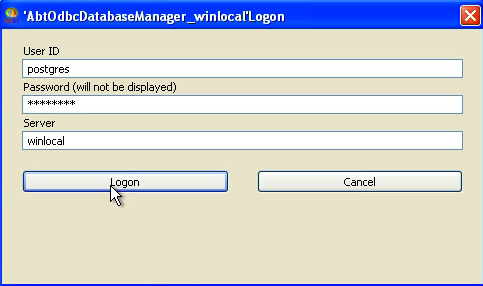
You should see this:

Database Connectivity

If you want to save your login information in the same way you stored the connection information, that's simple enough as well:


"Create the Logon specification"
logonSpec := AbtDatabaseLogonSpec
	id: username
	password: password
	server: nil.
AbtDbmSystem 
	registerLogonSpec: logonSpec
	withAlias: 'winlocalSpec'.

Make sure you pass in the proper username and password. To connect using connection and login spec (and thus, getting no login prompt), do the following:


"connects with the alias"
connection := conSpec connectUsingAlias: 'winlocalSpec'.

Finally, after working with your database, make sure you close the connection:


"disconnect"
connection disconnect.

We'll look at actually using the connection for things like querying in a future tutorial.

Need more help? There's a screencast for other topics like this which you may want to watch. Questions? Try the "Chat with James" Google gadget over in the sidebar.

Technorati Tags: , ,

Enclosures:
[st4u140-iPhone.m4v ( Size: 5089211 )]

posted by James Robertson

 Share Tweet This

st4u

ST 4U 139: VA System Settings

September 30, 2011 9:58:31.210

Today's Smalltalk 4 You looks at a system level settings in VA Smalltalk. If you have trouble viewing it here in the browser, you can also navigate directly to YouTube. To watch now, click on the image below:

Settings.

If you have trouble viewing that directly, you can click here to download the video directly. If you need the video in a Windows Media format, then download that here.

You can also watch it on YouTube:


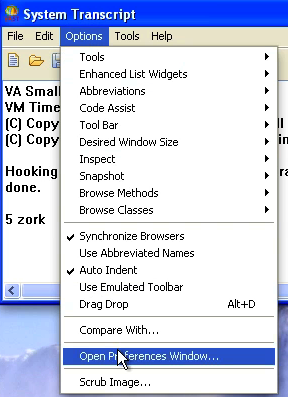
Today we'll look at a few more configuration options for VA Smalltalk - at the image level, rather than at the granularity of the coding assistance tools. To start, go to the launcher and select Options<<Open Preferences Window:

VA Preferences

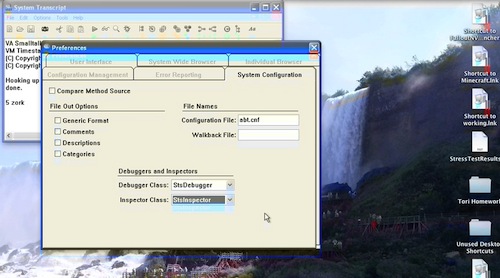
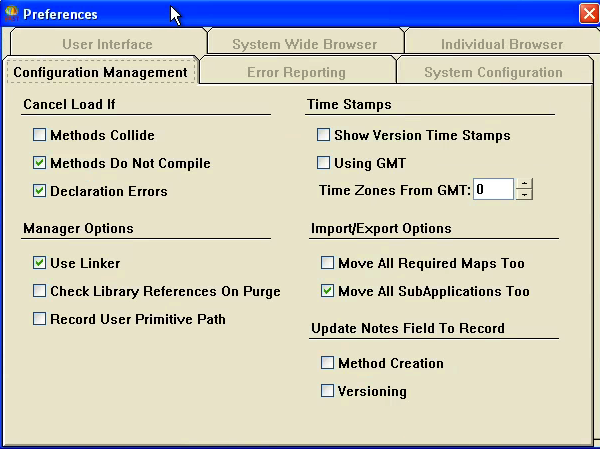
A Tabbed settings window comes up, with various options on the tabs:

Settings

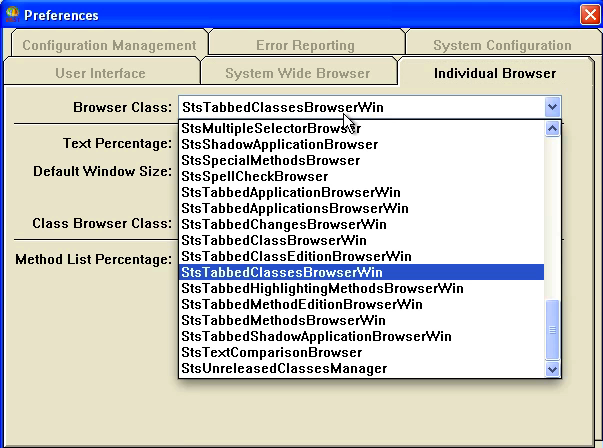
For example - don't like the browser selections that VA picks for you? Go to the Individual Browser tab and change it:

Settings

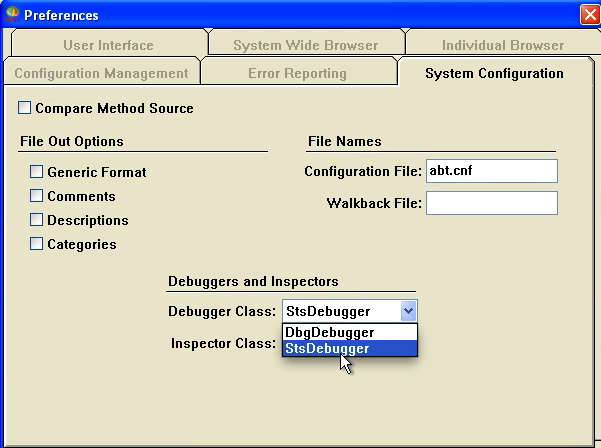
Want to change the debugger selections? You can do that too:

Settings

It's probably worth your while spending a few minutes examine the various options

Need more help? There's a screencast for other topics like this which you may want to watch. Questions? Try the "Chat with James" Google gadget over in the sidebar.

Technorati Tags: , ,

Enclosures:
[st4u139-iPhone.m4v ( Size: 3836287 )]

posted by James Robertson

 Share Tweet This

st4u

ST 4U 138: Configuring Coding Assistance in VA Smalltalk

September 28, 2011 11:37:54.120

Today's Smalltalk 4 You looks at the configurability of the new coding assistance feature of VA Smalltalk 8.5 (which was ,a href="blogView?entry=3494234789">covered in another screencast). If you have trouble viewing it here in the browser, you can also navigate directly to YouTube. To watch now, click on the image below:

Code Completion.

If you have trouble viewing that directly, you can click here to download the video directly. If you need the video in a Windows Media format, then download that here.

You can also watch it on YouTube:


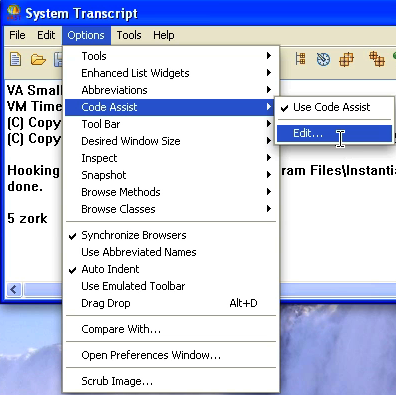
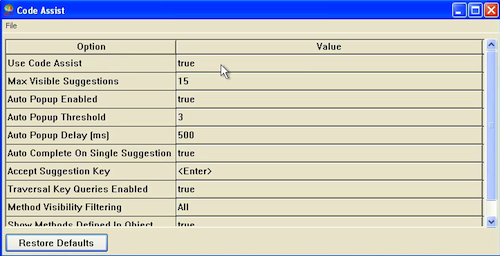
Today we'll look at configuring the new Coding Assistance (auto complete) that is part of the new VA Smalltalk 8.5. To get there, go to the Options menu item in the launcher, and select the pull right for Code Assist. Note that you can turn it on and off, or select more granular options, which we'll do now:

Code Completion Settings

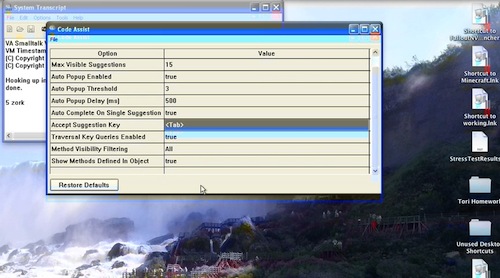
Select the Edit option - you'll get a preferences window:

Code Completion Settings

Now you can toggle any of the available settings - for instance, you can change the key for accepting an assist from <Enter> to <Tab>. The changes are immediate, and note that you can simply restore the defaults at any time.

Need more help? There's a screencast for other topics like this which you may want to watch. Questions? Try the "Chat with James" Google gadget over in the sidebar.

Technorati Tags: , ,

Enclosures:
[st4u138-iPhone.m4v ( Size: 4124413 )]

posted by James Robertson

 Share Tweet This

st4u

ST 4U 137: Using Fuel as a Package Loader

September 26, 2011 9:24:56.554

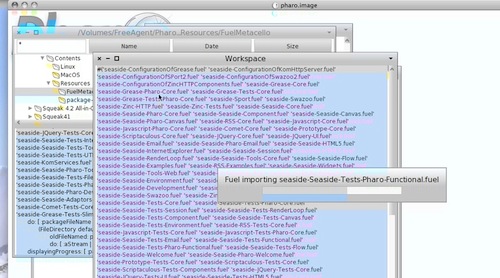
Today's Smalltalk 4 You looks at using fuel as a package exporter/importer. This code is experimental - you should read Mariano's post on it before you decide to "us it in anger". If you have trouble viewing it here in the browser, you can also navigate directly to YouTube. To watch now, click on the image below:

Fuel

If you have trouble viewing that directly, you can click here to download the video directly. If you need the video in a Windows Media format, then download that here.

You can also watch it on YouTube:

Technorati Tags: ,

Enclosures:
[st4u137-iPhone.m4v ( Size: 7685703 )]

posted by James Robertson

 Share Tweet This

st4u

ST 4U 136: Code Completion in VA 8.5

September 23, 2011 12:46:29.236

Today's Smalltalk 4 You looks at a new feature in VA Smalltalk 8.5 - code completion in the browsers. It works pretty well, and will improve your VA experience a lot If you have trouble viewing it here in the browser, you can also navigate directly to YouTube. To watch now, click on the image below:

Code Completion.

If you have trouble viewing that directly, you can click here to download the video directly. If you need the video in a Windows Media format, then download that here.

You can also watch it on YouTube:


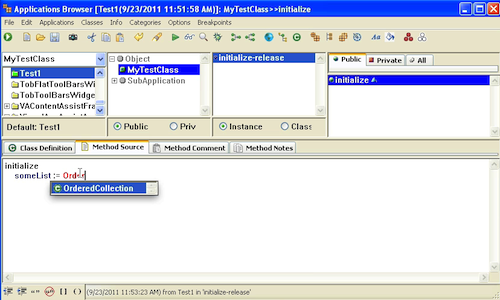
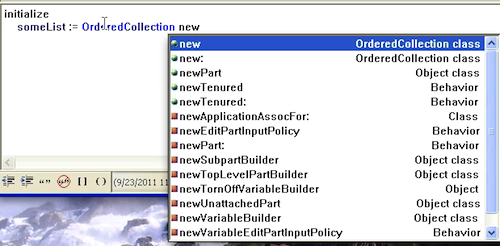
Today we'll look at one of the nicer new features of VA Smalltalk 8.5 - code completion in the browsers. To demonstrate, we've created a new class with an instance variable - below, we started initializing it to an instance of OrderedCollection:

Code Completion

Notice how it narrowed the possible selections down to the only one possible. If there were more matches, it would have given us a list. To take the selection, simply hit return - or to not take it and continue, just keep typing; the pop up does not have keyboard focus. Next, note what happens before we finish typing #new:

Code Completion

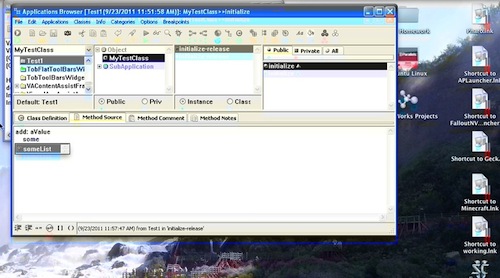
Here we see a list of all possible matches that extend from the three letters that are entered. If we hit period, the pop up will be dismissed. To take one of the selections, use the arrow keys, then hit return. Again, to just finish on your own, simply keep typing. Finally, what about instance variables?

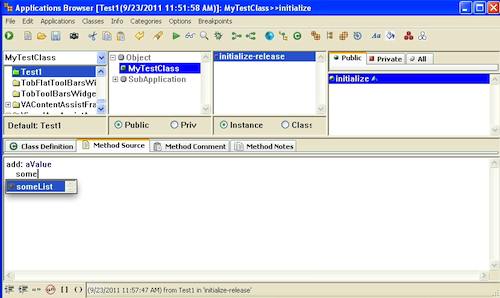
Contextual Code Completion

VA Notes that one of the instance variables is a possible match, and offers it up. gain, select with return, or keep typing.

Need more help? There's a screencast for other topics like this which you may want to watch. Questions? Try the "Chat with James" Google gadget over in the sidebar.

Technorati Tags: , ,

Enclosures:
[st4u136-iPhone.m4v ( Size: 3511221 )]

posted by James Robertson

 Share Tweet This

st4u

ST 4U 135: Exporting and Importing Code with ENVY

September 21, 2011 10:22:35.726

Today's Smalltalk 4 You looks at how you export code from one ENVY repository and import it into another. The context here is moving from one edition of VA to another, but the process is the same regardless of why you need to move code between repositories. You can download the exported repository being used as well. If you have trouble viewing it here in the browser, you can also navigate directly to YouTube. To watch now, click on the image below:

Exporting Code.

If you have trouble viewing that directly, you can click here to download the video directly. If you need the video in a Windows Media format, then download that here.

You can also watch it on YouTube:


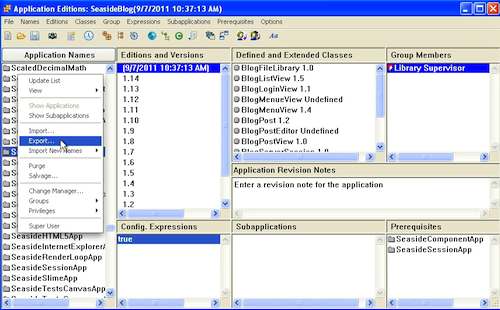
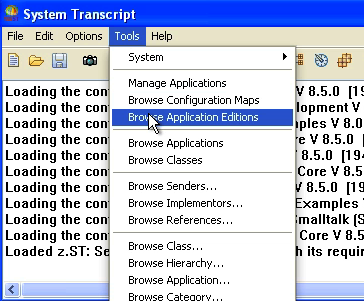
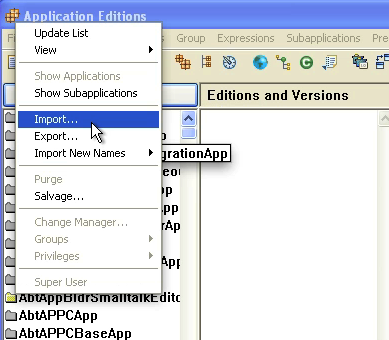
Today we'll look at how to migrate code out of one ENVY repository and into another one. This can be useful when moving between a personal repository and the "corporate" one, or when upgrading your version of VA. That's the example we'll be working with today - moving the versions of the Seaside Tutorial from VA 8.0.3 to VA 8.5. To start, open up the application editions tool, right click in the listing of applications, and select export:

Export

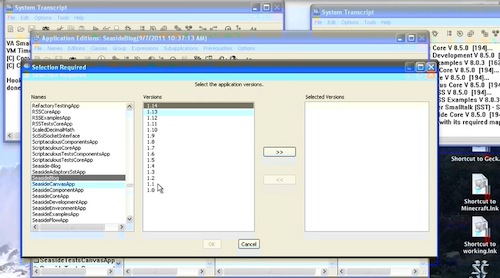
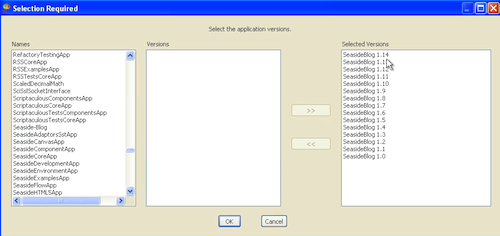
Once you do that, you'll see a three pane tool. Applications in your repository are on the left. Select one, and all released (not open) editions will display in the second pane. Select the versions you want to export, and move them to the rightmost pane:

Select Editions

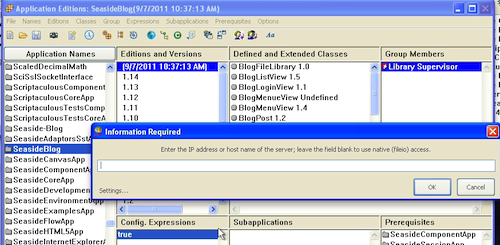
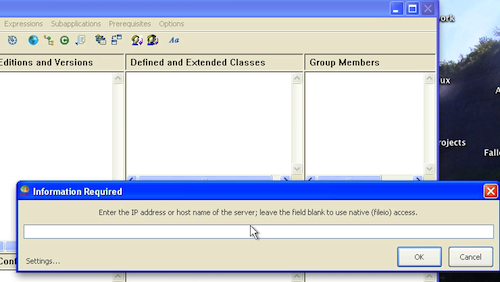
Hit Ok, and you'll get a prompt for the ENVY server location. If you are running in a server environment, enter that data. If you are using File IO (as we are in this example), leave it blank, so you'll get a file prompter:

Export Choice

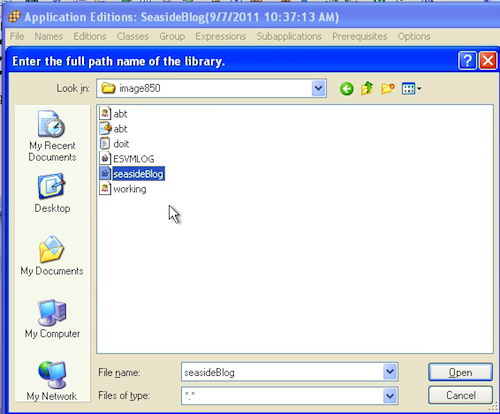
If you left it blank, you'll get a standard file dialog:

File Dialog

Since we are moving the code to VA 8.5, we've selected the image directory for 8.5:

File Destination

You'll get one prompt we aren't showing here if you aren't exporting to an existing repository, and that's whether the destination repository should be a 1GB max or 16 GB max. It turns out that you are creating a full ENVY repository; the only thing limited is how much stuff we are creating in it to start. Next, Fire up VA Smalltalk 8.5 (or the destination system if it differs), and open up the Application Manager. Select Import from the context menu:

File Import

You'll see the same system prompter - either enter the IP of the source system, or, if using File IO (as we are here), leave it blank:

Import

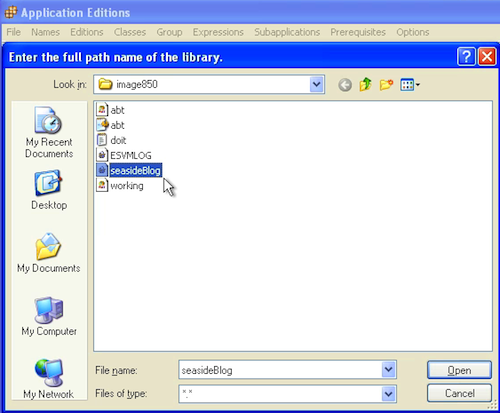
Next you'll see a standard file dialog - select the file you exported from the other VA image:

Select File

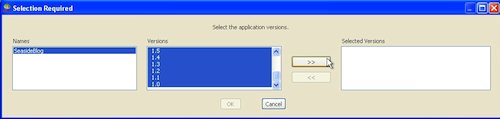
You should now see the same three pane selector you saw on export - now you need to move applications and editions to the right in order to import them. While our example imports everything, you can be more picky if that's desired:

Select Editions

Now go back to the Application Manager - you'll see as much history as you imported. The imported applications are now ready to be loaded from ENVY.

Imported

Need more help? There's a screencast for other topics like this which you may want to watch. Questions? Try the "Chat with James" Google gadget over in the sidebar.

Technorati Tags: , ,

Enclosures:
[st4u135-iPhone.m4v ( Size: 10003898 )]

posted by James Robertson

 Share Tweet This

st4u

ST 4U 134: Creating a Runtime in VW 7.8

September 19, 2011 11:21:31.492

Today's Smalltalk 4 You looks at a build issue you might run into in VisualWorks 7.8 - if you start your build with Store loaded. Ideally, you wouldn't do that, but - out in the real world, things like this happen. If you have trouble viewing it here in the browser, you can also navigate directly to YouTube. To watch now, click on the image below:

Builds in VW 7.8

If you have trouble viewing that directly, you can click here to download the video directly. If you need the video in a Windows Media format, then download that here.

You can also watch it on YouTube:

Technorati Tags: , , ,

Enclosures:
[st4u134-iPhone.m4v ( Size: 5016389 )]

posted by James Robertson

 Share Tweet This

Previous Next (554 total)