. .

st4u

ST 4U 113: Building Our First Component in Seaside

July 29, 2011 7:37:14.523

Today's Smalltalk 4 You continues the VA Smalltalk Seaside tutorial with the first visual component for the blog server application. You can download the initial domain model as a file out here. If you have trouble viewing it here in the browser, you can also navigate directly to YouTube. To watch now, click on the image below:
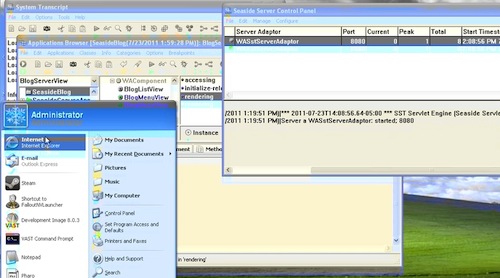
Seaside Component.

If you have trouble viewing that directly, you can click here to download the video directly. If you need the video in a Windows Media format, then download that here.

You can also watch it on YouTube:


Today we'll start building the first component that will make up the main entry point for our Seaside application. Before we can get started, we need to create an open edition of our application:
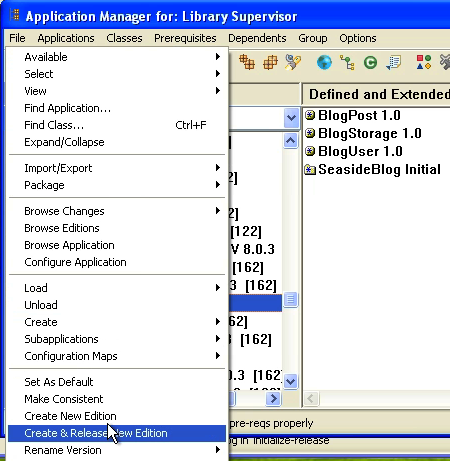
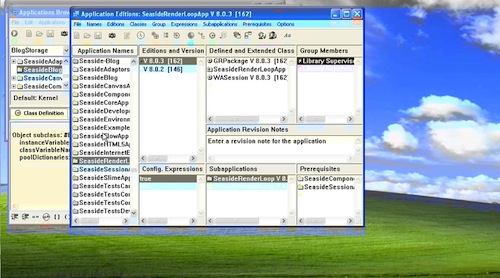
Create an Open Edition

Once you've done that, you'll see that the latest edition has a timestamp rather than a version - that shows that it's open (i.e., it can be modified):
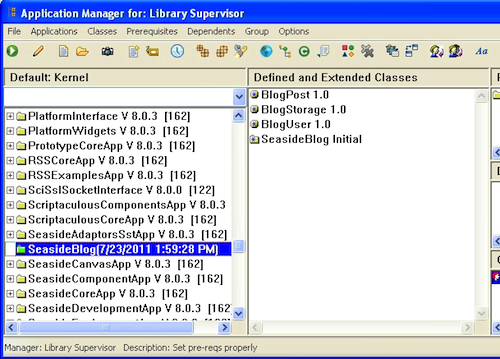
Open Edition

Next, we'll create a new subclass of WAComponent, and call it BlogServerView. This class needs two instance variables - listComponent and menuComponent. We'll set up the #initialize method to work with two additional components that we'll also create - BlogListView and BlogMenuView. Seaside uses component based assembly, so we proceed as follows: create a container view, which in turn will hold references to all the views that need to render within it.
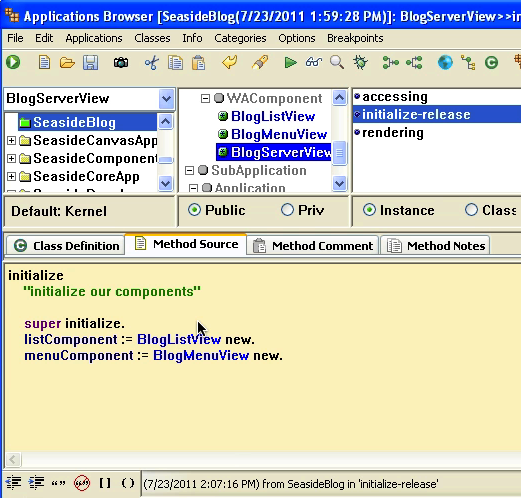
Domain Classes

The #initialize method looks like this:


initialize
	"set up our basic components"

	super initialize.
	listComponent := BlogListView new.
	menuComponent := BlogMenuView new.

At this point, you should also have defined two other subclasses of WAComponent - BlogListView and BlogMenuView. The first of these (BlogListView) needs one instance variable, entries. With that all done, we can get to the rendering part - #renderContentOn: in BlogServerView:
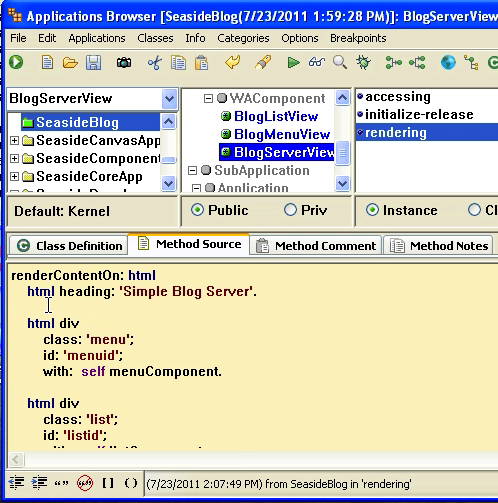
Rendering

That code looks like this:


renderContentOn: html
	html heading: 'Simple Blog Server'.

	html div
		class: 'menu';
		id: 'menuid';
		with:  self menuComponent.

	html div
		class: 'list';
		id: 'listid';
		with:  self listComponent.

We need one more method - typically an #initialize method on the class side of the main view class. In this case, we'll add it to BlogServerView, and then execute the comment:


initialize
	"BlogRootUI initialize"

     WAAdmin
          register: self
          asApplicationAt: 'blogView'.

With that done, bring up a web browser and navigate to the port you are running the server on (8080 if you took the default):
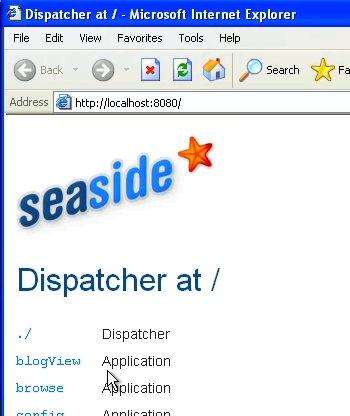
Browse Seaside

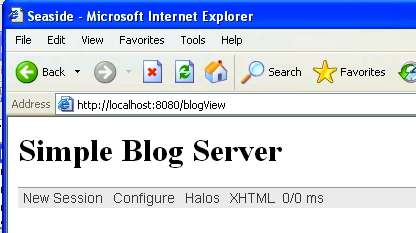
Notice the new link to blogView? Click that, and you should see the following:
Rendering

That wraps it up for now. In the next section, we'll take a look at building out the sub-components

Need more help? There's a screencast for other topics like this which you may want to watch. Questions? Try the "Chat with James" Google gadget over in the sidebar.

Technorati Tags: , ,

Enclosures:
[st4u113-iPhone.m4v ( Size: 5996855 )]

posted by James Robertson

 Share Tweet This

st4u

ST 4U 112: A Domain Model for the Seaside Tutorial

July 27, 2011 8:37:04.198

Today's Smalltalk 4 You continues the VA Smalltalk Seaside tutorial with a domain model that we'll be using for the tutorial. You can download the code as a file out here. If you have trouble viewing it here in the browser, you can also navigate directly to YouTube. To watch now, click on the image below:

Seaside.

If you have trouble viewing that directly, you can click here to download the video directly. If you need the video in a Windows Media format, then download that here.

You can also watch it on YouTube:


Today we'll continue with the Seaside tutorial using VA Smalltalk. To start, download this file - it's a file-out of the base application we'll be using in this tutorial. It contains the basic domain classes we'll be using:

Basic Domain

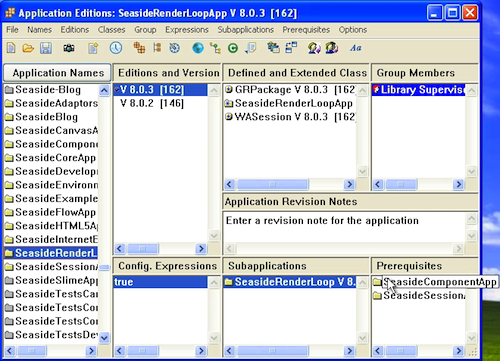
Before we can start building the Seaside part of this application, we need to examine the application. If SeasideComponentApp is not a pre-requisite, then the class will not be visible within our application. Since we'll be creating subclasses of that, make sure that this pre-req is set:

Proper Pre-Req

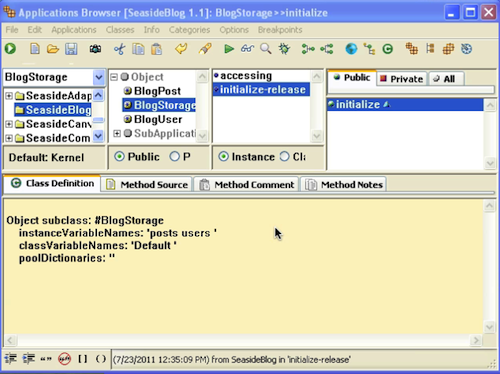
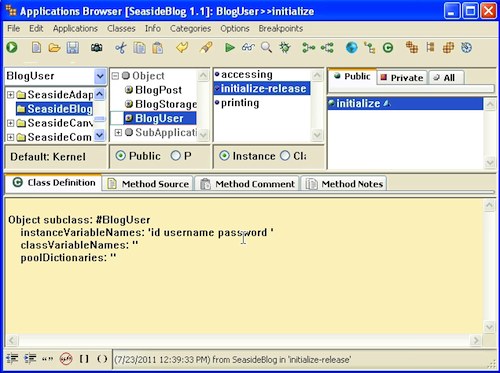
Now you'll just need the domain classes in the linked file above - BlogStorage, BlogPost, and BlogUser. To keep things simple, we'll be storing posts in a class variable collection in BlogStorage. That's so that we can concentrate on the Seaside part of things rather than anything else:

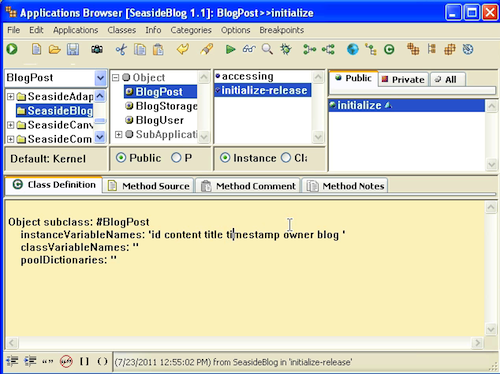
Domain Classes

Domain Classes

In the next section, we'll start in on the first view component.

Need more help? There's a screencast for other topics like this which you may want to watch. Questions? Try the "Chat with James" Google gadget over in the sidebar.

Technorati Tags: , ,

Enclosures:
[st4u112-iPhone.m4v ( Size: 3893211 )]

posted by James Robertson

 Share Tweet This

st4u

ST 4U 111: Installing Cincom Smalltalk

July 25, 2011 8:29:01.489

Today's Smalltalk 4 You finishes off the update to installing Cincom's NC product by looking at the actual installation process. If you have trouble viewing it here in the browser, you can also navigate directly to YouTube. To watch now, click on the image below:

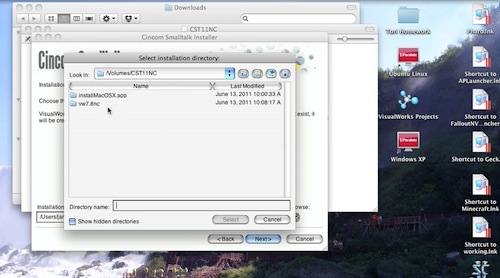
CST NC Install

If you have trouble viewing that directly, you can click here to download the video directly. If you need the video in a Windows Media format, then download that here.

You can also watch it on YouTube:

Technorati Tags: , ,

Enclosures:
[st4u111-iPhone.m4v ( Size: 4848285 )]

posted by James Robertson

 Share Tweet This

st4u

ST 4U 110: Downloading Cincom Smalltalk NC

July 22, 2011 11:49:37.987

Today's Smalltalk 4 You looks at the download process for Cincom Smalltalk - the NC products just went back online, and we take a look at it today. Next time, we'll finish that up by running the installer post-download. If you have trouble viewing it here in the browser, you can also navigate directly to YouTube. To watch now, click on the image below:

CST NC Download

If you have trouble viewing that directly, you can click here to download the video directly. If you need the video in a Windows Media format, then download that here.

You can also watch it on YouTube:

Technorati Tags: , , ,

Enclosures:
[st4u110-iPhone.m4v ( Size: 3943635 )]

posted by James Robertson

 Share Tweet This

st4u

ST 4U 109: Loading Seaside Support into VA

July 20, 2011 8:13:39.227

Today's Smalltalk 4 You starts a Seaside tutorial in VA Smalltalk. Today we'll get Seaide support loaded, and start a local server. If you have trouble viewing it here in the browser, you can also navigate directly to YouTube. To watch now, click on the image below:

Seaside.

If you have trouble viewing that directly, you can click here to download the video directly. If you need the video in a Windows Media format, then download that here.

You can also watch it on YouTube:


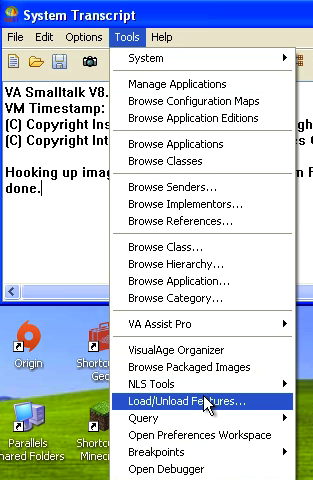
Today we'll start looking at Seaside in VA Smalltalk - this is a multiple part tutorial. In today's segment, we'll start at the beginning, by loading support into our image, and making sure it all works. To start, open the Load/Unload Features tool:

Load Support

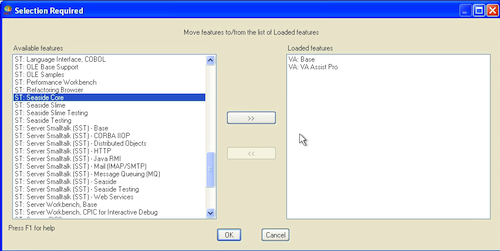
Scroll down and select Seaside Core. Move it to the right side of the tool with the arrow button, and then click Ok:

Load Support

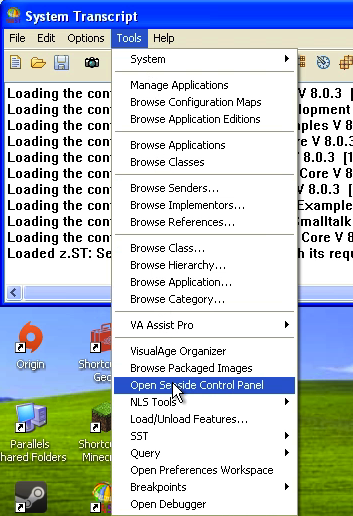
With Seaside loaded, we need a local server to test against. Go back to the Tools menu in the launcher, and select Open Seaside Control Panel:

Set up Server

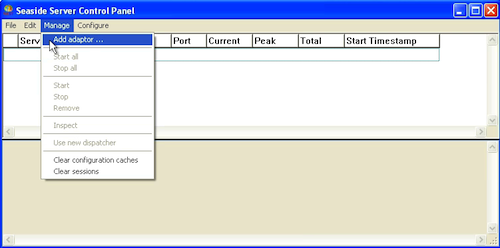
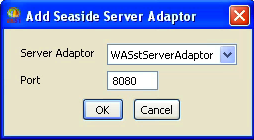
Select the Manage menu, and then select Add Adaptor. In that tool, just go with the default:

Set up Server

Set up Server

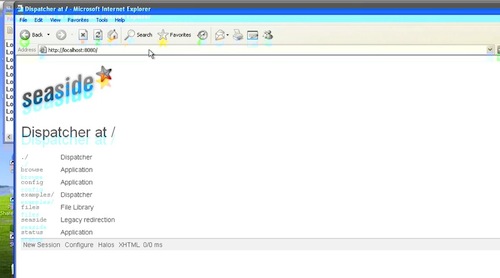
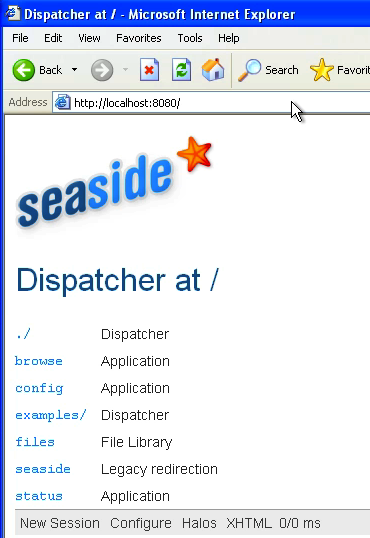
Now go to your web browser, and browse localhost:8080. You should see the default Seaside UI

Seaside Running

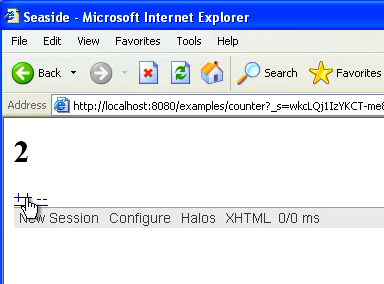
By following the links from Examples, you should be able to test out the stock Counter example application:

Seaside Running

Need more help? There's a screencast for other topics like this which you may want to watch. Questions? Try the "Chat with James" Google gadget over in the sidebar.

Technorati Tags: , ,

Enclosures:
[st4u109-iPhone.m4v ( Size: 3447939 )]

posted by James Robertson

 Share Tweet This

st4u

ST 4U 108: Finishing the CounterView UI in WB Pro

July 18, 2011 9:27:21.648

Today's Smalltalk 4 You continues the brief tutorial on WindowBuilder Pro, by hooking up a domain object to the UI we painted last time. If you have trouble viewing it here in the browser, you can also navigate directly to YouTube. To watch now, click on the image below:

WB Pro.

If you have trouble viewing that directly, you can click here to download the video directly. If you need the video in a Windows Media format, then download that here.

You can also watch it on YouTube:


Today we'll continue our introduction to WindowBuilder pro in VA Smalltalk. Last time we painted the UI - today, we'll hook the UI we painted up to the simple Counter application we built awhile ago.

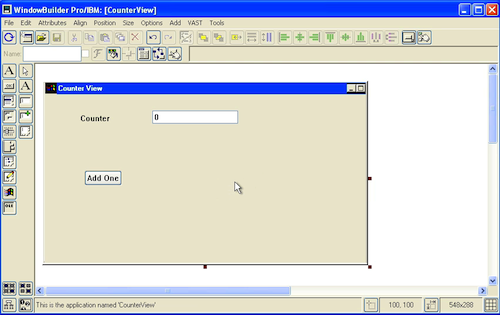
To refresh a bit, here's the simple UI we built - an input field for the current value, and a button to increment the value:

Simple UI

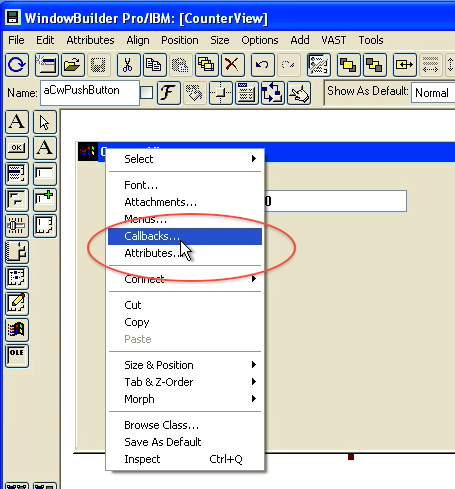
One thing we didn't do is hook the button up to any behavior. To do that, we need to define a callback - a SMalltalk method that will be invoked when the button is pressed:

Define Callback

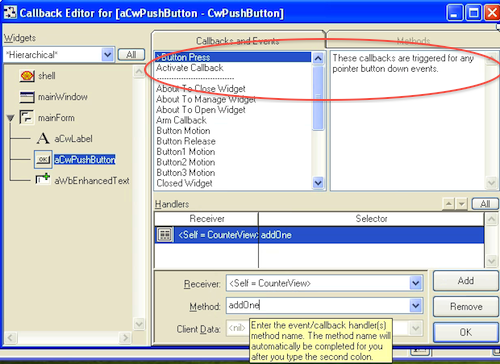
You can doa number of things in the callback definition UI, but we're going to take the simplest tack: hook up a callback for when the button is pressed:

Defining the Callback

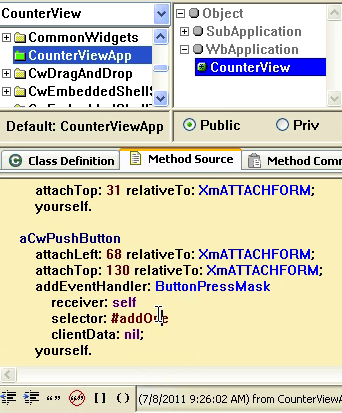
Go back to the browser and look at the code that got generated again - you should notice a new section for the callback:

Callback specified

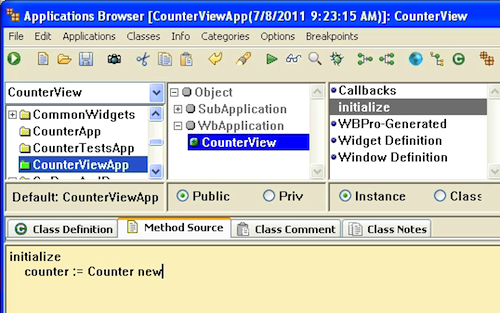
Now we'll getinto hooking the UI up to a domain object. We'll define an instance variable in the UI to hold the domain object, and instantiate it in the initialize method:

Set up the domain

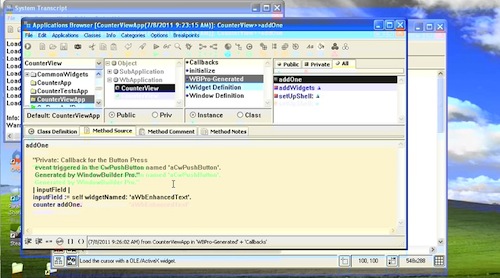
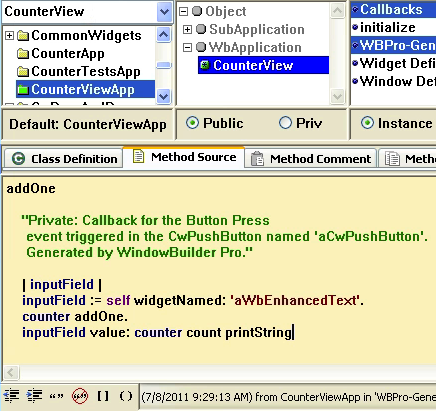
Next, we'll set up the callback method to use the domain object when the button is pressed. To update the input field, we need to grab it by name using #widgetNamed:, and then use the #value: message to set the value into it:

Set up the Functionality

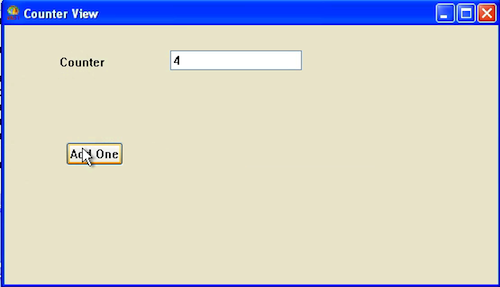
Finally, we can test the UI. Open it up and you should see the input field incrementing when you press the button:

Working UI

That's it - we've created a simple UI that hooks up to a domain object, and updates the state of the domain based on UI actions. With that, you should be able to get started building more useful things with WindowBuilder Pro!

Need more help? There's a screencast for other topics like this which you may want to watch. Questions? Try the "Chat with James" Google gadget over in the sidebar.

Technorati Tags: , , ,

Enclosures:
[st4u108-iPhone.m4v ( Size: 8948589 )]

posted by James Robertson

 Share Tweet This

st4u

ST 4U 107: Using StOMP for Serialization

July 15, 2011 12:03:48.536

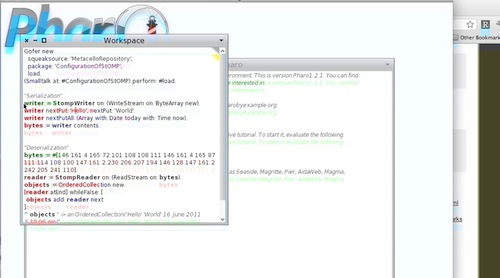
Today's Smalltalk 4 You looks at StOMP, an object serializer for Smalltalk that works across Pharo, Squeak, VisualWorks, and VA Smalltalk. If you have trouble viewing it here in the browser, you can also navigate directly to YouTube. For more information on StOMP, visit the website. To watch now, click on the image below:

StOMP

If you have trouble viewing that directly, you can click here to download the video directly. If you need the video in a Windows Media format, then download that here.

You can also watch it on YouTube:

Technorati Tags: , , ,

Enclosures:
[st4u107-iPhone.m4v ( Size: 4511336 )]

posted by James Robertson

 Share Tweet This

st4u

ST 4U 106: Getting Started With WindowBuilder Pro

July 13, 2011 7:56:16.859

Today's Smalltalk 4 You looks at WindowBuilder Pro - one of the two main ways to build a user interface in VA Smalltalk. Today we'll paint a simple user interface for the Counter application we built previously; next time, we'll hook it up to that domain object. If you have trouble viewing it here in the browser, you can also navigate directly to YouTube. To watch now, click on the image below:

WB Pro.

If you have trouble viewing that directly, you can click here to download the video directly. If you need the video in a Windows Media format, then download that here.

You can also watch it on YouTube:


Today we'll start looking at WindowBuilder pro in VA Smalltalk. It's one of two ways to build a UI in VA, the other being the PARTS tool. If you're an experienced Smalltalketr, WB Pro will probably be the best choice for you - it produces Smalltalk code that is easily worked with in the browsers, while PARTS is mostly an environment unto itself. Today we'll take an overview of the tool, building a UI that we'll use with the CounterApp demo - we'll hook the UI and domain model up in the next tutorial.

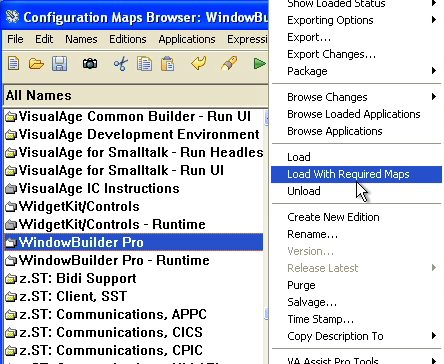
First, import WB Pro into ENVY - you can see a screencast that goes over how to import a library here - WB pro comes as a separate, loadable component from Instantiations. Once you have that in ENVY, just go to the Load Features tool and bring it in:

Load Features

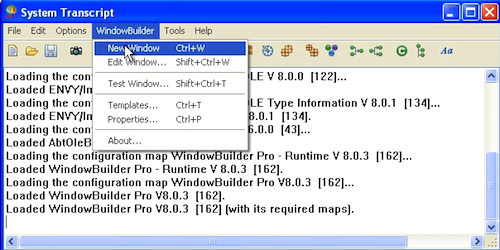
You should notice a new WindowBuilder menu on the launcher. Select New from that to start a new UI project:

New UI

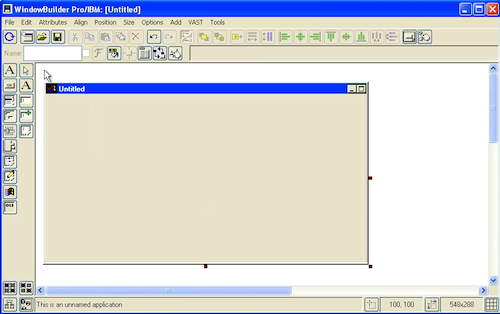
What you are looking at now is the blank canvas (which will hold your UI. On top are a selection of options for editing and controlling the layout of the widgets you place; on the left is a palette of widgets. It looks smaller than it is, because the left-most list is a category listing of widget types, while the right-most list holds the widgets for the type selected:

Edit the UI

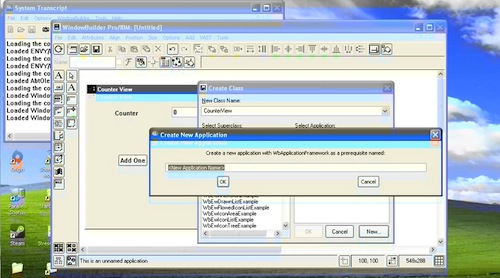
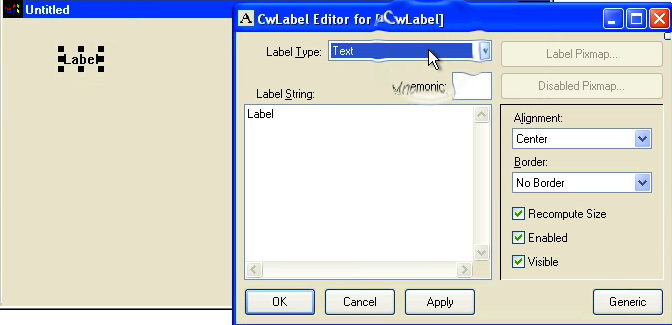
Now you can place widgets. Select a category - We've selected Text Widgets - and then a specific widget type. Then place the widget somewhere on the canvas. In this tutorial, we aren't going to worry about the layout, but you do have full control over that. Double click on the widget you placed to bring up the settable properties:

Set Widget Properties

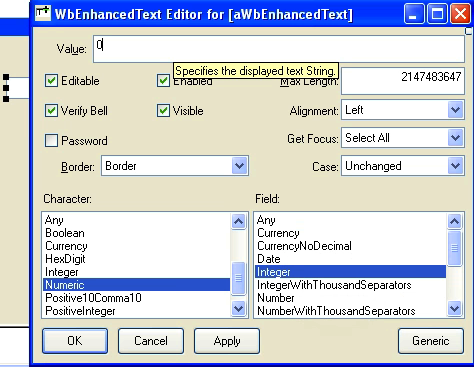
From the same category of widgets, select the Enhanced Text input field, place it, then double click to get its properties. Note that we can give it an initial value, and an editing type:

Edit Input Field

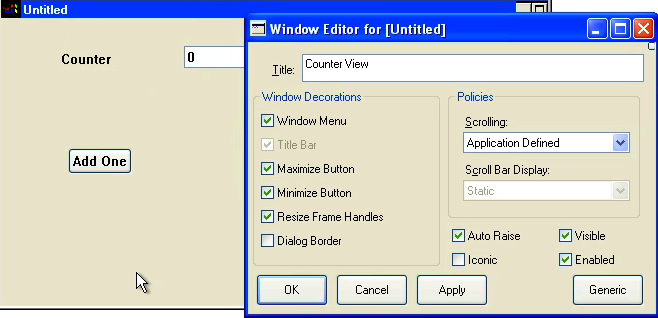
Do the same for the button, setting just the label - we'll cover callbacks in another tutorial, when we hook this UI up to a domain object. Finally, note that by double clicking on the window you are editing, you can set its properties:

Edit Window Properties

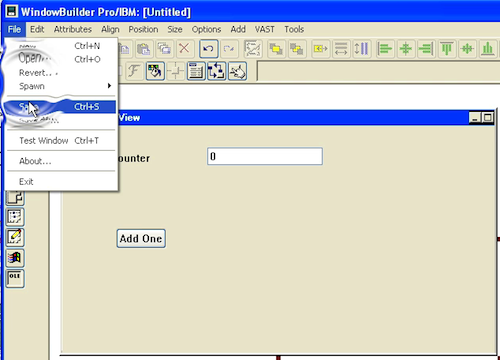
Now you need to save your work. You'll need to specify a class name and an application; pull down Save from the file menu in WB:

Save Your Work

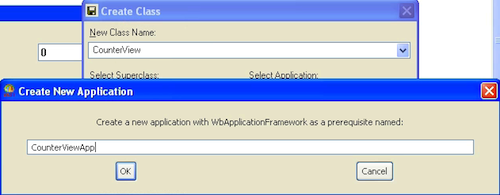
Now set the class and application name:

Class and Application

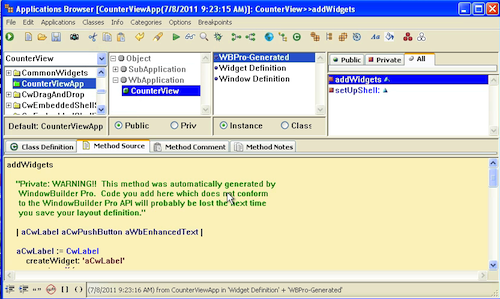
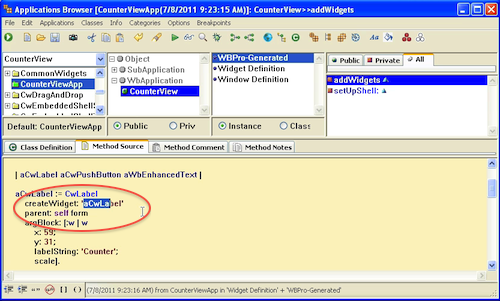
Now open up a browser, and select your new application. Select All in the protocol pane to see the generated methods. addWidgets is where all of your widgets get defined. You might think its odd that none of these are cached in instance variables, but it turns out (as we'll see in the next tutorial) that grabbing one of these widgets by name is easy - note the name in the second image below:

Browse the New Class

Widget Name

Need more help? There's a screencast for other topics like this which you may want to watch. Questions? Try the "Chat with James" Google gadget over in the sidebar.

Technorati Tags: , , ,

Enclosures:
[st4u106-iPhone.m4v ( Size: 7676815 )]

posted by James Robertson

 Share Tweet This

st4u

ST 4U 105: Using the Refactoring Browser in VA Smalltalk

July 11, 2011 3:29:59.697

Today's Smalltalk 4 You looks at the refactoring browser - a tool you may know from other Smalltalk dialects, and which is also available for VA Smalltalk. If you have trouble viewing it here in the browser, you can also navigate directly to YouTube. To watch now, click on the image below:

Refactoring Browser.

If you have trouble viewing that directly, you can click here to download the video directly. If you need the video in a Windows Media format, then download that here.

You can also watch it on YouTube:


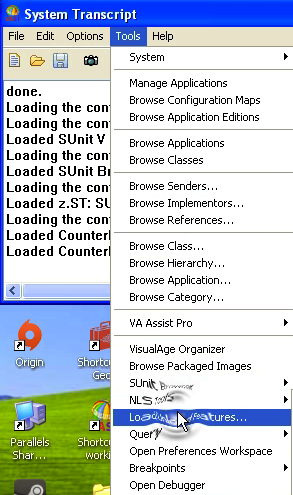
Today we'll look using another browsing choice for VA Smalltalk - the Refactoring Browser. If you are coming to VA Smalltalk from another dialect, this may be your most comfortable initial choice, as the RB in VA is very similar to the RB in VisualWorks, or the browsers in Squeak and Pharo. To get started, open up the Load Features UI:

Load Features

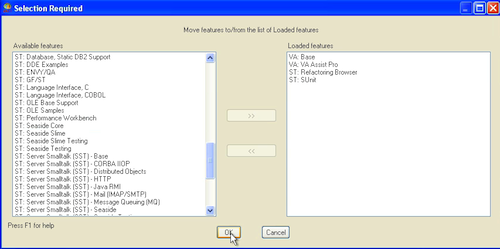
Scroll down to the Refactoring Browser in the list on the left, move it to the right, and hit Ok:

Load the RB

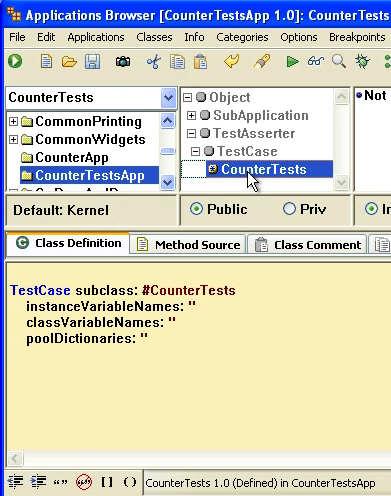
Now, to compare and contrast, we'll take a look at our CounterApp example in the standard (not Trailblazer) browser, and then flip over to the RB:

Standard Browser

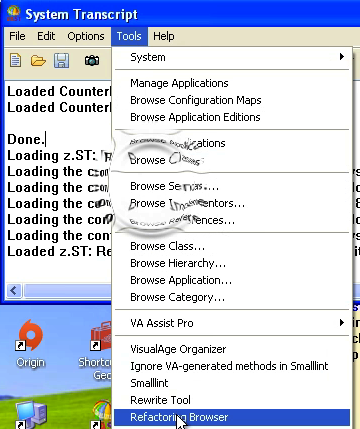
Go back to the Tools menu in the launcher, and select the Refactoring Browser:

Start the RB

Now scroll through the list of applications in the left most pane, and select one - we've selected outr CounterApp example here:

RB

What you are looking at is the more traditional four pane Smalltalk browser, but with all of the functionality that the RB brings with it. We'll explore some of that functionality in a future screencast.

Need more help? There's a screencast for other topics like this which you may want to watch. Questions? Try the "Chat with James" Google gadget over in the sidebar.

Technorati Tags: , ,

Enclosures:
[st4u105-iPhone.m4v ( Size: 4369344 )]

posted by James Robertson

 Share Tweet This

st4u

ST 4U 104: Fuel for Pharo

July 8, 2011 8:49:50.953

Today's Smalltalk 4 You takes a look at Fuel - a new object serializer for Pharo. It's part of the Summertalk program that's sponsored each year by ESUG, and it looks cool. To watch now, click on the image below, or go to the YouTube page

Fuel

If you have trouble viewing that directly, you can click here to download the video directly. If you need the video in a Windows Media format, then download that here.

You can also watch it on YouTube:

Technorati Tags: , ,

Enclosures:
[st4u104-iPhone.m4v ( Size: 4093941 )]

posted by James Robertson

 Share Tweet This

Previous Next (554 total)