Last year, I did a series of screencasts on the interactive "ProfStef" learning workspace in the "one click" Pharo download. Recently, I was asked whether I could make that available as one continuous video, so I did a bit of editing, and here it is. There are transition title screens between the major segments, and the entire thing is just under 30 minutes in lenth. If you have trouble viewing it here in the browser, you can also navigate directly to YouTube. To watch now, click on the image below:
If you have trouble viewing that directly, you can click here to download the video directly. If you need the video in a Windows Media format, then download that here.
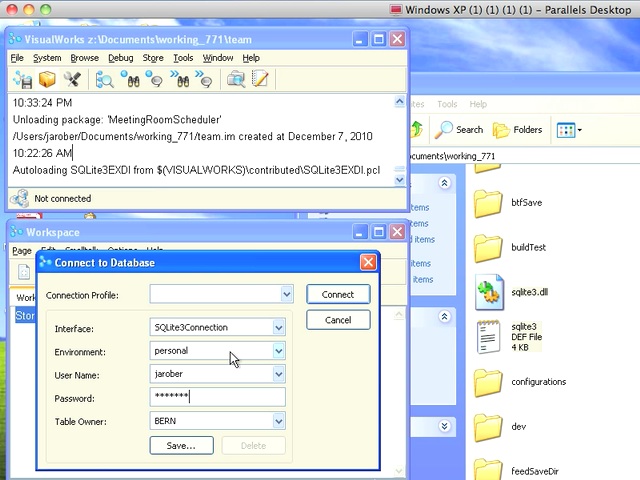
Today's Smalltalk 4 You shows you how to set up a personal Store Repository using SQLLite - even if you have a fairly locked down Windows machine to deal with. If you have trouble viewing it here in the browser, you can also navigate directly to YouTube. To watch now, click on the image below:
If you have trouble viewing that directly, you can click here to download the video directly. If you need the video in a Windows Media format, then download that here.
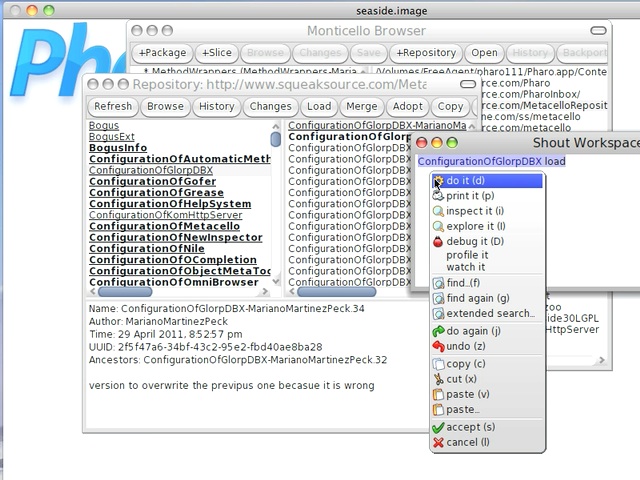
Today's Smalltalk 4 You shows you how to get GlorpDBX for Pharo loaded into your image using Metacello configurations. If you have trouble viewing it here in the browser, you can also navigate directly to YouTube. To watch now, click on the image below:
If you have trouble viewing that directly, you can click here to download the video directly. If you need the video in a Windows Media format, then download that here.
Today's Smalltalk 4 You takes an overview look at the debugger in VA Smalltalk. If you prefer a written walkthrough to video, then skip down to it. If you have trouble viewing it here in the browser, you can also navigate directly to YouTube. To watch now, click on the image below:
If you have trouble viewing that directly, you can click here to download the video directly. If you need the video in a Windows Media format, then download that here.
You can also watch it on YouTube:
Today we'll take a little deeper look at the VA Smalltalk debugger. This tool has a lot of functionality, so it'll take more than this tutorial to cover the entire tool. To start with, we've created a simple Counter class. This gives us a jumping off place beyond the workspace to work with the debugger. The class is pretty simple - it has one instance variable, and two api methods to either increment or decrement the counter:
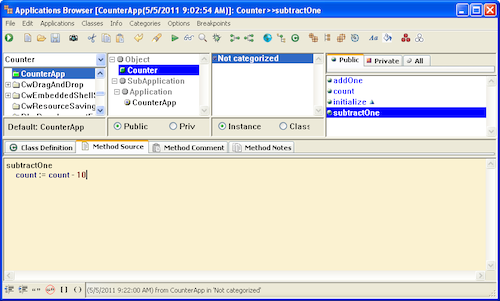
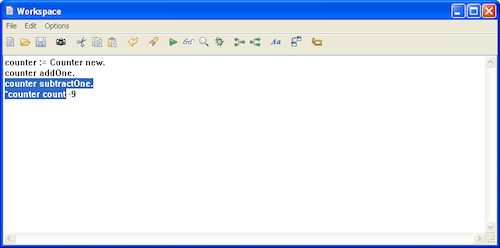
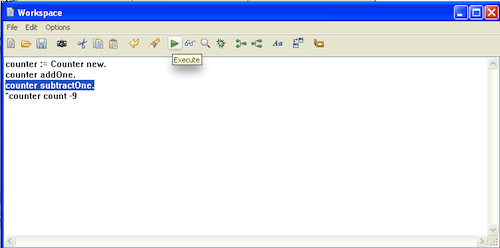
Next we'll script some simple interactions with the object in a workspace. To simulate a more complex bug, we've implemented a simple bug in the subtraction method:
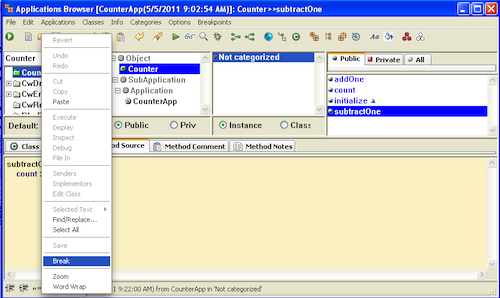
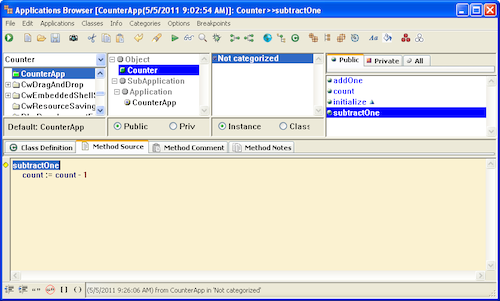
Having discovered that the decrement functionality doesn't work right, we'll go to the browser and put a breakpoint in. Again, this example is very simple; the idea is to show you how to use breakpoints. Put the cursor down in the method where you want the breakpoint, right click, and select Break:
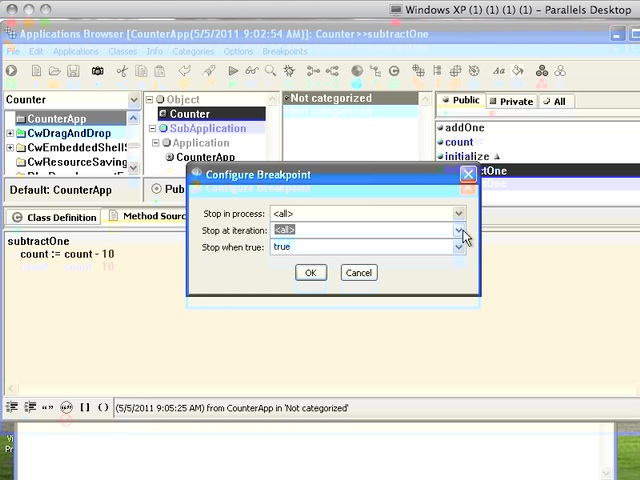
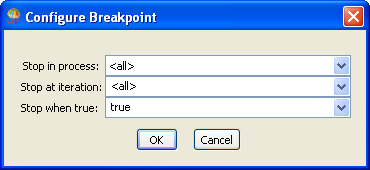
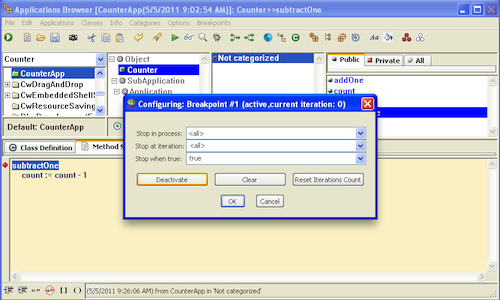
It turns out that you can configure your breakpoint -
Select a specific process for which this breakpoint applies (ignoring it in all others)
If this code is in a loop, break on a specific iteration
Specify a boolean condition for which the break applies
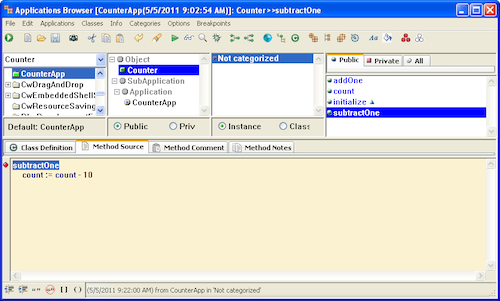
If you let all of those default, then the breakpoint will halt your code anytime it is reached - yielding a debugger. Once you have inserted the breakpoint, you'll see a little red indicator appear in the browser:
Now let's return to the workspace, and exercise the code that should hit the breakpoint:
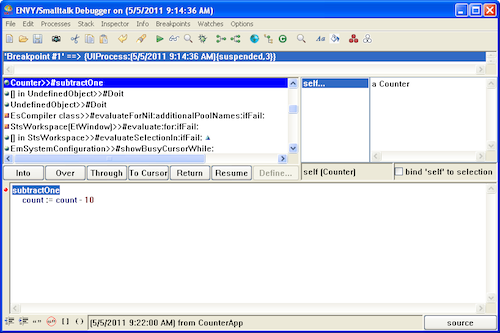
Now we've landed in the debugger. The top pane contains the context stack - all of the methods that were in the process of executing when we hit the break. To the right you'll see an inspector for all variables - temps, instance, and method arguments. At the bottom, you have the code pane. Since this is Smalltalk, you can change the code. Note that recompiling the code will remove the breakpoint.
Now, if you hit the Break option in the debugger or browser while you have the cursor at the right place (where you inserted it), the options differ a bit:
If you deactivate the break, the marker will change to yellow:
Finally, if you select Clear, the breakpoint will be removed.
Need more help? There's a screencast for other topics like this which you may want to watch. Questions? Try the "Chat with James" Google gadget over in the sidebar.
Today's Smalltalk 4 You takes an overview look at the debugger in VA Smalltalk. If you prefer a written walkthrough to video, then skip down to it. If you have trouble viewing it here in the browser, you can also navigate directly to YouTube. To watch now, click on the image below:
If you have trouble viewing that directly, you can click here to download the video directly. If you need the video in a Windows Media format, then download that here.
You can also watch it on YouTube:
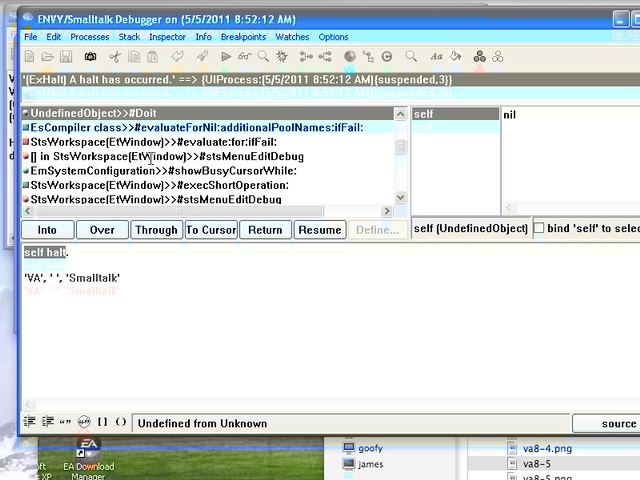
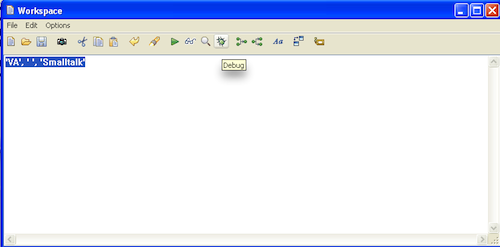
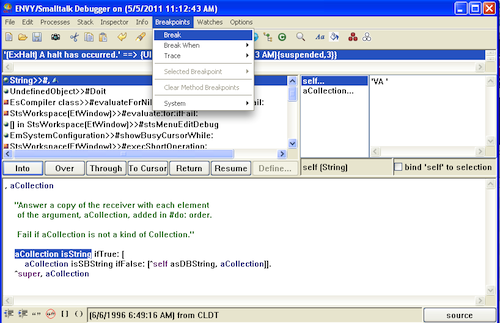
Today we'll take an overview look at the debugger in VA Smalltalk. It's a tool with a lot of functionality, so expect more on this topic soon. For today, we'll take a simple Smalltalk expression in the debugger and explore it via the debugger. Unlike the inspector, you'll need to highlight the expression in order to jump into the debugger:
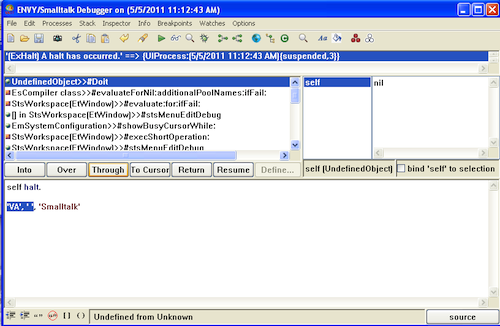
To execute the currently highlighted expression, use the Through button. That'll execute the expression, keeping the view in the current method. Over would skip past the expression, staying in this view:
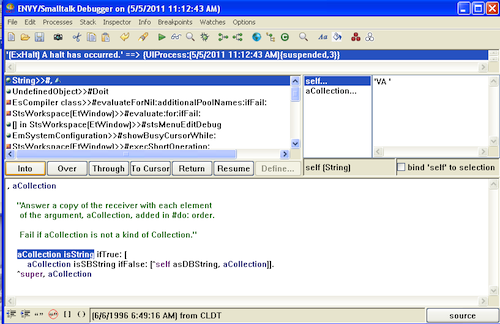
What if you want to jump into a highlighted method? Use the Into button - you'll jump into that code, and be able to step through the execution at that level. Note the change in the debugger view:
There are a lot of other things you can do from here - on the menu, note the Break option:
We'll get to the more advanced functionality in other tutorials. For now, you should know enough to start exploring the system, and see how various things work. Try it yourself!
Need more help? There's a screencast for other topics like this which you may want to watch. Questions? Try the "Chat with James" Google gadget over in the sidebar.
Today's Smalltalk 4 You takes an overview look at the browser set in VA Smalltalk (omitting the ENVY specific ones - we'll go through those in a separate tutorial). If you prefer a written walkthrough to video, then skip down to it. If you have trouble viewing it here in the browser, you can also navigate directly to YouTube. To watch now, click on the image below:
If you have trouble viewing that directly, you can click here to download the video directly. If you need the video in a Windows Media format, then download that here.
You can also watch it on YouTube:
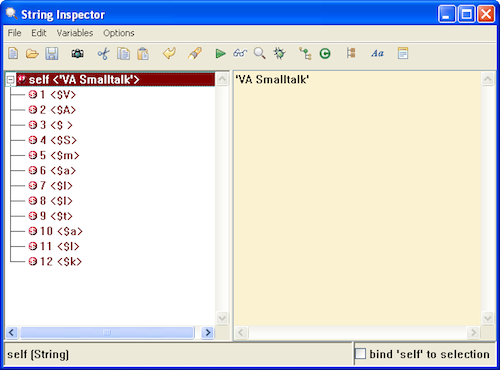
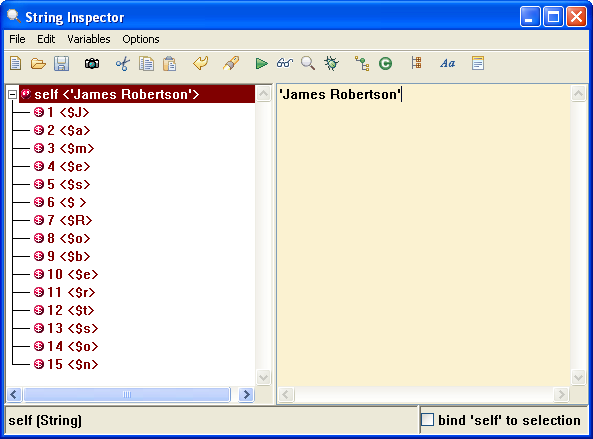
Today we'll look at the inspector in VA Smalltalk. First, open a workspace, and enter something you can inspect - in the example below, it's a simple string concatenation expression. Note that you don't need to highlight the expression to inspect it - simply drop the cursor at the end of the expression:
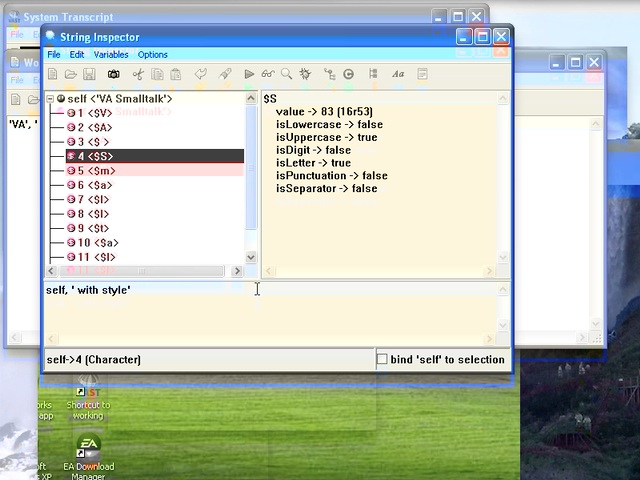
The inspector shows you the object, and any component parts. For a string, that's the individual slots with characters; for a non collection, it would instead show instance variables:
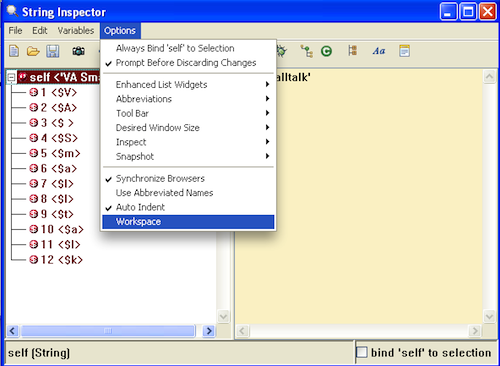
Once you have the inspector, you can drill down on any element by double clicking on it. You can also open a little execution workspace attached to the inspector - go to the Options menu and select Workspace:
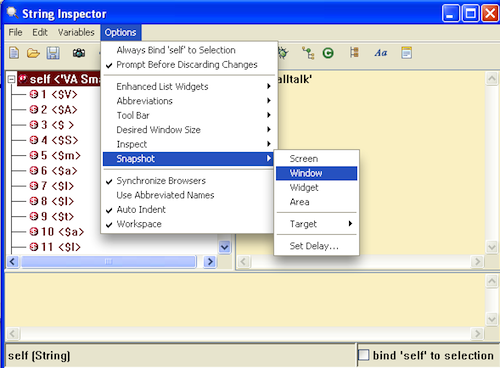
Finally, if you want to capture a screenshot (of the window or entire screen), you don't need to leave VA for that. Simply open the Options menu again, and follow the Snapshot pull right. There are various options for what you can snapshot, and how to save what you decide to grab:
Need more help? There's a screencast for other topics like this which you may want to watch. Questions? Try the "Chat with James" Google gadget over in the sidebar.
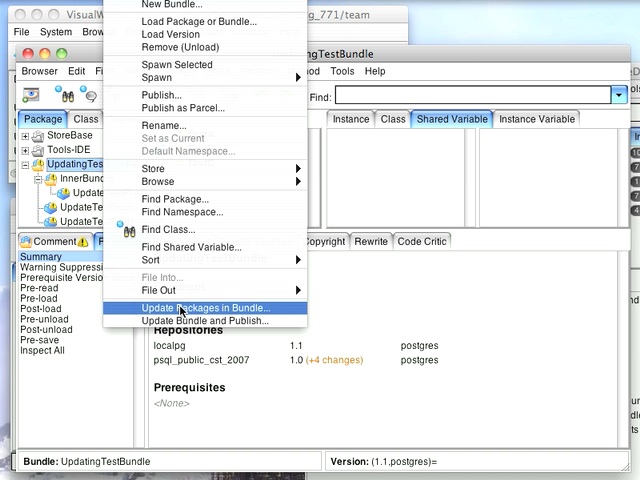
Today's Smalltalk 4 You shows you how to easily update all of the packages contained within a bundle (including sub-bundles within it). The code I used in the screencast is in the public store - it can also be downloaded as a zip file. If you have trouble viewing it here in the browser, you can also navigate directly to YouTube. To watch now, click on the image below:
If you have trouble viewing that directly, you can click here to download the video directly. If you need the video in a Windows Media format, then download that here.
Today's Smalltalk 4 You takes an overview look at the workspace tool in VA Smalltalk. If you prefer a written walkthrough to video, then skip down to it. If you have trouble viewing it here in the browser, you can also navigate directly to YouTube. To watch now, click on the image below:
If you have trouble viewing that directly, you can click here to download the video directly. If you need the video in a Windows Media format, then download that here.
You can also watch it on YouTube:
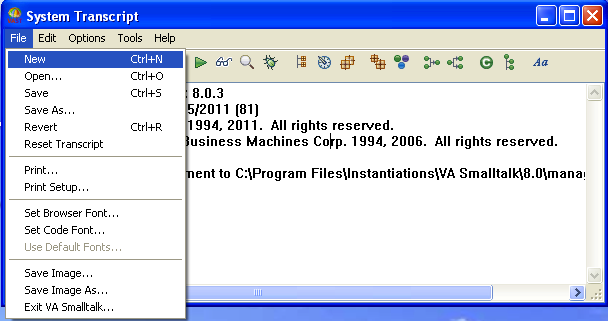
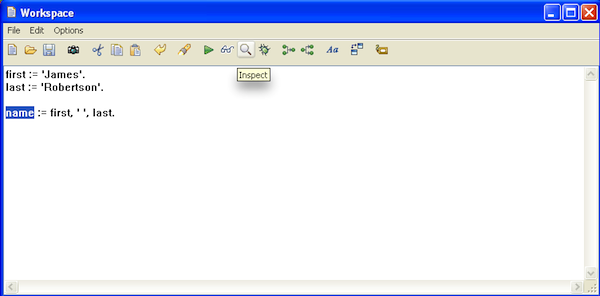
One of the most commonly used tools in any Smalltalk implementation is the workspace - it's where you do ad-hoc testing and exploratory coding. VA Smalltalk is no different - th eonly thing you have to know is that the Workspace is opened via File>>New in the Launcher, not via a menu item labeled "Workspace:
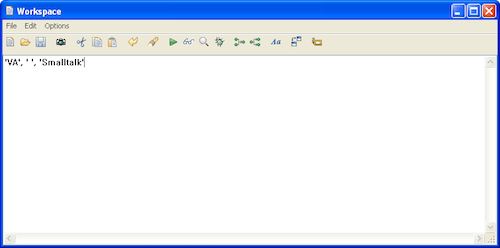
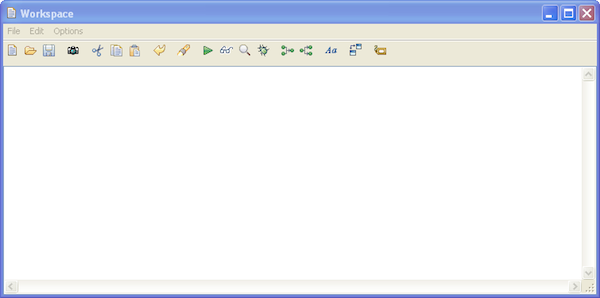
Once that's open, you can do exactly what you would expect - start typing Smalltalk code and executing it. There's full support for workspace variables, so you don't need to create temporary declarations and line your executions up. Here's the new workspace:
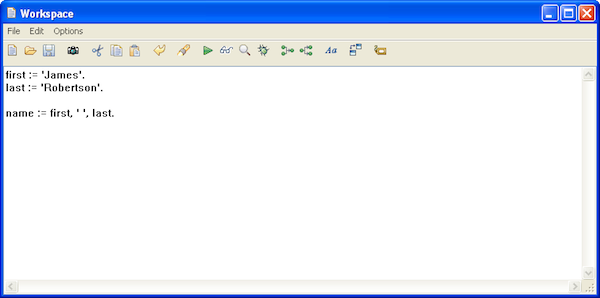
Now you can try typing in some Smalltalk code and executing it:
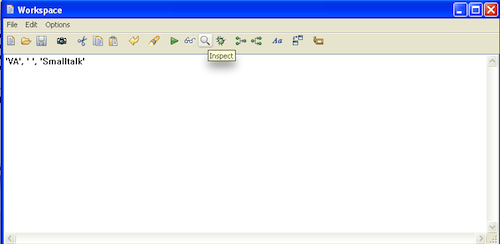
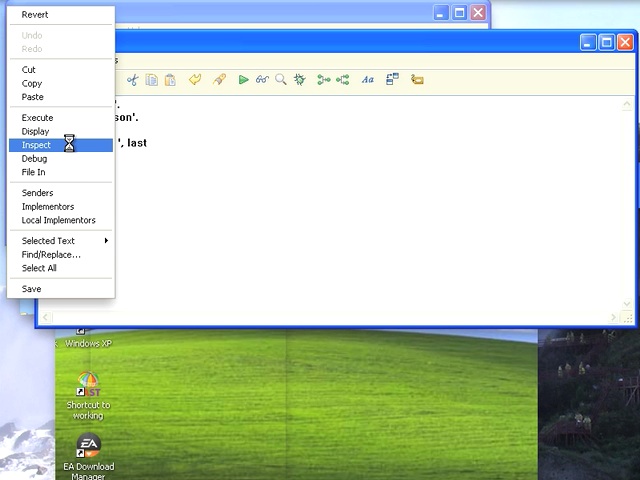
As you would expect, that gets you an inspector. You don't need to highlight the variable in question; you can just put the cursor down after it. You can also highlight any expression, of course.
The toolbar contains a lot of additional functionality, including access to senders/implementors; simply highlight a message send, and use those. As shown in the screencast, each toolbar item has tooltip help - just walk across the workspace and explore for yourself.
Need more help? There's a screencast for other topics like this which you may want to watch. Questions? Try the "Chat with James" Google gadget over in the sidebar.
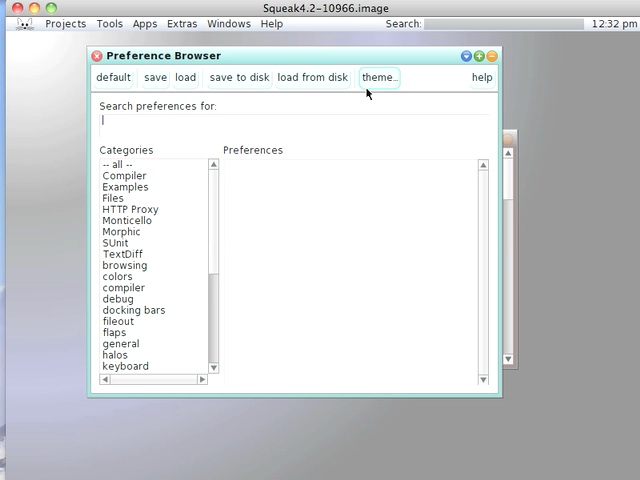
Today's Smalltalk 4 You looks at changing Squeak Themes. If you have trouble viewing it here in the browser, you can also navigate directly to YouTube. To watch now, click on the image below:
If you have trouble viewing that directly, you can click here to download the video directly. If you need the video in a Windows Media format, then download that here.
Today's Smalltalk 4 You takes alook at modifying the default tool fonts in VA Smalltalk. If you prefer a written walkthrough to video, then skip down to it. If you have trouble viewing it here in the browser, you can also navigate directly to YouTube. To watch now, click on the image below:
If you have trouble viewing that directly, you can click here to download the video directly. If you need the video in a Windows Media format, then download that here.
You can also watch it on YouTube:
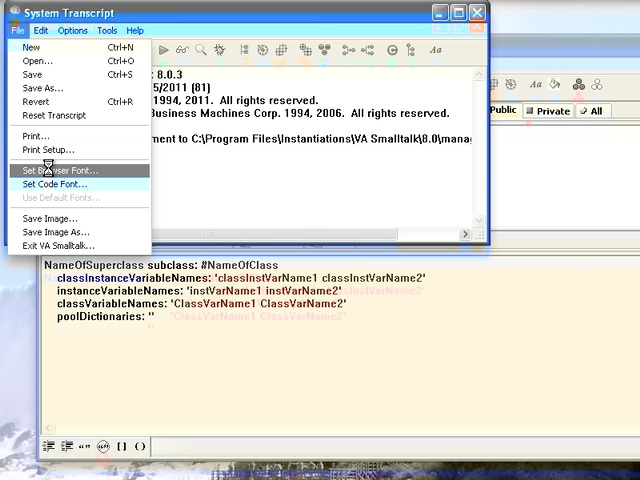
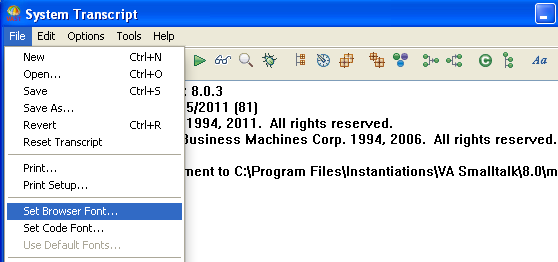
Today we'll take a look at changing the fonts used in VA Smalltalk tools, including the browser. Don't like the default font you're looking at? It's easy to change. Pull down the File menu in the launcher and select Set Browser Font
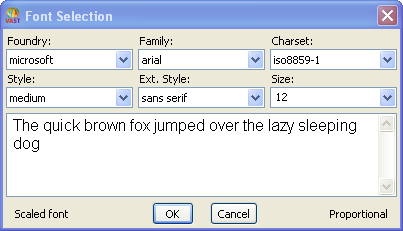
You should see the font picker tool pop up:
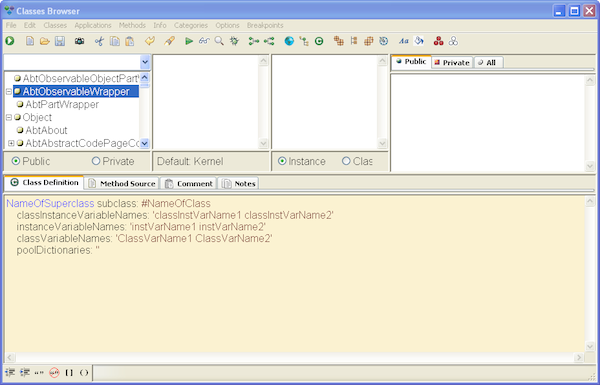
Experiment with the fonts, using the example text in the tool as a guide. Once you've found something you like, hit the Ok button, and the system will update:
That's all there is to it!
Need more help? There's a screencast for this topic which you may want to watch. Questions? Try the "Chat with James" Google gadget over in the sidebar.