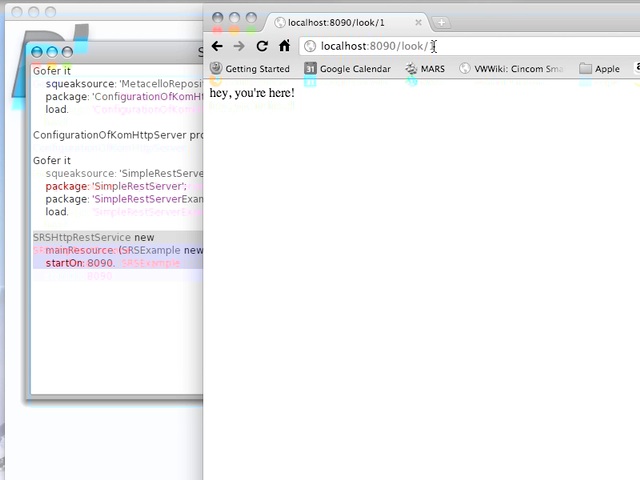
Today's Smalltalk 4 You looks at how easy it is to set up a RESTful HTTP service using the KOM Http server for Pharo (or Squeak). The example I'm using comes from Guillermo Polito. If you have trouble viewing it here in the browser, you can also navigate directly to YouTube. To watch now, click on the image below:
If you have trouble viewing that directly, you can click here to download the video directly. If you need the video in a Windows Media format, then download that here.
Today's Smalltalk 4 You looks at creating a configuration map. In ENVY, configuration maps are how you create reproducible, loadable configurations of software in the version control system. If you have trouble viewing it here in the browser, you can also navigate directly to YouTube. To watch now, click on the image below:
If you have trouble viewing that directly, you can click here to download the video directly. If you need the video in a Windows Media format, then download that here.
You can also watch it on YouTube:
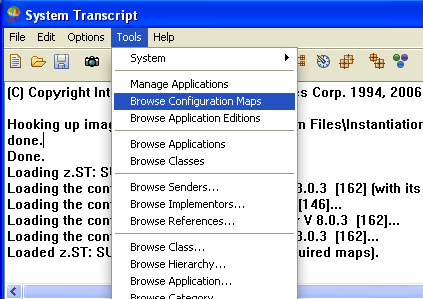
Today we'll take the CounterApp and CounterTestsApp applications, and package them up into a single loadable Configuration. In VA Smalltalk, that's accomplished with an ENVY construct called a ConfigurationMpa. Using the Tools menu, select Browse ConfigurationMaps:
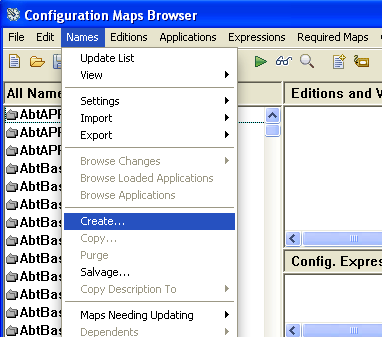
To create a new Config Map, select the Names menu, and then click on Create...:
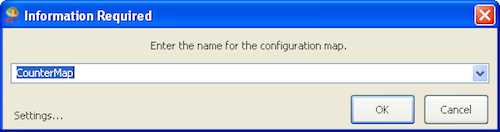
Give the new Config Map a Name:
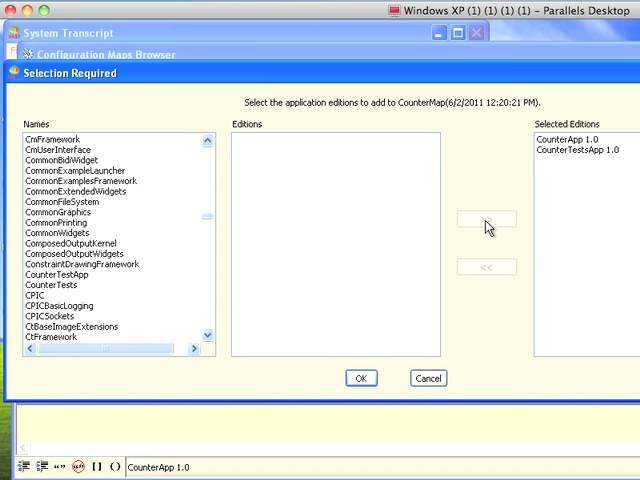
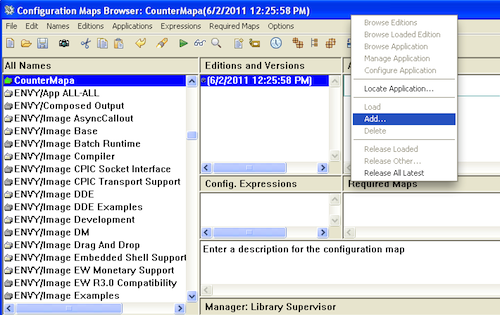
Now, in the rightmost pane at the top, right click, and select Add.... That will bring up a window, allowing you to add applications to the Configuration map:
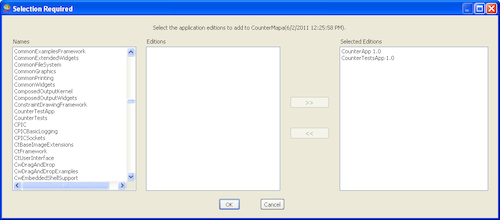
We'll move CounterApp and CounterTestsApp over to the right, and click the Ok button:
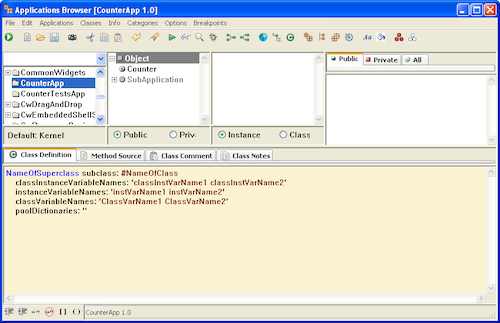
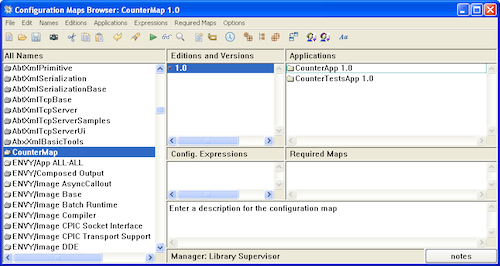
Finally, using the menu in the second pane, give your Config map a version number - and that's it - you've got a loadable configuration. We'll be going into more depth on Applications and Config Maps in future tutorials, we've barely scratched the surface so far!
Need more help? There's a screencast for other topics like this which you may want to watch. Questions? Try the "Chat with James" Google gadget over in the sidebar.
Today's Smalltalk 4 You looks at loading and using SUnit in VA Smalltalk. Last time we looked at the SUnit browser in VA Smalltalk, but it showed every test loaded in the image. Today, we look at how simple it is to get a more focused view. If you have trouble viewing it here in the browser, you can also navigate directly to YouTube. To watch now, click on the image below:
If you have trouble viewing that directly, you can click here to download the video directly. If you need the video in a Windows Media format, then download that here.
You can also watch it on YouTube:
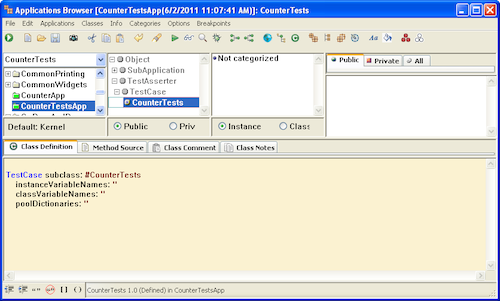
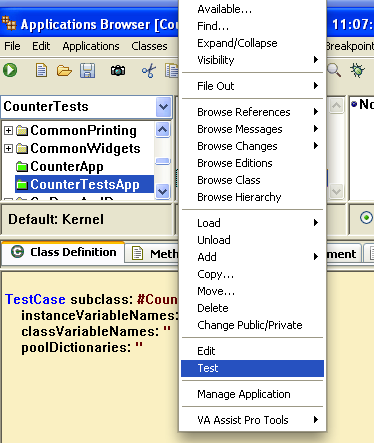
Today we'll go back to SUnit in VA Smalltalk, and see how easy it is to concentrate on just the tests that are of interest to you, instead of all tests across the system. We'll start in the Application Browser, looking at the TestCase subclass we created last time:
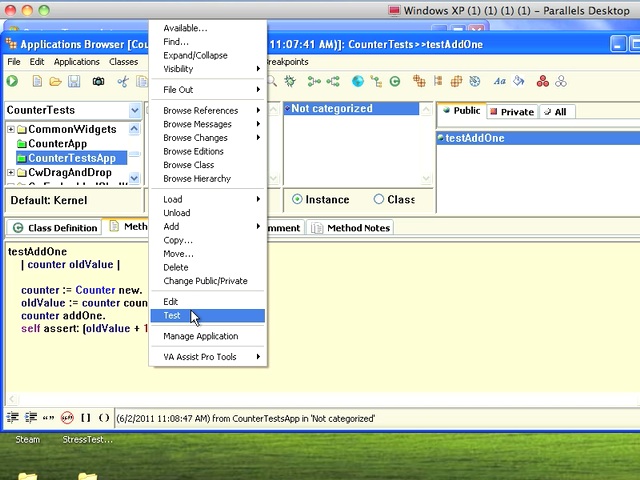
Right click on the class, and in the context menu, select Test:
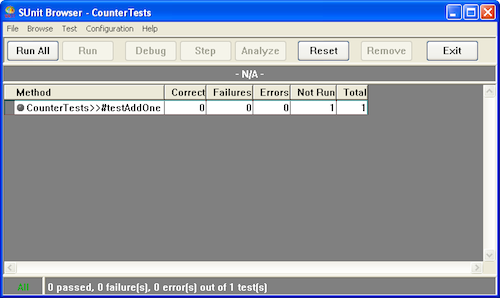
You have the same tool you saw last time, but instead of all tests that are loaded (and that could be quite a few, if you've loaded something like Seaside) - you'll see just the tests in this selection:
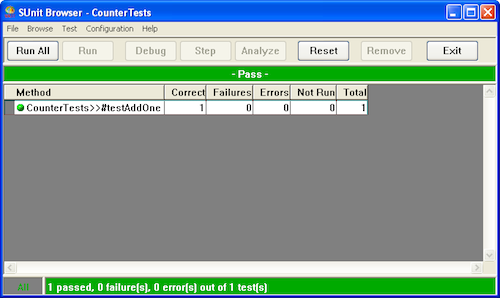
Now we can run just the tests we care about (one in the image below), and not be distracted by whatever else happens to be loaded in our image. On a large project, with multiple developers creating features and tests, that could be a big distraction:
Need more help? There's a screencast for other topics like this which you may want to watch. Questions? Try the "Chat with James" Google gadget over in the sidebar.
Today's Smalltalk 4 You looks at loading and using SUnit in VA Smalltalk. SUnit is the standard way of supporting TDD in all Smalltalk dialects - and it's easy to use in VA. If you have trouble viewing it here in the browser, you can also navigate directly to YouTube. To watch now, click on the image below:
If you have trouble viewing that directly, you can click here to download the video directly. If you need the video in a Windows Media format, then download that here.
You can also watch it on YouTube:
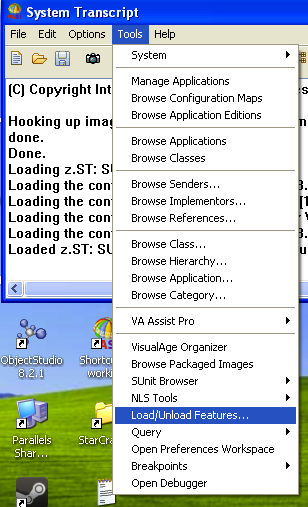
Today we'll look at using SUnit (for unit testing) in VA Smalltalk. The first step is to use the Load/Unload Features menu pick to bring in SUnit support (along with all of the associated tools built into VA for it):
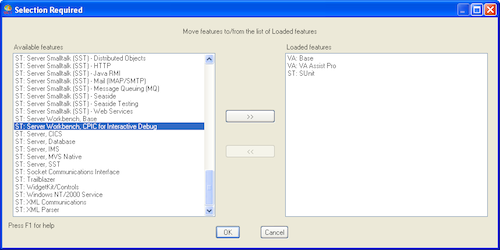
In the feature list UI, scroll down to SUnit, select it, and hit the >> button to move it to the right. Then click the Ok button to load the code:
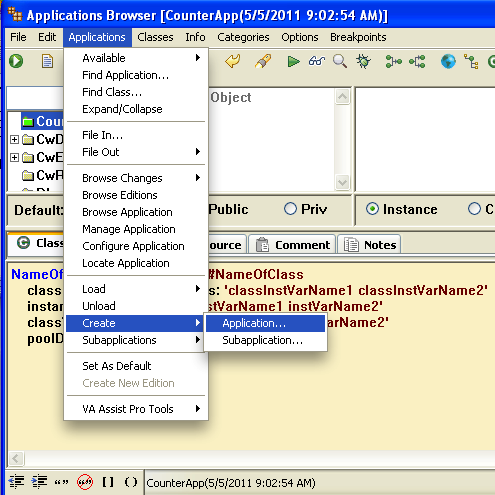
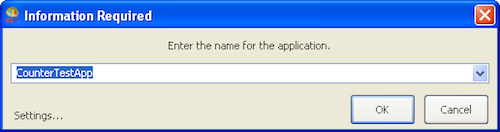
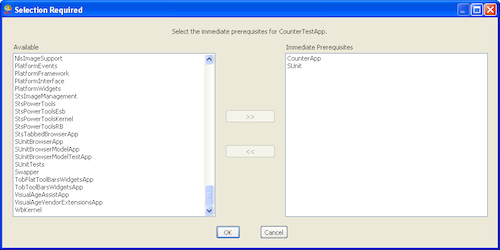
Now that SUnit support is loaded, we need to create a new application that will contain our test class. We'll be building a simple test case for the previously created CounterApp - which means that our new application will need some pre-requisites to make the appropriate classes visible. First, create the application, and add the pre-reqs using the picker:
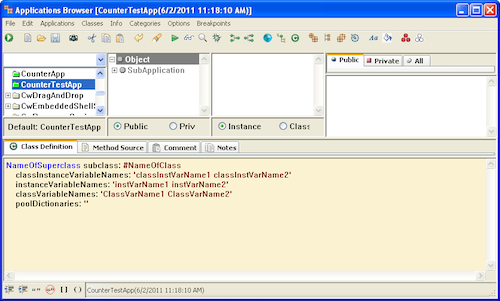
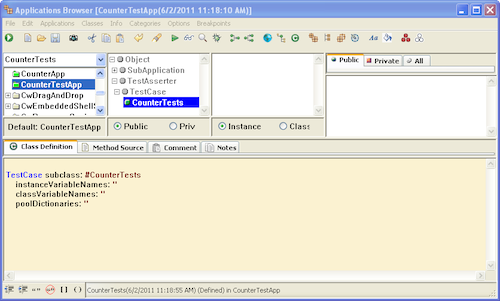
Now we can define the new test case class. This is no different from creating any other class, but if you didn't add SUnit as a pre-req, the TestCase class won't be visible to your new application. The next few images walk through creating the class:
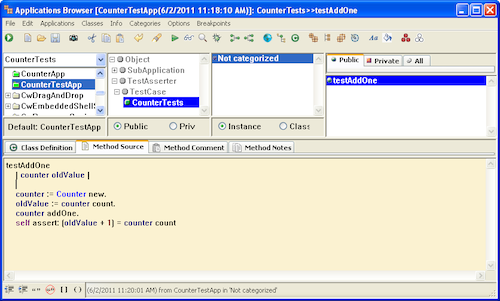
Now, we can write a standard SUnit testcase. Create a method that begins with the word test - that's how SUnit finds the tests in your subclass of TestCase. The last part of the method should send the #assert: message, with the argument being an expression that answers a boolean. Below is the simple example that tests the #addOne method in Counter:
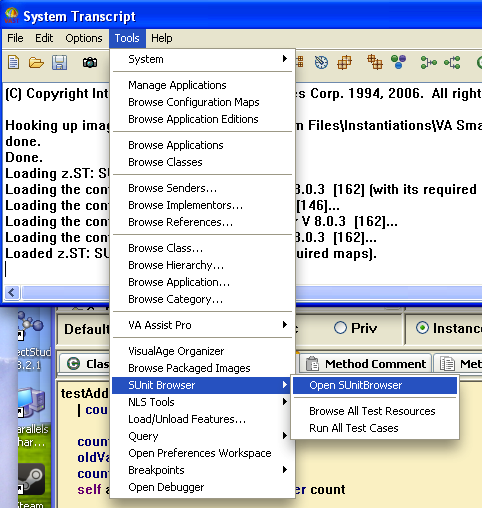
Now, go back to the tools menu, and pulling the SUnit option right, select the SUnit Browser:
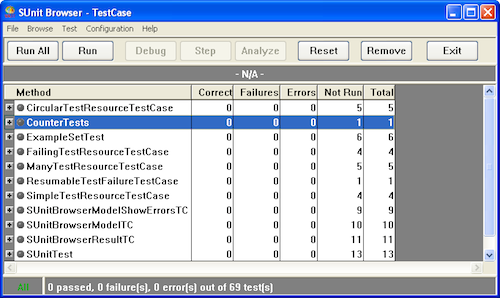
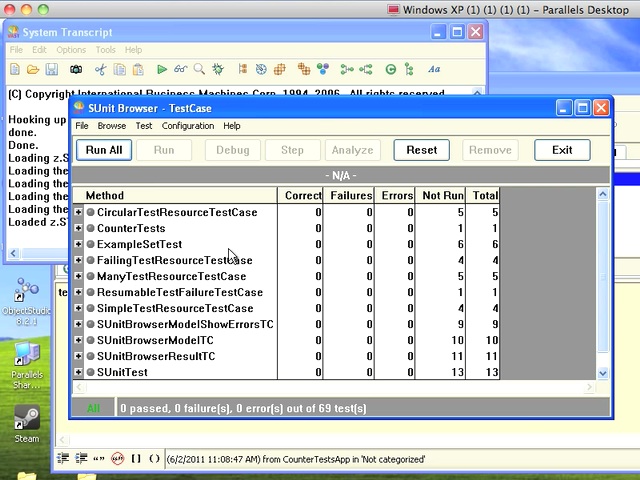
That opens a tool showing all of the tests present in your VA image. There are ways to be more specific about what you see in this tool; we'll cover that in another tutorial. For now, simply scroll down to the test you created and select it
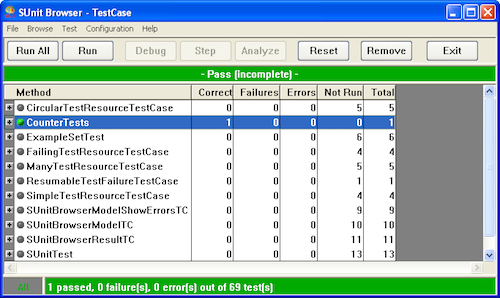
Finally, press the Run button, and you should see two green bars and some information. If you see red, either the CounterApp has a bug, or your test is wrong.
Need more help? There's a screencast for other topics like this which you may want to watch. Questions? Try the "Chat with James" Google gadget over in the sidebar.
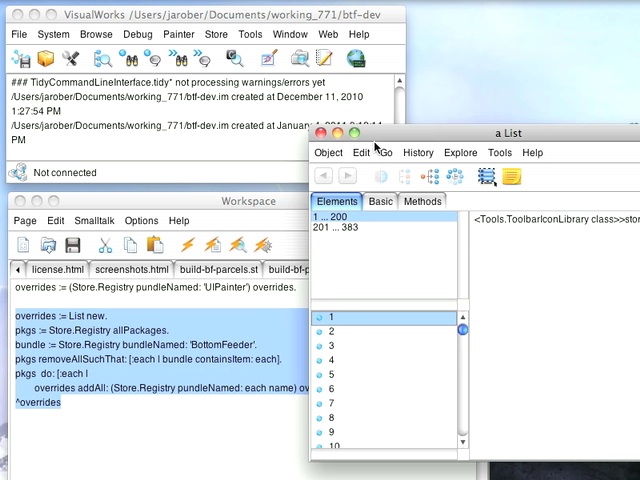
Today's Smalltalk 4 You looks at tracking overrides in VisualWorks - something that's useful when it's time to update from one version to another, and you need to know how many problems you'll have doing so.. If you have trouble viewing it here in the browser, you can also navigate directly to YouTube.
If you have trouble viewing that directly, you can click here to download the video directly. If you need the video in a Windows Media format, then download that here.
Today's Smalltalk 4 You shows you another way to get immediate access to the debugger in VA Smalltalk - the little "Debug THis" window that appears in the lower right corner of the screen when you start up the development environment. If you prefer a written walkthrough to video, then skip down to it. If you have trouble viewing it here in the browser, you can also navigate directly to YouTube. To watch now, click on the image below:
If you have trouble viewing that directly, you can click here to download the video directly. If you need the video in a Windows Media format, then download that here.
You can also watch it on YouTube:
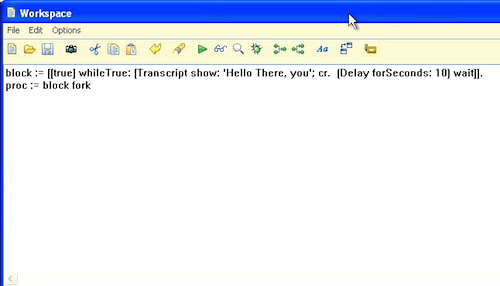
Today we'll look at another route into the debugger in VA Smalltalk, which can be useful when trying to grab the foreground process. To show that off, we'll again create a Smalltalk process in the workspace, and then grab it with the debugger. Here's the code to kick off a simple process:
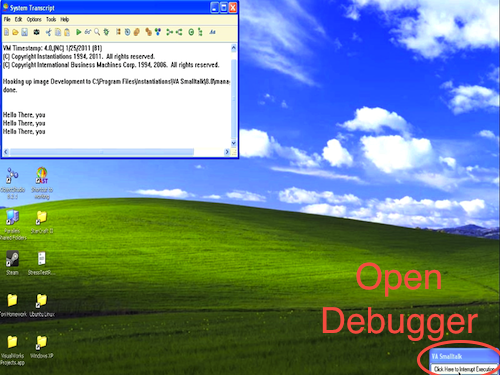
Now, when you started up VA, you may not have noticed the tiny little window in the lower right hand corner. It has one button, and gives you immediate access to the Debugger:
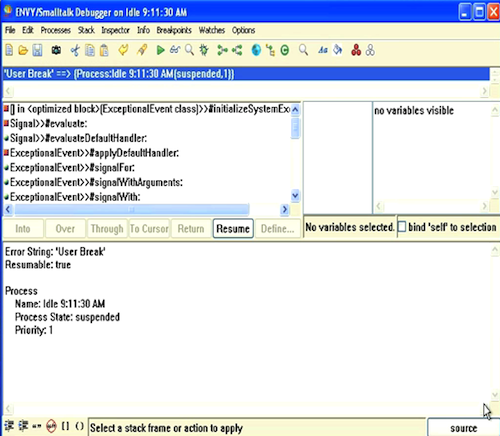
If you click that, instead of an empty debugger (which we saw in the last tutorial), you'll get the foreground process:
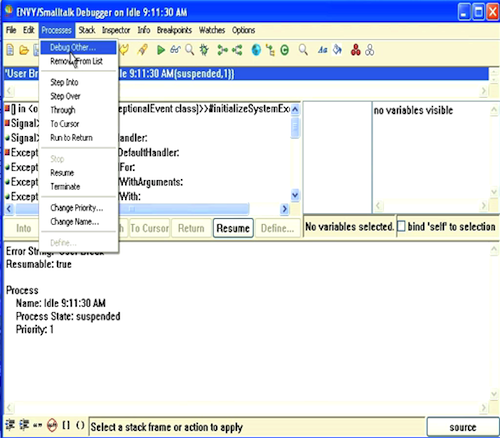
Now you can follow the same steps to debugging/terminating the errant process, via the Debug Other menu pick:
Need more help? There's a screencast for other topics like this which you may want to watch. Questions? Try the "Chat with James" Google gadget over in the sidebar.
Today's Smalltalk 4 You shows you how easy it is to grab an arbitrary VA Smalltalk process and load it into the debugger. This can be useful a few different ways - exploring the system, or killing a runaway process that you didn't keep a variable reference to. If you prefer a written walkthrough to video, then skip down to it. If you have trouble viewing it here in the browser, you can also navigate directly to YouTube. To watch now, click on the image below:
If you have trouble viewing that directly, you can click here to download the video directly. If you need the video in a Windows Media format, then download that here.
You can also watch it on YouTube:
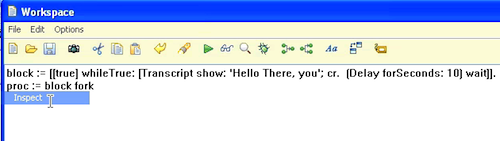
Today we'll look at debugging arbitrary processes in VA Smalltalk, which is easy using the debugger. To show that off, we'll create a Smalltalk process in the workspace, and then grab it with the debugger. Here's the code to kick off a simple process:
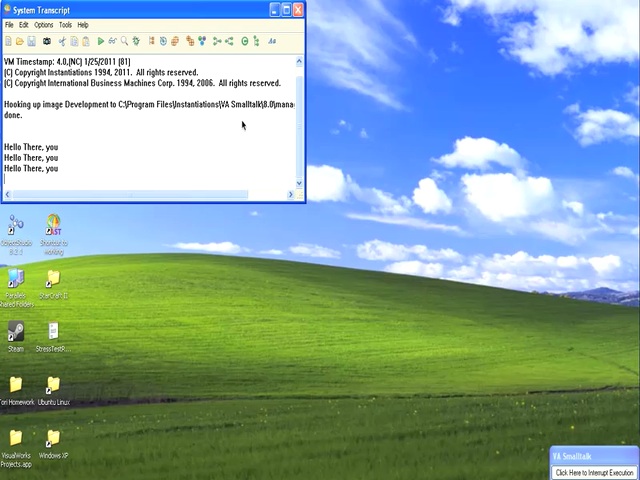
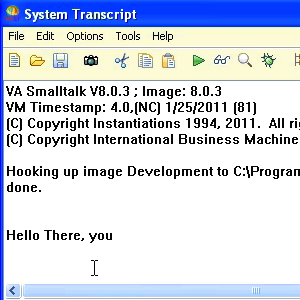
And here's a look at the Transcript, which shows that the process is, in fact, running:
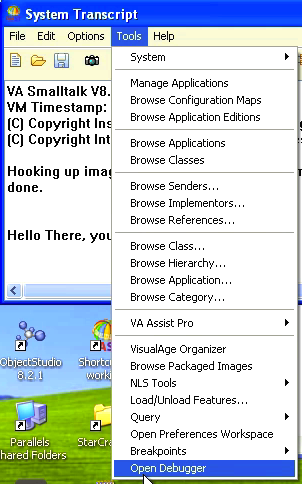
Going back to the launcher menu, select Tools, go all the way to the bottom, and open the debugger:
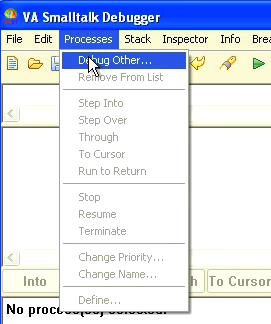
You haven't opened the debugger on a specific process, so it's empty. That's something we'll fix in a moment. Under the Processes menu, select the first option, Debug Other:
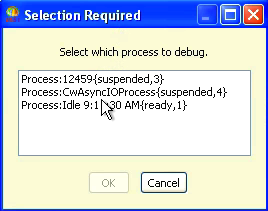
What you'll see now is a small window with a list of processes in it. These are Smalltalk processes, controlled by the VA Smalltalk environment:
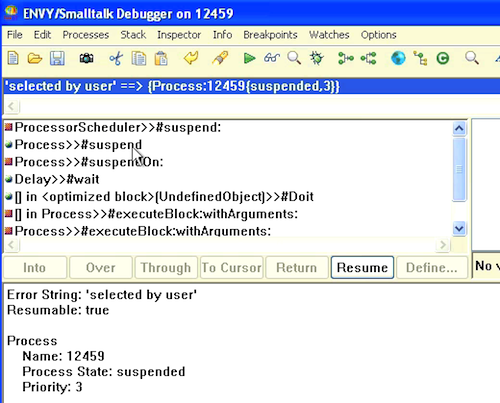
You can select any of them and start debugging them in the debugger, including main system processes. This is a great way to see how things work in any Smalltalk environment, but here we've selected the process we forked off above. One of the other things you can do with this feature is select a process so that you can terminate it - useful if you've forked one off, and haven't maintained any direct access to it. Here's the process in question in the debugger:
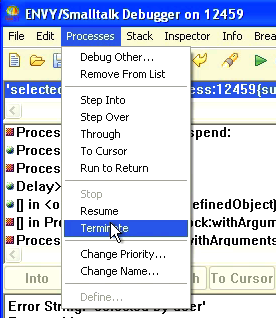
Now that you've grabbed the process in the debugger, it's easy to kill it. Simply go back to the Processes menu, and select Terminate:
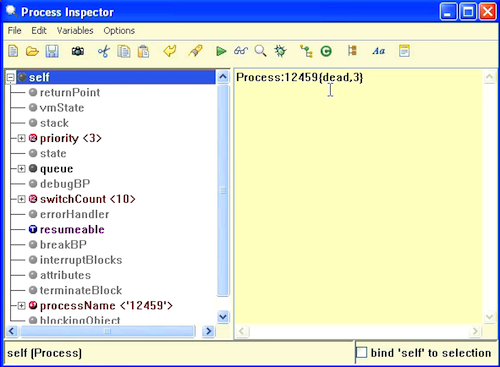
In this example, we held a reference to the process in the workspace, so we can inspect it (as seen below). If you didn't, simply repeat this process, and you'll see that the list of processes is one smaller:
Looking below, you can see in the inspector that the process is dead. That solves the problem of grabbing an arbitrary process we don't want or need any longer and killing it:
Need more help? There's a screencast for other topics like this which you may want to watch. Questions? Try the "Chat with James" Google gadget over in the sidebar.
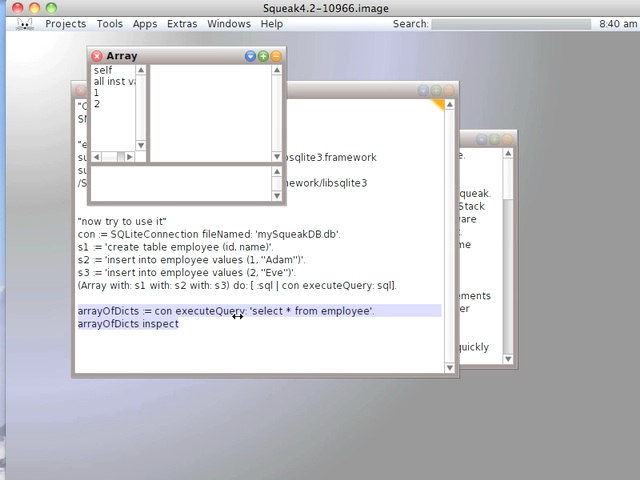
Today's Smalltalk 4 You shows you how to get started with Squeak and SQLlite - perhaps the simplest database that you could possibly set up. If you have trouble viewing it here in the browser, you can also navigate directly to YouTube. To give full credit where it's due, I found all the necessary instructions on the Smalltalk Impressions blog. To watch now, click on the image below:
If you have trouble viewing that directly, you can click here to download the video directly. If you need the video in a Windows Media format, then download that here.
Today's Smalltalk 4 You looks at the process of releasing an application version in ENVY. If you prefer a written walkthrough to video, then skip down to it. If you have trouble viewing it here in the browser, you can also navigate directly to YouTube. To watch now, click on the image below:
If you have trouble viewing that directly, you can click here to download the video directly. If you need the video in a Windows Media format, then download that here.
You can also watch it on YouTube:
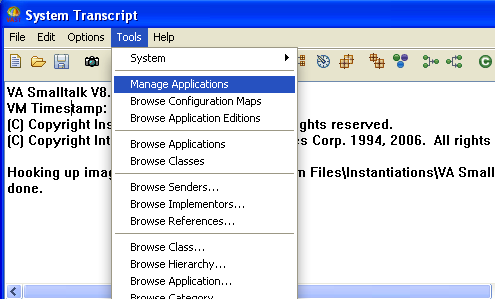
Today we'll release an application into ENVY with a formal version. We'll be starting with the same CounterApp we worked with last time, so we are starting with the recovered code. The process is the same whether you've followed along, or have a new application that you want to release. First, open Tools>ManageApplications from the launcher:
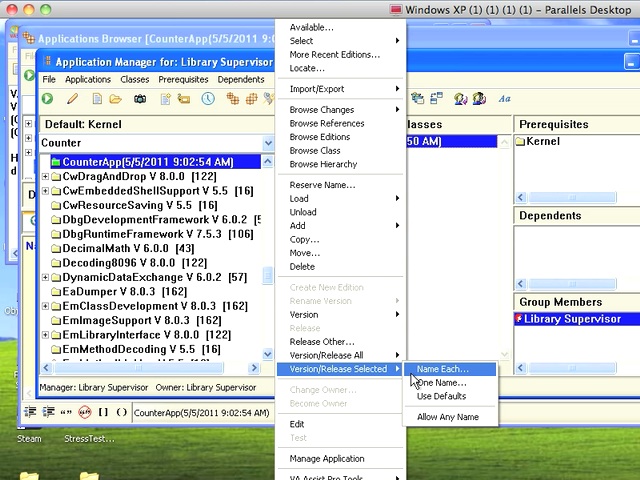
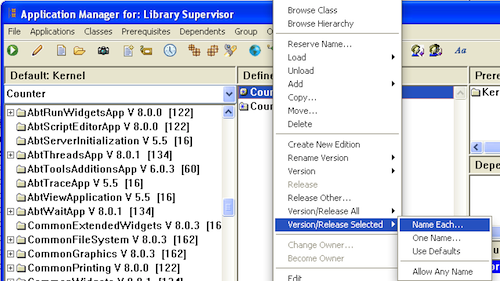
Right click on the application in the middle pane. Scrolling down, you'll see Version/Release All and Version/Release Selected. We only have one application, so both will work the same way here:
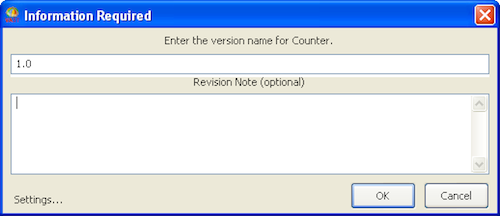
This will pop up a releasing dialog. You can enter a version string (ENVY will provide a new one based on any release history this application has), and a comment:
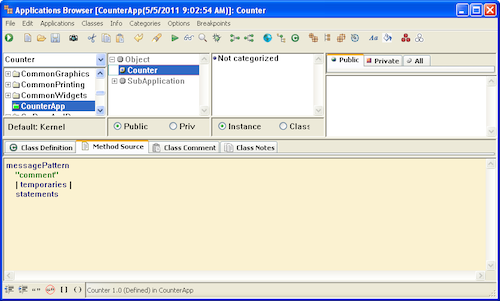
After some brief activity - the code is already in ENVY, all you're really doing here is updating the version tagging for the loaded edition - the applications browser will update. If you look at the status bar at the bottom, you'll see your new version information:
To see what's changed, quit the image without saving, and launch it again. Now let's go back to the Tools menu in the launcher, and select Browse Application Editions:
Scroll down to CounterApp, and load the 1.0 edition that you just released:
There's your code - so you can now see how the entire process works:
Need more help? There's a screencast for other topics like this which you may want to watch. Questions? Try the "Chat with James" Google gadget over in the sidebar.
Today's Smalltalk 4 You starts looking at how ENVY (the source code control system) for VA works. To do that, we'll go back to the example used in the debugger screencasts - an example that we didn't version of, or save an image for. Never fear though - ENVY keeps track of everything for you. If you prefer a written walkthrough to video, then skip down to it. If you have trouble viewing it here in the browser, you can also navigate directly to YouTube. To watch now, click on the image below:
If you have trouble viewing that directly, you can click here to download the video directly. If you need the video in a Windows Media format, then download that here.
You can also watch it on YouTube:
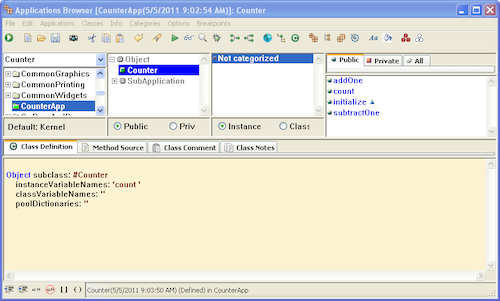
Today we'll start looking at how ENVY (the source code management system) works in VA Smalltalk. To do that, we'll go back to the simple Counter application that was used in the debugger screencasts. When we did that, you might recall that the code wasn't specifically published in the repository, nor was the image saved. Like other Smalltalk systems, all of that work was saved. Unlike the ones that use a change log type system, it's all integrated in VA with source code control. What you see below is a view of the Applications browser - you'll note that the CounterApp is not there. That's because we're only looking at what's in the image now:
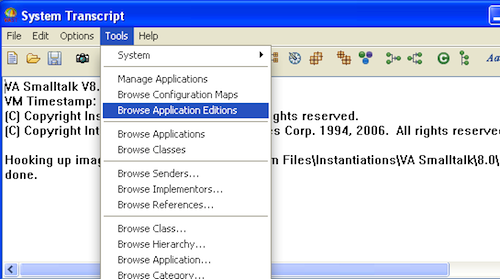
What we need to do is look at all of the Application Editions in the source code repository. Pull down that menu item from the launcher:
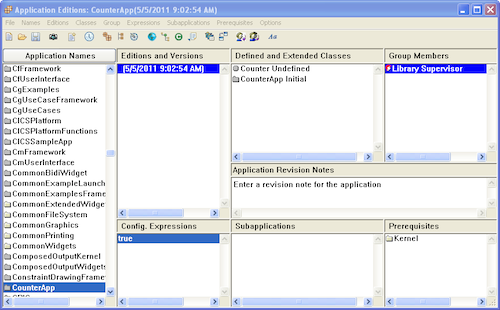
Scrolling down, we find CounterApp. Notice the version is just a timestamp; try clicking on some of the other Applications, and you'll notice normal version strings. That's because those were specifically published (by Instantiations), while our application was simply checkpointed by ENVY. That checkpoint does let us recover, however.
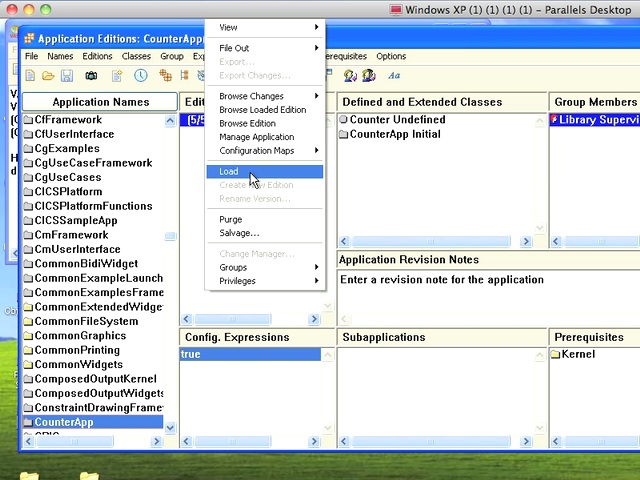
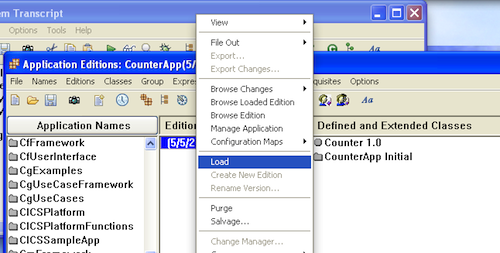
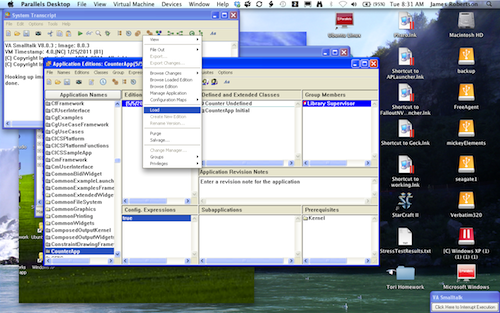
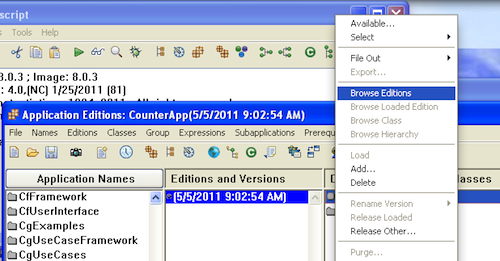
Now select the edition, right click, and pick Load from the menu. This will load the checkpointed edition into the image:
To complete this, select the class(es) on the right, right click, and select Load again. In this example, there's only one class to load:
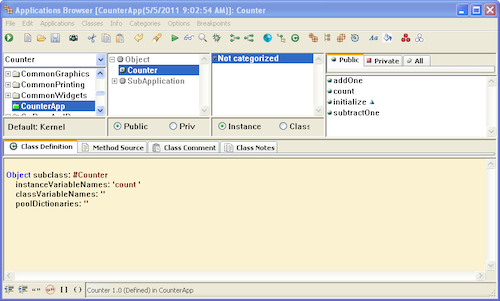
Now open up an Application Browser (on the image, not on the repository) to look at what you recovered:
There's your code - now ready to be moved forward (and published with an actual version string). Next time we'll take a look at how to publish an edition with complete version information
Need more help? There's a screencast for other topics like this which you may want to watch. Questions? Try the "Chat with James" Google gadget over in the sidebar.

 .
.
 .
.
 .
.