Today's Smalltalk 4 You looks at Amber (formerly JTalk) - a new Smalltalk environment hosted on Javascript. Meaning, it runs in your browser. If you have trouble viewing it here in the browser, you can also navigate directly to YouTube. To watch now, click on the image below:
If you have trouble viewing that directly, you can click here to download the video directly. If you need the video in a Windows Media format, then download that here.
Today's Smalltalk 4 You looks at how you "open" an application for new development in VA Smalltalk. Once you've released a new version, it's "closed" - but it's simple enough to open up a new edition - it's just part of the ENVY process. If you have trouble viewing it here in the browser, you can also navigate directly to YouTube. To watch now, click on the image below:
If you have trouble viewing that directly, you can click here to download the video directly. If you need the video in a Windows Media format, then download that here.
You can also watch it on YouTube:
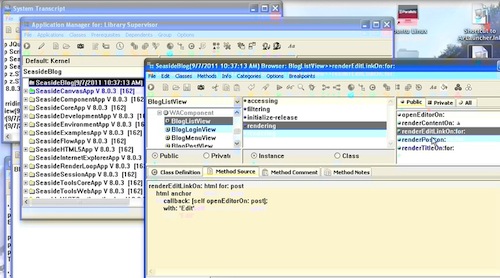
Today we'll look at how to open an application edition in VA Smalltalk for new development. What does that mean? Well, in the Seaside application we built for the tutorial, we versioned off the application with the end of each tutorial section. So if you pop in and try to start adding code, you'll see a warning like this:
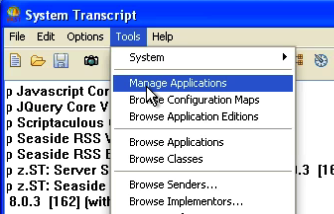
There's no harm in accepting that dialog, but let's walk through the formal way of creating an "open" edition in Envy that you can add new code to. To start, go back to the launcher, select Tools from the menu, and then Manage Applications:
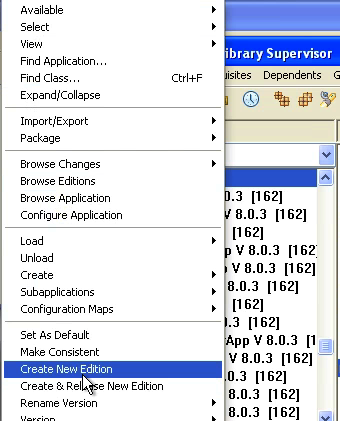
Once that opens up, select the application you want to open up to new development, open the context menu on, and select Create New Edition:
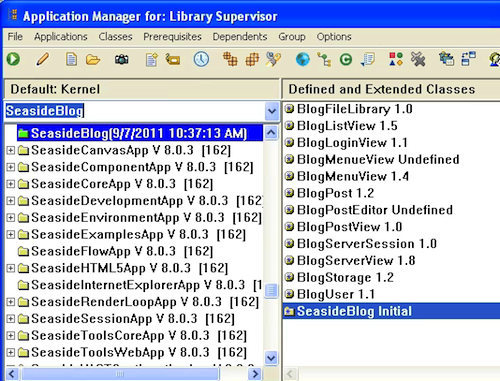
Once you've done that, have a look at the application in the tool - the little icon next to the name has turned green, indicating that it's open:
Finally, make a change in one of the classes in this application - back in the application management tool notice that the icon next to the class name also turns green:
That makes it easy to tell at a glance which applications and classes have changed.
Need more help? There's a screencast for other topics like this which you may want to watch. Questions? Try the "Chat with James" Google gadget over in the sidebar.
Today's Smalltalk 4 You continues the VA Smalltalk Seaside tutorial with a look at static urls - how to add them to your Seaside application. Turns out it's pretty easy. If you have trouble viewing it here in the browser, you can also navigate directly to YouTube. To watch now, click on the image below:
If you have trouble viewing that directly, you can click here to download the video directly. If you need the video in a Windows Media format, then download that here.
You can also watch it on YouTube:
Today we'll look at static urls - something that most websites need (at least at the entry points), and that Seaside does not provide by default. That doesn't mean it's hard to do though - you simply have to tell your application which urls you'll be handling yourself. To do that, you need to create an #initialRequest: method in your entry point class - BlogServerView in our case:
initialRequest: aRequest
  "set up for handling static urls"

  super initialRequest: aRequest.
  aRequest at: 'id' ifPresent: [:idNumber |
    | postOrNil |
    postOrNil := BlogStorage default posts
	detect: [:each | each id printString = idNumber]
	ifNone: [nil].
    postOrNil ifNotNil: [listComponent filterBlock: [Array with: postOrNil]]].
There are a few things going on there. First off, we get the request sent to us, along with the arguments in an easy to handle fashion - using Dictionary protocol with the url argument as the key. The above code assumes that our urls will look something like this:
blogView?id=1234567
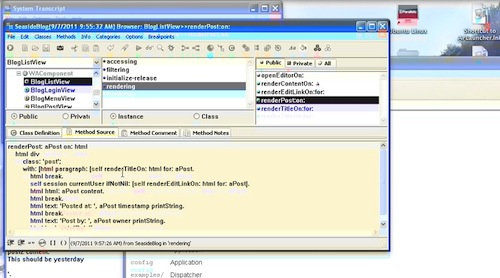
Where the id number is associated with each post object. That also assumes that each post as a "perm-link" associated with it - which we'll set up on the post title's as they render - in BlogListView, we'll modify #renderPostOn: to call #renderTitleOn:for:, instead of just directly dropping out the title as text. Then we'll need that method::
renderTitleOn: html for: post
  "put a permalink on the title"

  html strong: [ (html anchor)
	url: 'blogView?id=', post id printString;
	with: post title].
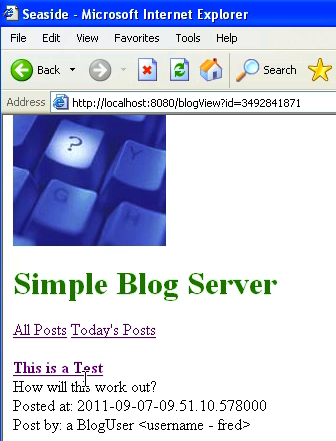
That sets up the post titles to have the urls we are looking for in the #initialRequest: method. If it all works, we can now refresh our top page, and click on a post - you should see one post come back, something like this:
Need more help? There's a screencast for other topics like this which you may want to watch. Questions? Try the "Chat with James" Google gadget over in the sidebar.
Today's Smalltalk 4 You continues the VA Smalltalk Seaside tutorial with File Libraries - a simple way to use external resources by including them in the image. If you have trouble viewing it here in the browser, you can also navigate directly to YouTube. To watch now, click on the image below:
If you have trouble viewing that directly, you can click here to download the video directly. If you need the video in a Windows Media format, then download that here.
You can also watch it on YouTube:
In this section we'll make use of a File Library - something that allows you to use external resources (images, CSS, etc), while at the same time allowing you to keep everything contained within the image. You probably don't want to deploy that way; tools like Apache serve files quite well. It can be handy when you are in testing mode though, since it allows you to hand one file (plus the VM, of course) to someone else.
To start with, create a subclass of FileLibrary in our Application:
Now we need to run some workspace code to import the file resources into the image (as methods in this class):
BlogFileLibrary addAllFilesIn: 'images'
Make sure that the path you give that (relative or full) points to the directory you want it to; it will import everything in there as a ByteArray. You'll end up with one method per file - if the file was called "why.png", then the method will be "whyPng".
Now, add BlogFileLibrary to your application's configuration - the same way you added Javascript libraries in this tutorial. The new class will appear in the list as a library.
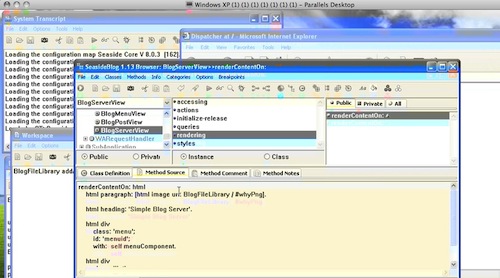
Finally, go back to BlogServerView, and change the url reference line to:
html image url: BlogFileLibrary / #whyPng.
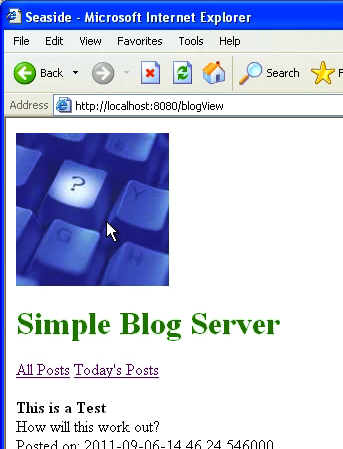
You can use any file library element that you have imported the same way. Now, let's ensure that the image shows up as it did before:
Need more help? There's a screencast for other topics like this which you may want to watch. Questions? Try the "Chat with James" Google gadget over in the sidebar.
Today's Smalltalk 4 You continues the VA Smalltalk Seaside tutorial with the addition of an external resource - an image. Today we'll simply add the url ref; next time, we'll keep it all "in the image" via file libraries. If you have trouble viewing it here in the browser, you can also navigate directly to YouTube. To watch now, click on the image below:
If you have trouble viewing that directly, you can click here to download the video directly. If you need the video in a Windows Media format, then download that here.
You can also watch it on YouTube:
In this section we'll add a link to an external resource (an image) in a fairly straightforward fashion - we'll get to File Libraries in the next segment.
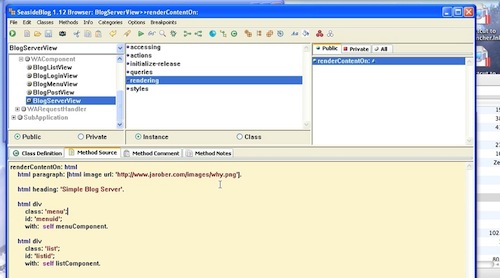
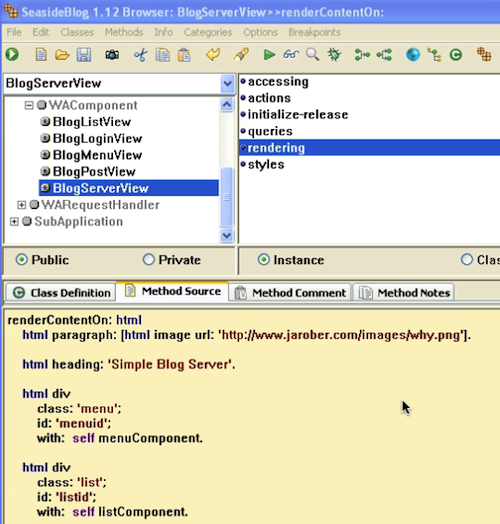
Go back to BlogServerView, and add an image link to the top of the method:
That's pretty much it - now browse the application:
Next time we'll look at file libraries - which require some configuration to set up.
Need more help? There's a screencast for other topics like this which you may want to watch. Questions? Try the "Chat with James" Google gadget over in the sidebar.
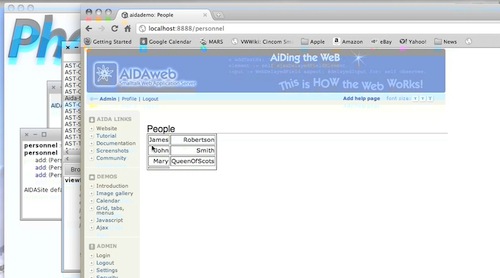
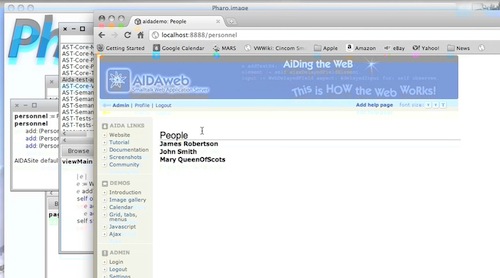
Today's Smalltalk 4 You looks at the basics of using HTML in AidaWeb. If you have trouble viewing it here in the browser, you can also navigate directly to YouTube. To watch now, click on the image below:
If you have trouble viewing that directly, you can click here to download the video directly. If you need the video in a Windows Media format, then download that here.
Today's Smalltalk 4 You looks at the more traditional way of using AidaWeb - registering a domain object as the application "root", and then building up a view that displays that object. If you have trouble viewing it here in the browser, you can also navigate directly to YouTube. To watch now, click on the image below:
If you have trouble viewing that directly, you can click here to download the video directly. If you need the video in a Windows Media format, then download that here.
Today's Smalltalk 4 You continues the VA Smalltalk Seaside tutorial with CSS. Today we'll add that support directly in the image (application code) - next time, we'll look at external file resources. If you have trouble viewing it here in the browser, you can also navigate directly to YouTube. To watch now, click on the image below:
If you have trouble viewing that directly, you can click here to download the video directly. If you need the video in a Windows Media format, then download that here.
You can also watch it on YouTube:
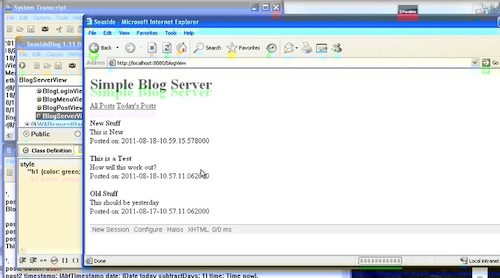
In this section we'll add some CSS to our application, directly in the image. IN a future tutorial, we'll look at adding external file resources (images, CSS files, etc) as well. To start with, go to class BlogServerView and add the following method:
style
	'h1 {color: green; }'
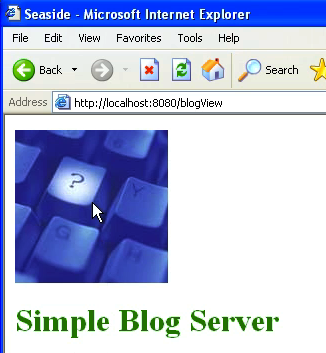
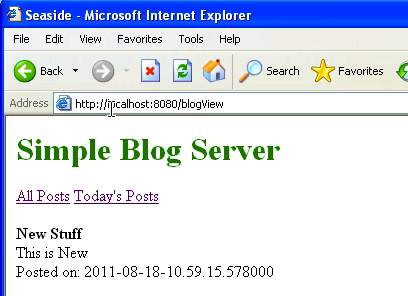
You can put arbitrary CSS in that method - the CSS you add will apply to the component you add it to. Now, refresh the view in the browser:
That's it - this method is useful when you want to hand a prototype over to someone else with a minimum amount of fuss - you simply give them the image and the VM, and off they go. Next time we'll look at adding external file resources to our application
Need more help? There's a screencast for other topics like this which you may want to watch. Questions? Try the "Chat with James" Google gadget over in the sidebar.
Today's Smalltalk 4 You continues the VA Smalltalk Seaside tutorial with Ajax. We'll change the filtering links on the main view to update using JQuery rather than Scriptaculous. If you have trouble viewing it here in the browser, you can also navigate directly to YouTube. To watch now, click on the image below:
If you have trouble viewing that directly, you can click here to download the video directly. If you need the video in a Windows Media format, then download that here.
You can also watch it on YouTube:
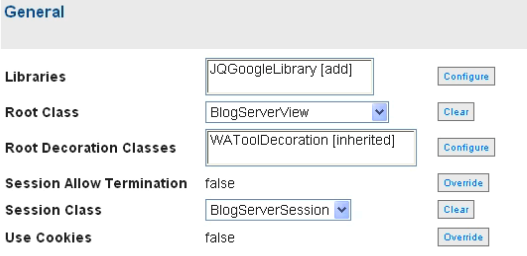
In this section we'll change our ajax usage from Scriptaculous to JQuery - this will require a small configuration change, and then the modification of one method. First, go back to the configuration screens for your Seaside system. We'll have to modify both the blogView and blogLogin we set up. ONce you get into the configurations screens for the first of those, scroll down to libraries and open that section up. Move PTGoogleLibrary and PTSTLibrary out, and add in JQGoogleLibrary. If you've forgotten how to get to those screens, then go back to this earlier tutorial
With that out of the way, we need to make one change in class BlogMenuView - #renderAjaxLinkOn:for: needs to have the link callback set up for JQuery:
renderAjaxLinkOn: html for: entry
	"Render this component"

		html anchor onClick:
			((html jQuery: #listid) load
				html: [:h |
					self listComponent updateFilterFrom: entry key.
					h render: self listComponent]);
				url: '#';
			with: entry key
Next time we'll look at adding CSS to our application
Need more help? There's a screencast for other topics like this which you may want to watch. Questions? Try the "Chat with James" Google gadget over in the sidebar.
Today's Smalltalk 4 You continues the VA Smalltalk Seaside tutorial with Ajax. We'll change the filtering links on the main view to update using Javascript rather than a full page submit. Today we'll do that using Scriptaculous; in the next tutorial, we'll use JQuery. If you have trouble viewing it here in the browser, you can also navigate directly to YouTube. To watch now, click on the image below:
If you have trouble viewing that directly, you can click here to download the video directly. If you need the video in a Windows Media format, then download that here.
You can also watch it on YouTube:
In this section we'll add Ajax to our Seaside application. Today we'll use Scriptaculous - in the next tutorial, we'll use JQuery. The configuration and code for both are largely the same, and so far as the end user of your applications is concerned, things behave the same way.
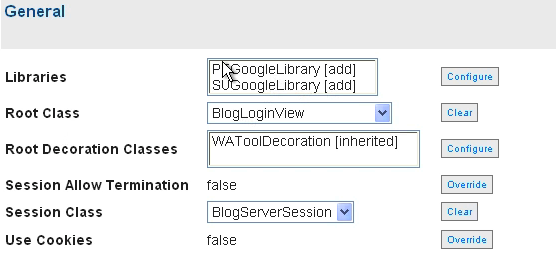
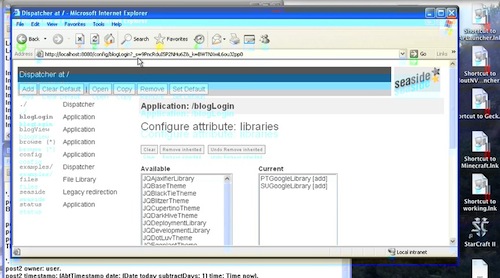
First, we need to go back into the configuration screens (as we did for the custom session work). We'll need to do the same thing for both the blogView and blogLogin entry points we've defined. Scroll down in the configuration section to libraries, and select configure. In the image below, I've already added the two libraries in question; your listbox will be blank:
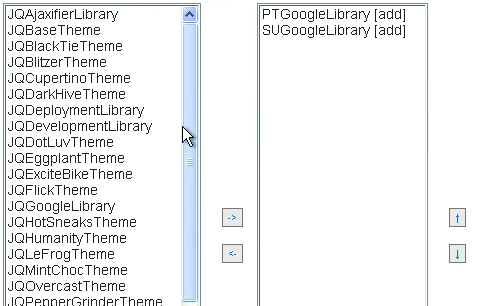
Select PTGoogleLibrary (Prototype) and SUGoogleLibrary (Scriptaculous) on the left - use the arrow button to move them to the right:
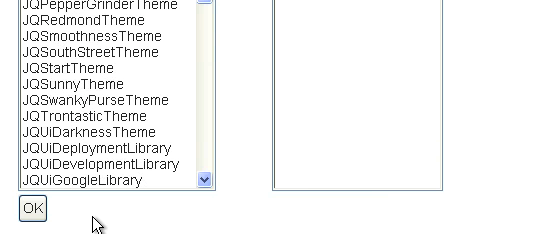
Now scroll down to the Ok button to apply the change, and then repeat the process for the other entry point:
Now we need to get into the code that will use these libraries that we just ensured will be loaded. First, we'll redefine BlogMenuView to hold a reference to the list component - so that when links are clicked, we can direct the list component to re-render without forcing a full page submit:
Now we'll change the way #renderContentOn: works, so that it renders the filtering links as ajax enabled links:
renderContentOn: html

	self entries
		do: [:each |
			(each key = 'New Post')
				ifTrue: [self renderStandardLinkOn: html for: each]
				ifFalse: [self renderAjaxLinkOn: html for: each]]
		separatedBy: [html space]
The #renderStandardLinkOn:for: method looks a lot like the above method used to look; the changes are in #renderAjaxLinkOn:for:
renderStandardLinkOn: html for: entry
	"Render this component"

	html anchor
			callback: entry value;
			with: entry key

renderAjaxLinkOn: html for: entry
	"Render this component"

		html anchor onClick:
			(html updater
				id: 'listid';
				callback: [:renderer | self listComponent updateFilterFrom: entry key.
							renderer render: self listComponent]);
			url: '#';
			with: entry key
Note the #onClick: method - it sets up the link to use Javascript. The #updater method is how we hook in Scriptaculous. The callback here is a block, and that's where we take advantage of the link to the list component - we tell it to re-render within the named div on click. The last thing we need to do is add #updateFilterFrom: to the BlogListView class, so that the updater can reset the filter just before it re-renders:
That's all the code we need - now just open the blogView interface in your browser, and switch between the two filters (all and today) - you should see them updating without a full page submit. Next time, we'll redo this to use JQuery
Need more help? There's a screencast for other topics like this which you may want to watch. Questions? Try the "Chat with James" Google gadget over in the sidebar.


 .
.
 .
.
 .
.
 .
.
 .
.