. .

st4u

ST 4U 74: Examining the VA Smalltalk Class Browser

April 25, 2011 5:40:50.275

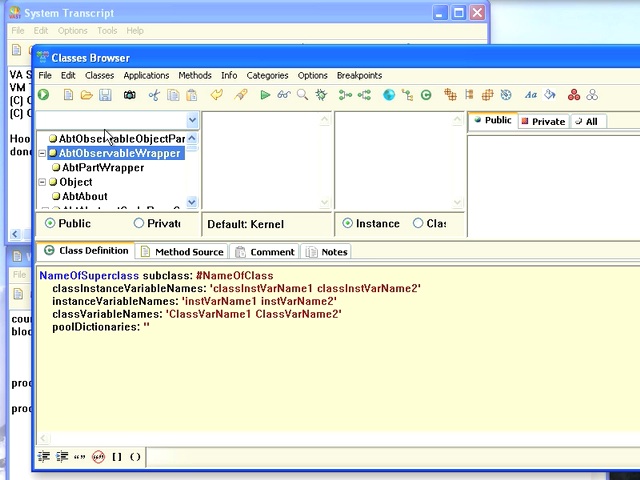
Today's Smalltalk 4 You takes an overview look at the class browser in VA Smalltalk If you prefer a written walkthrough to video, then skip down to it. If you have trouble viewing it here in the browser, you can also navigate directly to YouTube. To watch now, click on the image below:
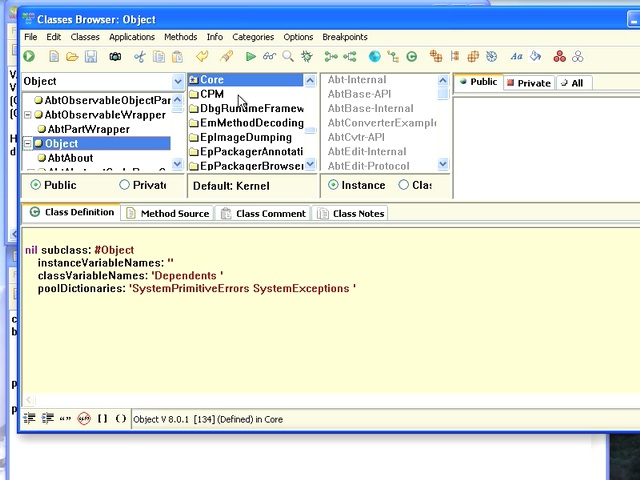
VA Class Browser

If you have trouble viewing that directly, you can click here to download the video directly. If you need the video in a Windows Media format, then download that here.

You can also watch it on YouTube:


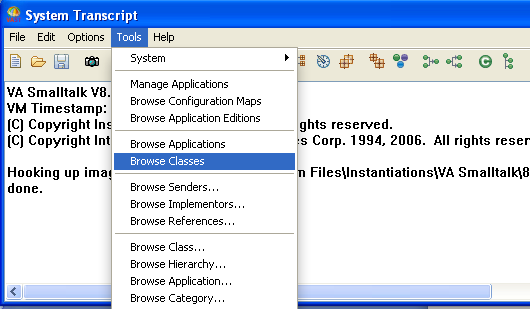
Today we'll take a look at the code browser in VA Smalltalk - starting with the Class Browser. Go to the launcher, and pull down the tools menu:
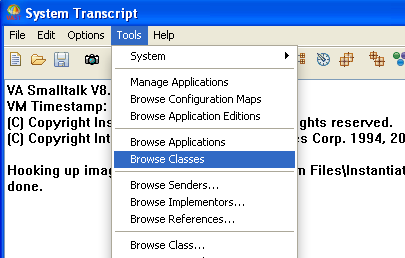
Class Browser

You should see something like this pop up:
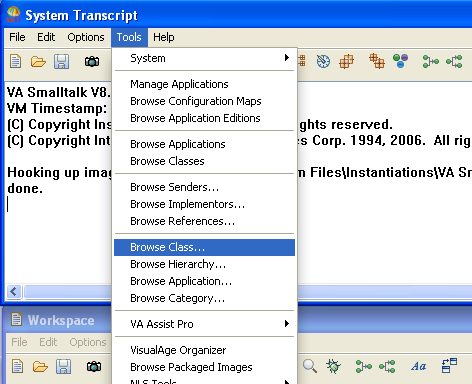
Browse Class

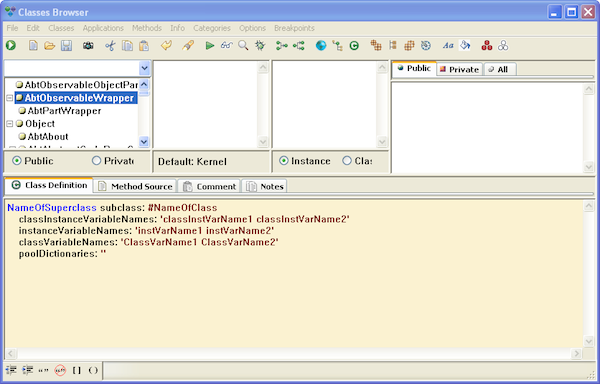
You should see the class browser, allowing you to start looking at the implementation:
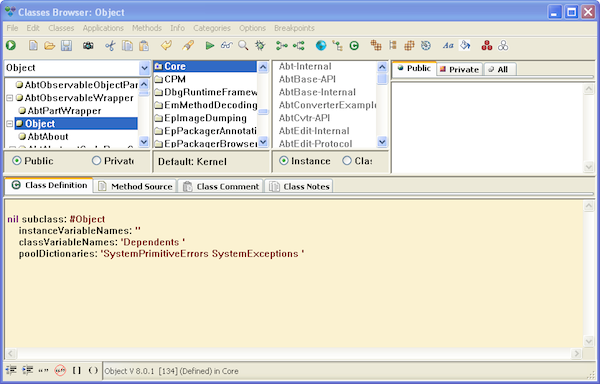
Browsing Class

Going from left to right, you have the classes, listed in alphabetical order. The next pane over is Applications - each class is defined in exactly one application, and may be extended in many others. Select an application, and you'll see the methods defined for the selected class in that application. The next pane over is method categories - the bolded ones are in use for the selected application, while the grayed out ones are in others. Finally, all the way to the right is the method pane - where you'll see the methods defined for the selected application and category.

Note that you can select class or instance methods (below the method pane), and you can select method types - public, private, or, ignoring the distinction, all:
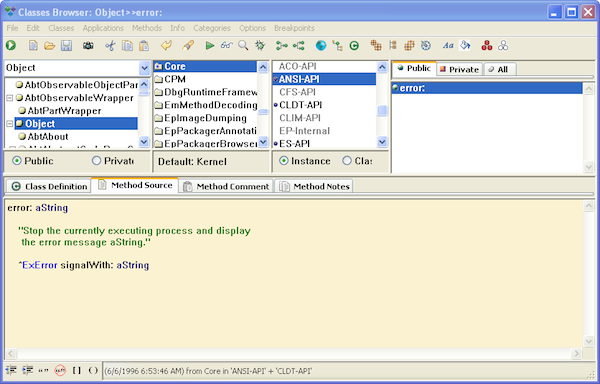
Class Browser

Now, select Private under the class list pane. Note that all of the public classes (such as Object) are now grayed out. In VA Smalltalk, you can define classes as private, not just methods. The browser operates the same way regardless of this selection; it's simply a filter. Going back to the public view, let's select class Object. At the bottom you have the source pane, and there are a few different modes there as well, controlled by the tabs above the pane. Select Class Definition to see the definition of the class:
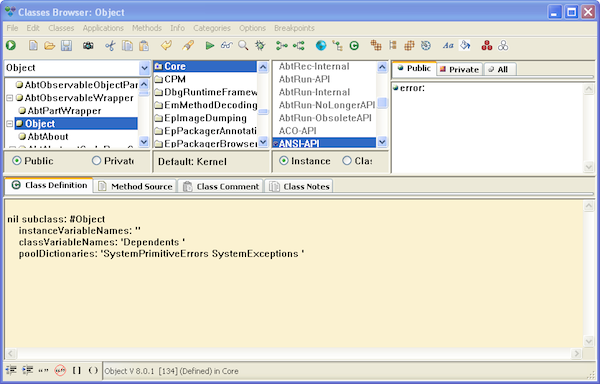
Class Definition

Select Method Definition to return to the default view, source for the selected method:
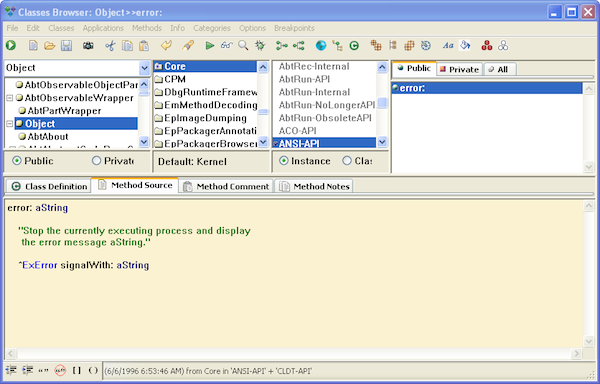
Method Source

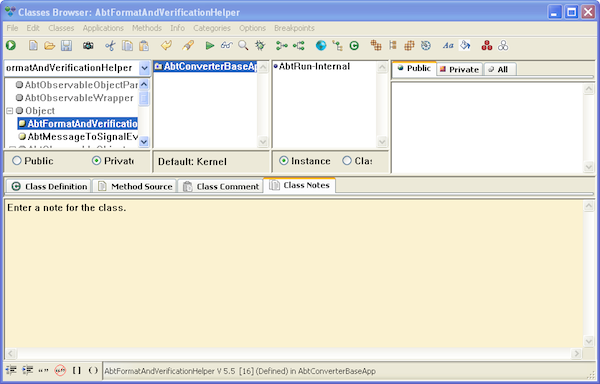
Note that VA allocates some extra options for documentation. In addition to standard Smalltalk comments, there are tabs for Method Comments and Method Notes:
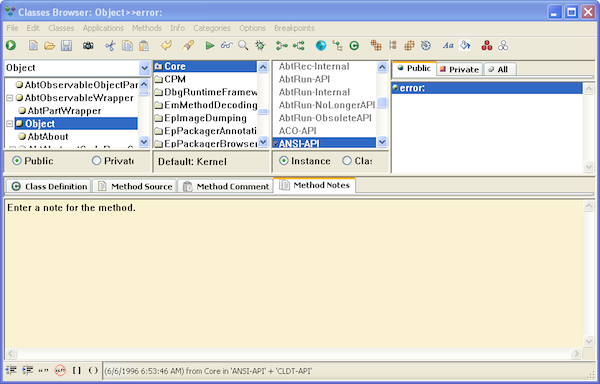
Method Comments

Method Notes

And that wraps up a quick tour of the class browser. We'll look at the other kinds of browsers, as well as the menus and toolbar, in other tutorials.

Need more help? There's a screencast for this topic which you may want to watch. Questions? Try the "Chat with James" Google gadget over in the sidebar.

Technorati Tags: , , ,

Enclosures:
[st4u74-iPhone.m4v ( Size: 7186016 )]

posted by James Robertson

 Share Tweet This

st4u

ST 4U 73: Exploring VA Browsers

April 22, 2011 10:08:32.140

Today's Smalltalk 4 You takes an overview look at the browser set in VA Smalltalk (omitting the ENVY specific ones - we'll go through those in a separate tutorial). If you prefer a written walkthrough to video, then skip down to it. If you have trouble viewing it here in the browser, you can also navigate directly to YouTube. To watch now, click on the image below:

VA Browsers

If you have trouble viewing that directly, you can click here to download the video directly. If you need the video in a Windows Media format, then download that here.

You can also watch it on YouTube:


Today we'll take a look at some of the different kinds of browsers in VA Smalltalk, and what they are used for. This is an overview; we'll be going into more depth in other tutorials. Go to the launcher, and pull down the tools menu, and select Browse Classes

Class Browser

You should see something like this pop up:

Browse Class

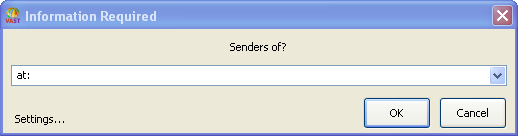
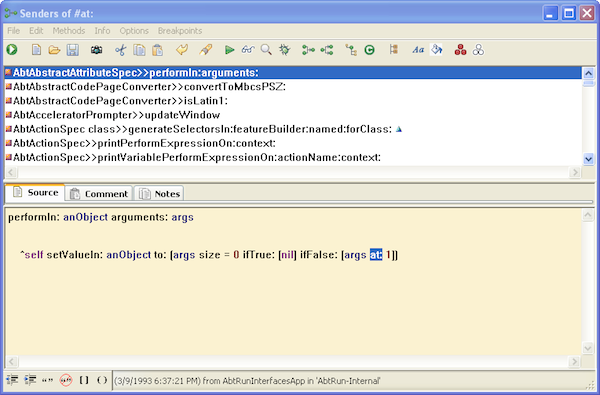
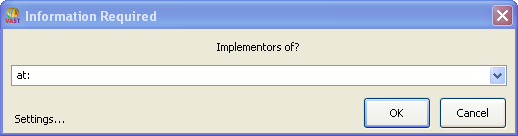
That's the class browser; we'll put that aside and pull down the tools menu again, selecting Browse Senders. You'll get prompted for a selector; enter at:

Browsing Senders

This brings up a browser on all of the senders of the message #at: - there are a lot of them. Let's put that aside, and find all of the implementors of #at:

Browsing Senders

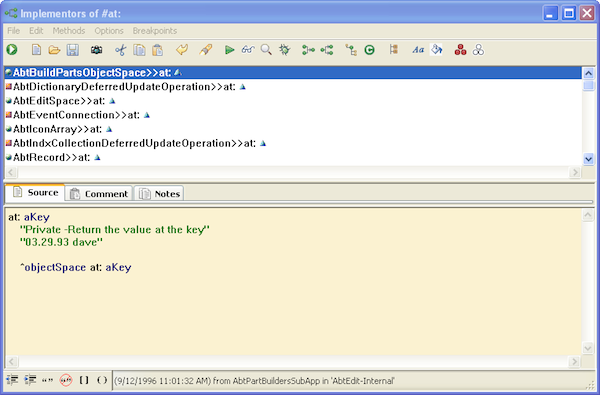
Let's push that aside and look for all of the implementors - pull down the tools menu again and select Browse Implementors:

Browsing Implementors

Enter at: again, and you should see this:

Browsing Senders

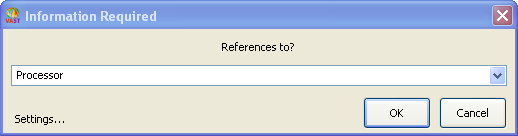
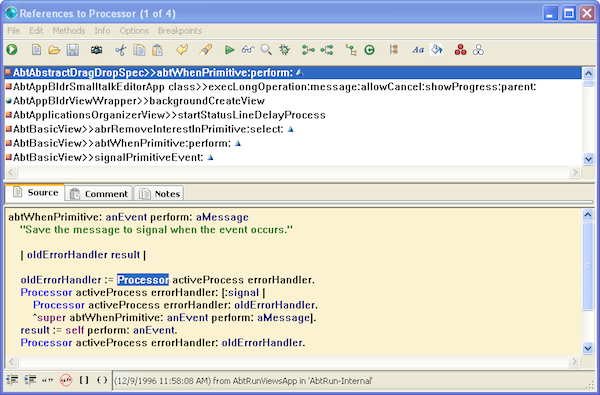
This browser looks a lot like the previous one, it's just focused on the implementations rather than the invocations. Let's move along to references - what if you want to find all of the places that a class, Global, or class variable are used? Pull down the tools menu again, and select Browse References. Enter something like Processor:

Browsing References

You'll get a browser that looks like this:

Browsing References

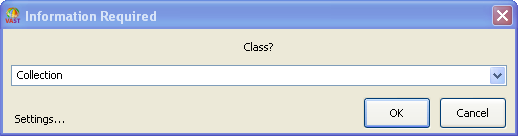
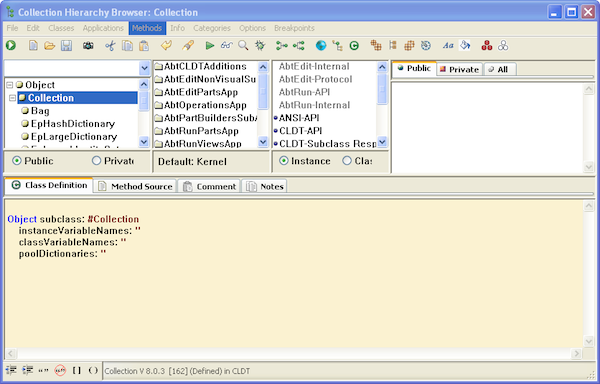
More often, you'll want to browse a specific class - pull down the tools menu again, and select Browse Class - I entered Collection:

Browse Class

Browse Class

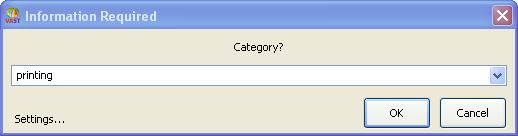
There's another browsing option in VA that's not common in Smalltalk - Browse Categor, which is again available from the tools menu:

Browse Category

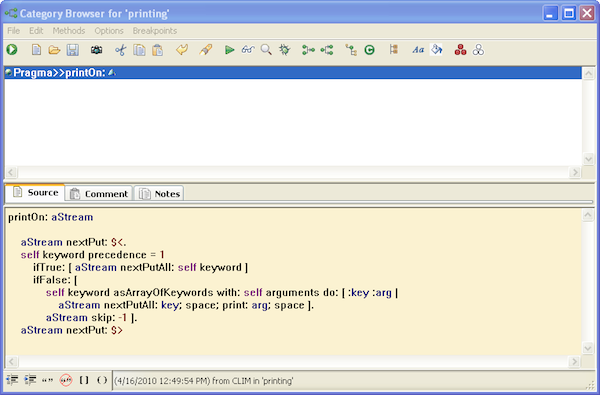
Try entering Printing:

Browse Category

And that wraps up a quick tour of the various browsers - leaving the version control related ones aside, which we'll cover in depth in a separate tutorial.

Need more help? There's a screencast for this topic which you may want to watch. Questions? Try the "Chat with James" Google gadget over in the sidebar.

Technorati Tags: , , ,

Enclosures:
[st4u73-iPhone.m4v ( Size: 8997281 )]

posted by James Robertson

 Share Tweet This

st4u

ST 4U 72: Exploring VA Smalltalk

April 20, 2011 11:17:32.460

Today's Smalltalk 4 You looks at one way of exploring VA Smalltalk. One of the things I like to do with a system I'm not terribly familiar with is start from something I do know, and explore from there. In this screencast, we take a bit of code I know well, and use it to jump into the tools and system. If you prefer a written walkthrough to video, then skip down to it. If you have trouble viewing it here in the browser, you can also navigate directly to YouTube. To watch now, click on the image below:

Exploring VA

If you have trouble viewing that directly, you can click here to download the video directly. If you need the video in a Windows Media format, then download that here.

You can also watch it on YouTube:


One of the best ways that I know of to explore a new Smalltalk system is to take a piece of code I've written quite a lot in other Smalltalks, and start exploring the system using that as a jumping off point. That way, I'm not stumbling over both the less familiar system and the code at the same time. Translating that to VA Smalltalk, I took this as my starting point:


count := 1.
block := [[true] whileTrue:
				[count := count + 1.
				Transcript show: count printString; cr.
				(Delay forSeconds: 2) wait]].
proc := block forkAt: Processor userBackgroundPriority.


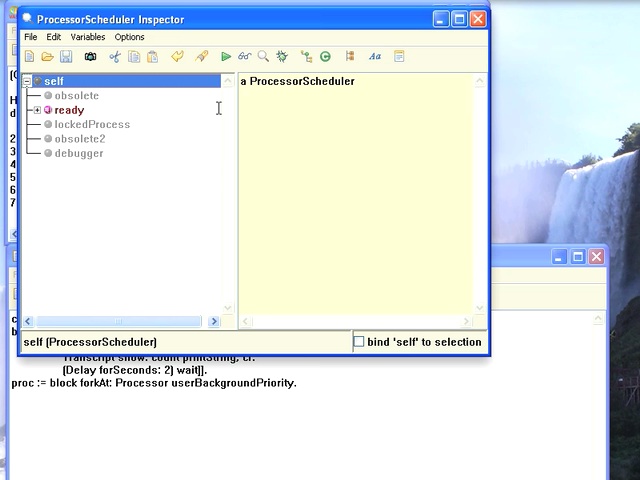
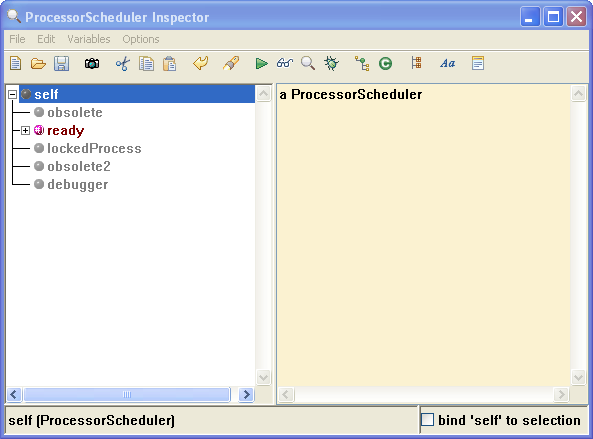
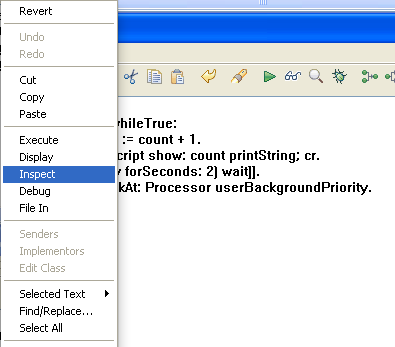
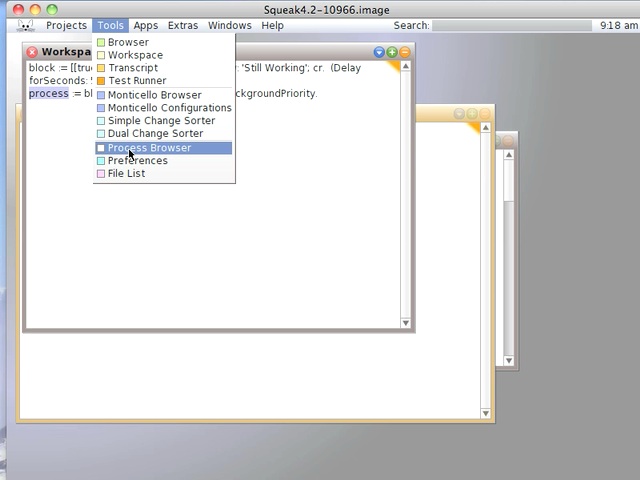
It's the core of just about every server process I've ever created in Smalltalk - except that the real ones do actual work instead of writing to the Transcript. For our purposes here though, this is perfect. Let's start by highlighting Processor in the workspace, right clicking, and selecting inspect. This is what you should see:

ProcessorScheduler

From there, it might be interesting to look at the implementation. So back in the launcher, select Tools>>browse class:

Browse Class

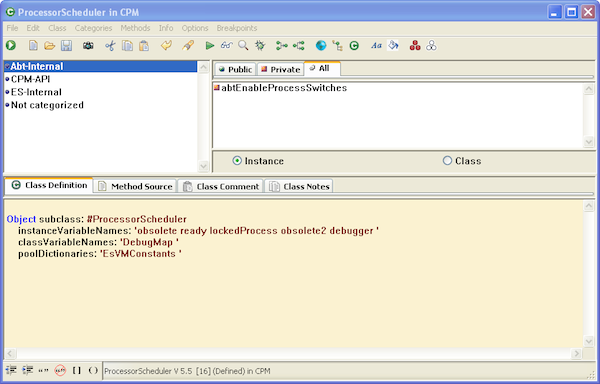
You should see the class browser, allowing you to start looking at the implementation:

Browsing Class

One thing that's different about VA, at least compared to Squeak, Pharo, or VisualWorks - look at the three tabs above the selector pane on the right - public, private, all. In VA, private methods are a bit more segregated. There's nothing in the system that prevents you from invoking a private method, but VA does make them visibly separate in a way that most Smalltalks don't. This makes it much more obvious when you are crossing the divide between a public API and a private one.

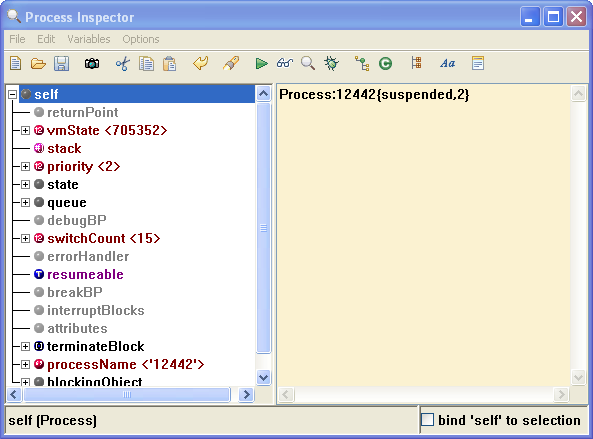
Now we might want to look at the actual Process class - we have one running, and it would be useful to be able to control it. Let's go back to the workspace, and inspect the proc variable:

Inspect a Process

Inspector on a Process

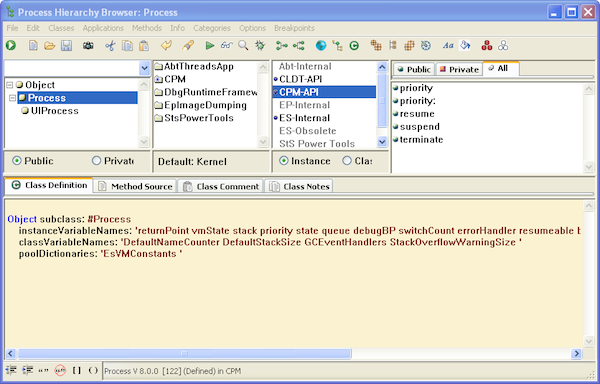
From here, you can browse the class directly. On the toolbar for the inspector, find the Browse Hierarchy button and click it:

Hierarchy Browser

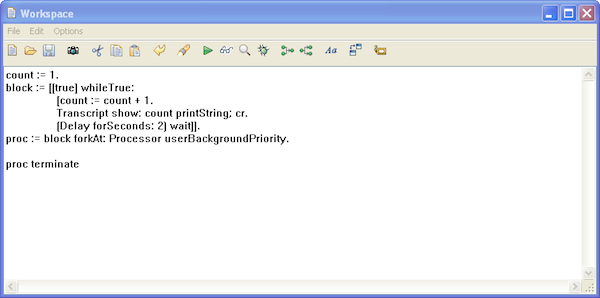
Clicking around we spot the #terminate method, and we go back to the workspace, invoke that code and kill the running process:

Terminate a Process

In future tutorials, we'll start examining each of these tools - browsers and inspectors - in depth. Today's goal was to show you how you can use a small bit of pre-existing knowledge as a jumping off point to explore VA Smalltalk

Need more help? There's a screencast for this topic which you may want to watch. Questions? Try the "Chat with James" Google gadget over in the sidebar.

Technorati Tags: , ,

Enclosures:
[st4u72-iPhone.m4v ( Size: 9068300 )]

posted by James Robertson

 Share Tweet This

st4u

ST 4U 71: Find that Implementation

April 18, 2011 8:51:44.033

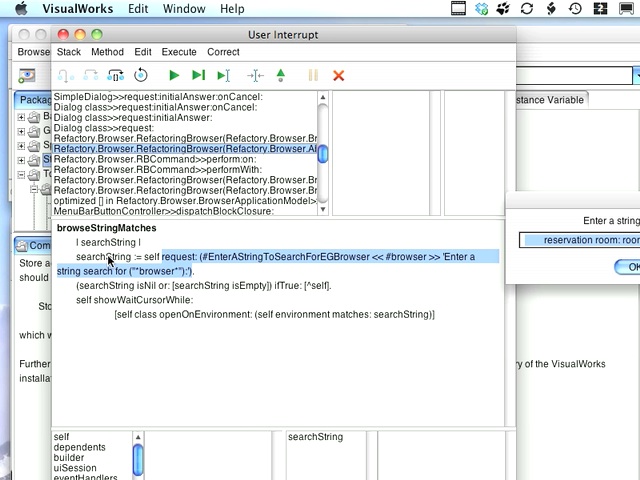
Today's Smalltalk 4 You looks at interrupting a Smalltalk function in order to see how it works (and thus be able to customize it in the environment). While we're looking at VisualWorks for the example, the methodology applies across all Smalltalks. If you have trouble viewing it here in the browser, you can also navigate directly to YouTube. To watch now, click on the image below:

Exploring

If you have trouble viewing that directly, you can click here to download the video directly. If you need the video in a Windows Media format, then download that here.

You can also watch it on YouTube:

Technorati Tags: ,

Enclosures:
[st4u71-iPhone.m4v ( Size: 6090551 )]

posted by James Robertson

 Share Tweet This

st4u

ST 4U 70: Getting Started with Cuis

April 15, 2011 7:22:58.371

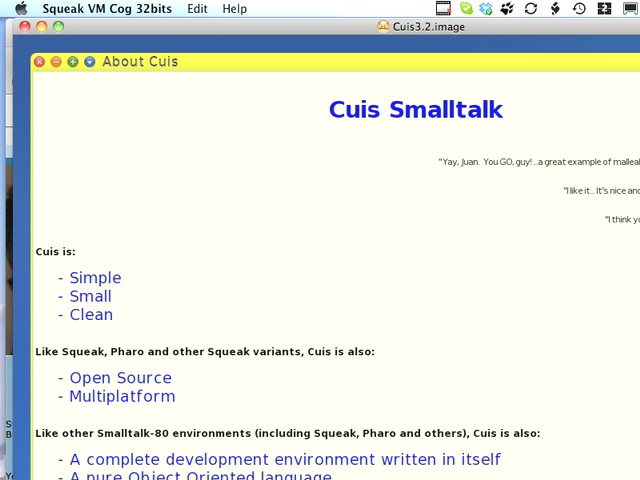
Today's Smalltalk 4 You looks at Cuis - a smaller, more focused Squeak derived Smalltalk created by Juan Vuletich. If you have trouble viewing it here in the browser, you can also navigate directly to YouTube. To watch now, click on the image below:

Cuis

If you have trouble viewing that directly, you can click here to download the video directly. If you need the video in a Windows Media format, then download that here.

You can also watch it on YouTube:

Technorati Tags: , ,

Enclosures:
[st4u70-iPhone.m4v ( Size: 4220579 )]

posted by James Robertson

 Share Tweet This

st4u

ST 4U 69: Create a New ENVY User

April 13, 2011 8:35:55.447

Today's Smalltalk 4 You looks at creating a new ENVY users - just as you shouldn't work as "administrator" on Windows, you really shouldn't work as "Library Supervisor" in VA Smalltalk. If you prefer a written walkthrough to video, then skip down to it. If you have trouble viewing it here in the browser, you can also navigate directly to YouTube. To watch now, click on the image below:

ENVY Users

If you have trouble viewing that directly, you can click here to download the video directly. If you need the video in a Windows Media format, then download that here.

You can also watch it on YouTube:


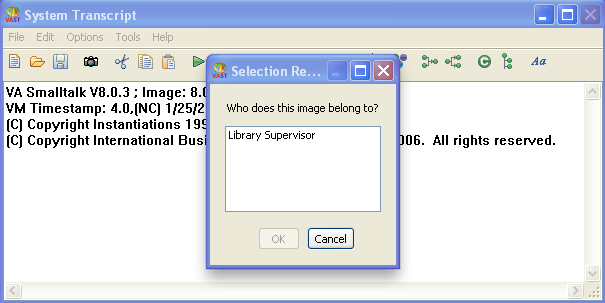
When you first set up your ENVY source code repository, there's one user set up - the Library Supervisor. While you could just use that, it's akin to doing everything as the administrator on Windows, or as root on Unix - it works, but carries some risk (the user is simply too powerful). GIven that, it's best to set up a standard user for your regular interactions with ENVY.

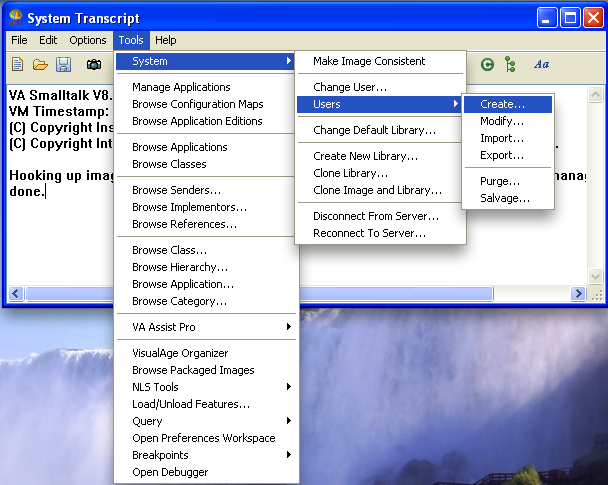
As you develop code in VA Smalltalk, everything you do is captured by ENVY - there's basically no chance of you losing code. What we'll look at today is how to set up a new ENVY user for you to use when you aren't administering the repository. First, pull down the "System Menu" on the launcher, as shown below:

ENVY Users

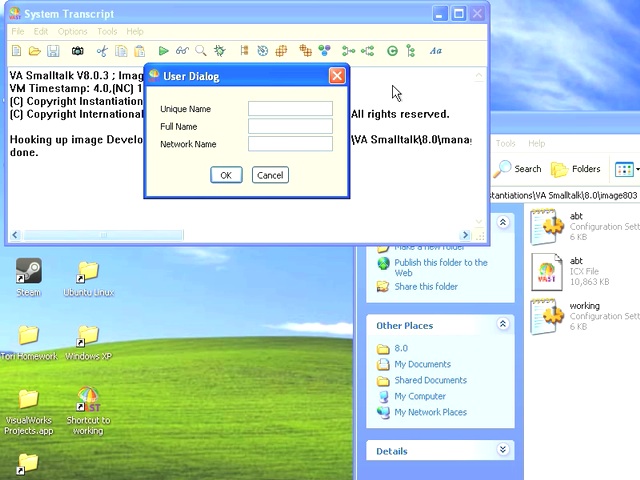
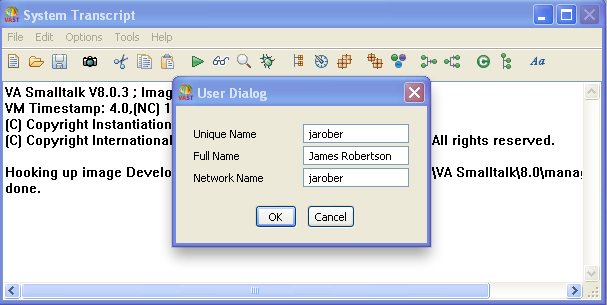
You'll be prompted with a small dialog that asks you to fill in three things. Normally, unique name and network name will be the same thing:

ENVY Users

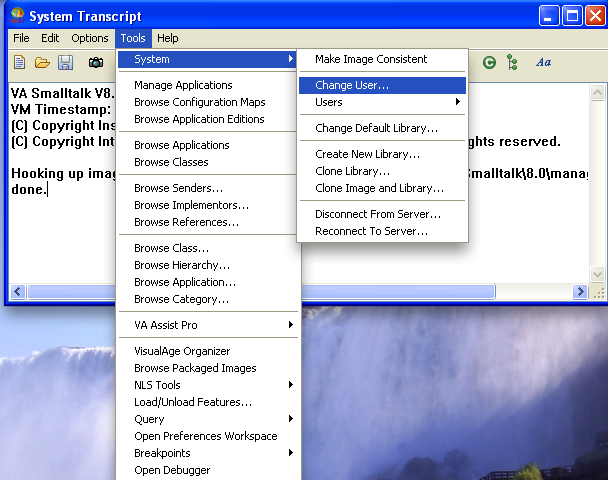
Next we'll change users. If you've set up ENVY in the default way, you won't be prompted for a password when you switch users. Pull down the "System" menu again, as shown below, and select "Change User":

ENVY Users

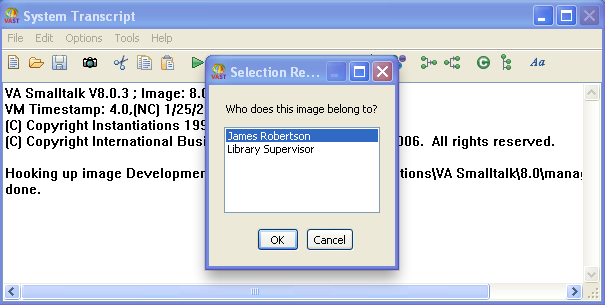
You'll see the following dialog come up, with all current ENVY users listed. Select the one you just created, and hit Ok:

ENVY Users

That's all there is to it - you can now start creating VA applications, and all of your code will be saved in the repository under this new user instead of under "Library Supervisor". We'll get into using the tools to create applications and deal with other repository uses in future screencasts.

Need more help? There's a screencast for this topic which you may want to watch. Questions? Try the "Chat with James" Google gadget over in the sidebar.

Technorati Tags: , , ,

Enclosures:
[st4u69-iPhone.m4v ( Size: 3736958 )]

posted by James Robertson

 Share Tweet This

st4u

ST 4U 68: Save and Start a New VA Image

April 11, 2011 8:15:02.338

Today's Smalltalk 4 You looks at setting up a working environment in VA Smaltalk: starting the installed image, connecting to ENVY, saving the image in that state, and then easily starting that saved image. If you prefer a written walkthrough to video, then skip down to it. If you have trouble viewing it here in the browser, you can also navigate directly to YouTube. To watch now, click on the image below:

Setting up VA Smalltalk

If you have trouble viewing that directly, you can click here to download the video directly. If you need the video in a Windows Media format, then download that here. For this video, I captured my entire screen - you can watch the full size video here.

You can also watch it on YouTube:


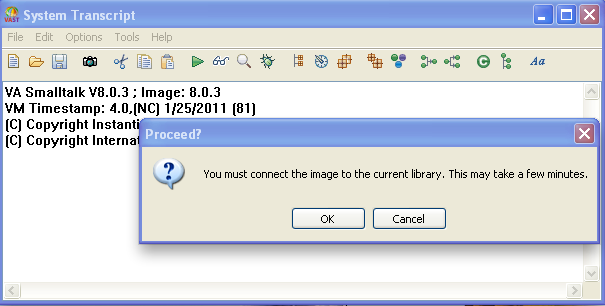
Once you've installed VA Smalltalk, you can start your development environment up with the shortcut that was installed in the start menu. We'll get to how you save and start a different image in a moment - once you start the default image, you'll be presented with what's below - a dialog asking you to connect to the ENVY repository. ENVY is the source code management system for VA Smalltalk; we'll be getting deeper into that in the future. For now, simply hit the "Ok" button and let the system connect to the repository.

Start VA

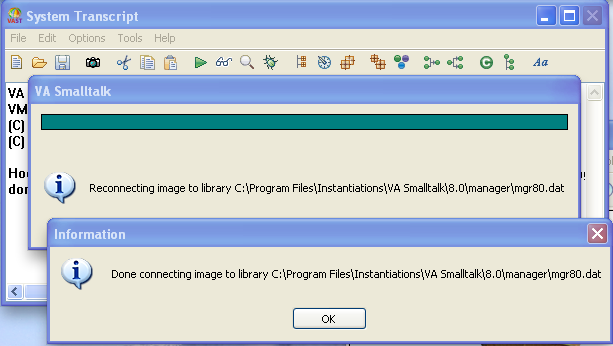
Once you accept the dialog, VA will prompt you again, and then start synching up to the repository. Once it's done doing that, you'll see the second screen below:

Connect to ENVY

Connect to ENVY

Now, you probably don't want to do that every time you fire up VA - you'll want to save your image. What does that mean? Wikipedia has a good explanation of what a Smalltalk image is; suffice to say that it's a memory snapshot of everything that's going on in the Smalltal system - when you restart it, you'll be in the exact same place you were when you saved - just like hibernating a laptop.

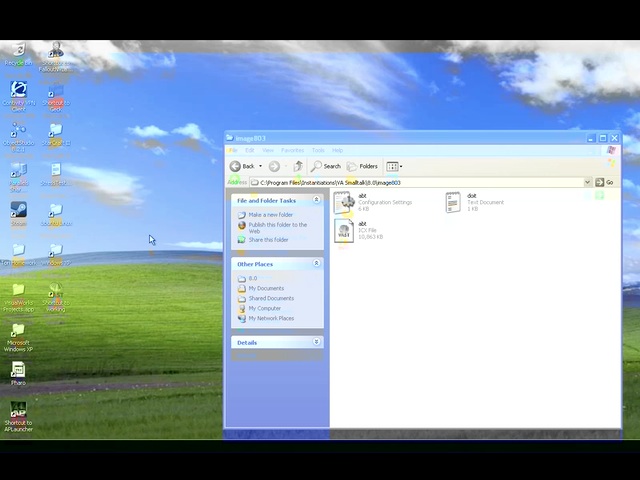
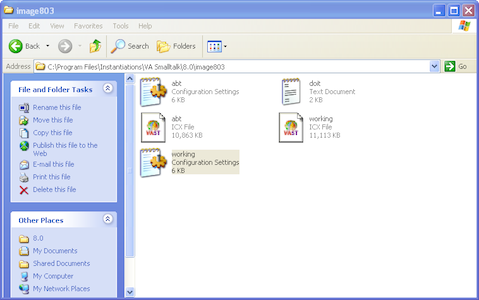
From the launcher (the main window you saw when you started VA), pull down the file menu. Select "Save Image As...". When prompted, enter a file name different than one you are running (abt). That will save a new file into the appropriate directory. Next, open up a file browser on that directory (using your OS tools - here, I'm using Windows Explorer). Copy the file configuration file named abt, paste it, and rename the new file to match the image snapshot you just took - as shown below:

Setup a New Image

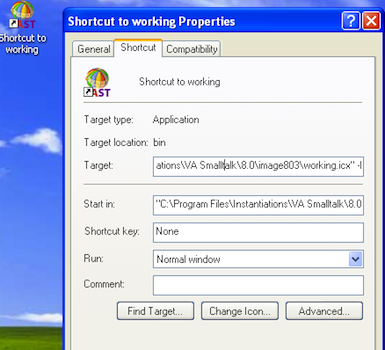
Now you can create a desktop shortcut if you like - make sure that the working directory is the one that the .icx file you saved is in, and that the target is the new .icx file - see below:

Setup a New Image

Now, double click on the shortcut - you should be right back where you left off. Need more help? There's a screencast for this topic which you may want to watch. Questions? Try the "Chat with James" Google gadget over in the sidebar (better chance of getting me that way evenings or weekends though)

Technorati Tags: , , ,

Enclosures:
[st4u68-iPhone.m4v ( Size: 7478049 )]

posted by James Robertson

 Share Tweet This

st4u

ST 4U 67: Squeak Process Monitor

April 8, 2011 6:35:23.850

Today's Smalltalk 4 You looks at the Process Monitor in Squeak. If you have trouble viewing it here in the browser, you can also navigate directly to YouTube. To watch now, click on the image below:

Process Monitor

If you have trouble viewing that directly, you can click here to download the video directly. If you need the video in a Windows Media format, then download that here.

You can also watch it on YouTube:

Technorati Tags: , , ,

Enclosures:
[st4u67-iPhone.m4v ( Size: 3476022 )]

posted by James Robertson

 Share Tweet This

st4u

ST 4U 66: Parsing XML in Squeak

April 6, 2011 9:36:25.620

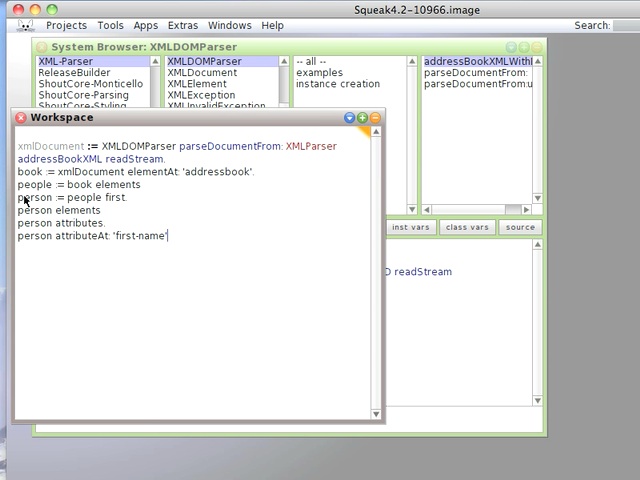
Today's Smalltalk 4 You looks at the XML Parser that comes with Squeak 4.2. If you have trouble viewing it here in the browser, you can also navigate directly to YouTube. To watch now, click on the image below:

XML Parsing

If you have trouble viewing that directly, you can click here to download the video directly. If you need the video in a Windows Media format, then download that here.

You can also watch it on YouTube:

Technorati Tags: , , ,

Enclosures:
[st4u66-iPhone.m4v ( Size: 7814156 )]
posted by James Robertson

 Share Tweet This

st4u

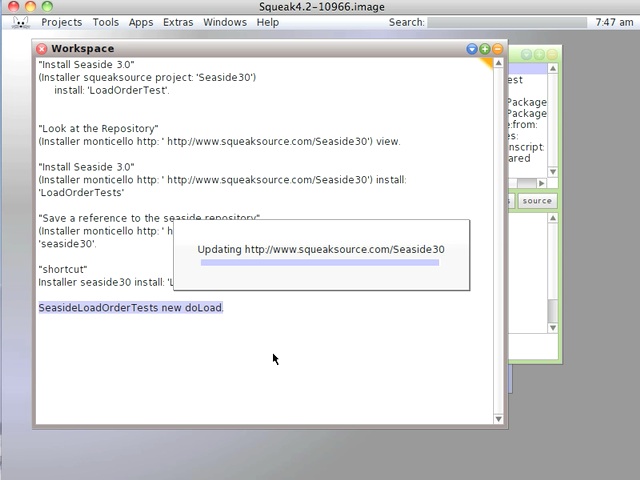
ST 4U 65: Using the Installer in Squeak

April 4, 2011 8:26:21.310

Today's Smalltalk 4 You looks at the Installer framework in Squeak 4.2 - which makes it a whole lot easier to install large packages (like Seaside). If you have trouble viewing it here in the browser, you can also navigate directly to YouTube. To watch now, click on the image below:

Installer

If you have trouble viewing that directly, you can click here to download the video directly. If you need the video in a Windows Media format, then download that here.

You can also watch it on YouTube:

Technorati Tags: , ,

Enclosures:
[st4u65-iPhone.m4v ( Size: 6792026 )]
posted by James Robertson

 Share Tweet This

Previous Next (554 total)