. .

st4u

ST 4U 123: Reusing the Post Editor

August 22, 2011 9:51:43.118

Today's Smalltalk 4 You continues the VA Smalltalk Seaside tutorial by reusing the post tool to edit existing posts. If you have trouble viewing it here in the browser, you can also navigate directly to YouTube. To watch now, click on the image below:
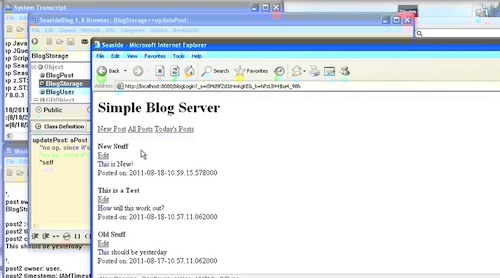
Edit Posts.

If you have trouble viewing that directly, you can click here to download the video directly. If you need the video in a Windows Media format, then download that here.

You can also watch it on YouTube:


In this section we'll reuse the posting tool we've already built to edit existing posts.

First, we'll modify the #renderPostOn: method in BlogListView - we want an edit link to appear for logged in users:


renderPost: post on: html
	html div
		class: 'post';
		with: [html strong: [html text: post title].
				html break.
					self session currentUser 
						ifNotNil: [self renderEditLinkOn: html for: post.
										html break].
					html
						html: post content;
						break;
						text: 'Posted on: ', post timestamp printString;
						break]

We check the session, and if there's a logged in user, we drop in an edit link. Next, we need that #renderEditLinkOn:for: method in BlogListView:


renderEditLinkOn: html for: post
	html anchor
		callback: [self openEditorOn: post];
		with: 'Edit'

That creates our link - we still need to write the code for using the link:


openEditorOn: post
	| editor |
	editor := BlogPostView new.
	editor post: post.
	(self 
		show: editor)
		onAnswer: [:ans | ans ifTrue: [BlogStorage default updatePost: editor post]]

Here we again see the #show:OnAnswer: control flow in VA Seaside use - but we are using the answer. recall that the post editor answers true or false - we use that in this code to determine whether or not to save the post. Since the view used in #show:onAnswer: is done at the end of that, we revert back to the main view in either case. Finally, the #updatePost: method in BlogStorage is a placeholder - in this example, all storage is in memory only:


updatePost: aPost
	"no op, since it's all in memory"

	^self

That's it - we are now reusing the post tool for editing.

That about wraps it up for today - next time, we'll get into the posting tool itself. To see that in action, let's login:
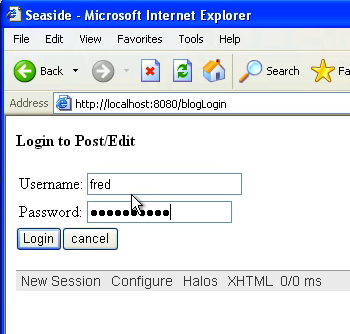
login

Note the new Edit link - try going through the blogView link - you won't see it:
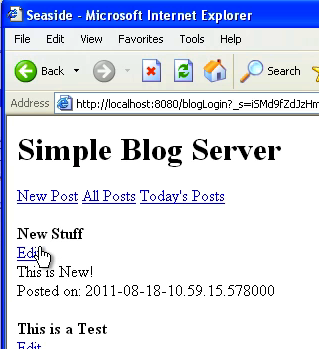
edit

Follow the edit link for one of the posts - you'll see something like this:
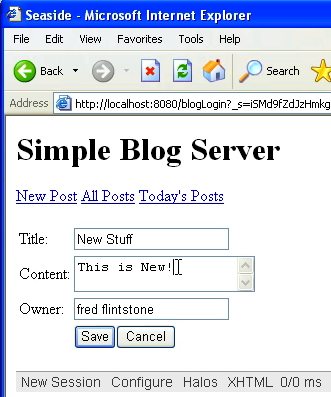
edit post

Need more help? There's a screencast for other topics like this which you may want to watch. Questions? Try the "Chat with James" Google gadget over in the sidebar.

Technorati Tags: , ,

Enclosures:
[st4u123-iPhone.m4v ( Size: 5792419 )]

posted by James Robertson

 Share Tweet This

st4u

ST 4U 122: Hello World in AidaWeb

August 19, 2011 9:38:32.870

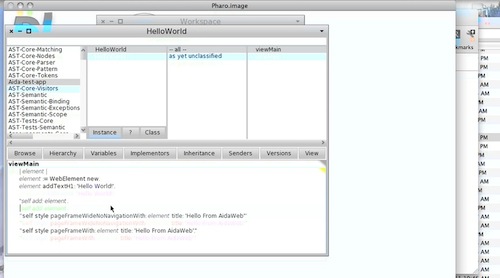
Today's Smalltalk 4 You looks at AidaWeb - and building a simple "Hello World" application in it. We'll get into more useful AidaWeb work in a future screencast. If you have trouble viewing it here in the browser, you can also navigate directly to YouTube. To watch now, click on the image below:

AidaWeb

If you have trouble viewing that directly, you can click here to download the video directly. If you need the video in a Windows Media format, then download that here.

You can also watch it on YouTube:

Technorati Tags: , ,

Enclosures:
[st4u122-iPhone.m4v ( Size: 6075178 )]

posted by James Robertson

 Share Tweet This

st4u

ST 4U 121: Adding a Post Editor

August 17, 2011 9:27:15.791

Today's Smalltalk 4 You continues the VA Smalltalk Seaside tutorial with a posting tool. That gets us into flow control using #show:onAnswer:, as we need to know whether a post was submitted or cancelled on the new form we'll create today. If you have trouble viewing it here in the browser, you can also navigate directly to YouTube. To watch now, click on the image below:

Seaside Flow.

If you have trouble viewing that directly, you can click here to download the video directly. If you need the video in a Windows Media format, then download that here.

You can also watch it on YouTube:


Today we'll start making use of the login UI and custom session by creating a posting tool for the blog server. We'll be following the same pattern of development we did for the Login UI; that also means that we'll be looking at #show:onAnswer: in more depth today. Last time we used it in more or less the simplest case (i.e., we threw away the answer). Today we'll be doing more normal application flow control. To get started, define a new subclass of WAComponent:


WAComponent subclass: #BlogPostView
	instanceVariableNames: 'post'
	classVariableNames: ''
	poolDictionaries: ''

Next, we need to define a new component that will be used to login - BlogLoginView. This will be a second entry point into the application, but only for authorized users. Today, we'll be setting it and the custom session up:


WAComponent subclass: #BlogLoginView
	instanceVariableNames: 'user'
	classVariableNames: ''
	poolDictionaries: ''

We'll need to initialize any new instances of the post tool - we want them to hold an instance of BlogPost:


initialize
	"Initialize a newly created instance. This method must answer the receiver."

	super initialize.
	post := BlogPost new.

The control flow we'll set up with rendering will be a lot like the login UI< but we'll have to pay attention to the answer value this time:


renderContentOn: html
	html form: [
		html table: [
			html
				tableRow: [self renderTitleFieldOn: html];
				tableRow: [self renderContentFieldOn: html];
				tableRow: [self renderOwnerFieldOn: html];
				tableRow: [self renderButtonsOn: html]]]

renderTitleFieldOn: html
	html
		tableData: [html text: 'Title: '];
		tableData: [html textInput on: #title of: self post]

renderContentFieldOn: html
	html
		tableData: [html text: 'Content: '];
		tableData: [html textArea on: #content of: self post]

renderOwnerFieldOn: html
	html
		tableData: [html text: 'Owner: '];
		tableData: [html textInput on: #owner of: self post]

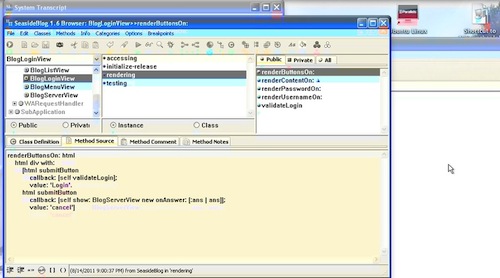
renderButtonsOn: html
	html
		tableData;
		tableData:
			[html submitButton
				callback: [self answer: true];
				value: 'Save'.
			html submitButton
				callback: [self answer: false];
				value: 'Cancel']


Notice how we send back an answer object (a boolean) in the callbacks. That makes the post tool operate a lot like a UI dialog with an accept and button. The real action kicks off from our main UI in BlogServerView. If we have a user in the session (i.e., we came in via the login UI), then we display a new menu option:


initializeMenuComponent
	menuComponent := BlogMenuView new.
	self session currentUser ifNotNil: [menuComponent addEntry: 'New Post' withAction: [self addPost]].
	menuComponent addEntry: 'All Posts' withAction: [self allPosts].
	menuComponent addEntry: 'Today''s Posts' withAction: [self todaysPosts].

The action for this link is #addPost - here's that method:


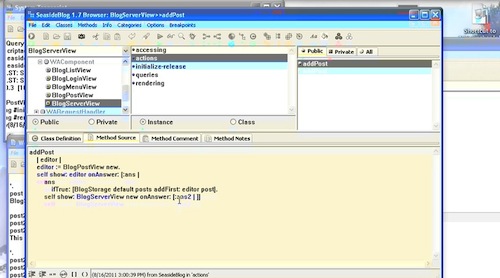
addPost
	| editor |
	editor := BlogPostView new.
	self show: editor onAnswer: [:ans | 
		ans 
			ifTrue: [BlogStorage default posts addFirst: editor post].
		self show: BlogServerView new onAnswer: [:ans2 | ]]

This is where we make use of the non-continuation control flow. We use #show:onAnswer: to move to the post tool, and we provide an answer block that examines the answer. On true, it saves the post. We don't worry about false, because either way, we proceed back to the main post view. That's all there is to flow control in Seaside when you aren't using Continuations. In many respects, it's a lot simpler.

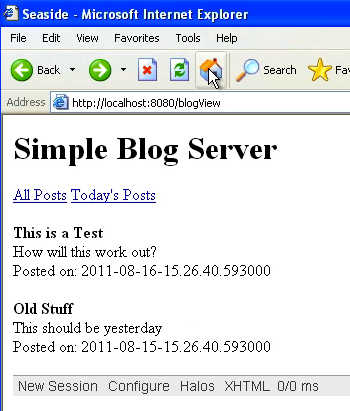
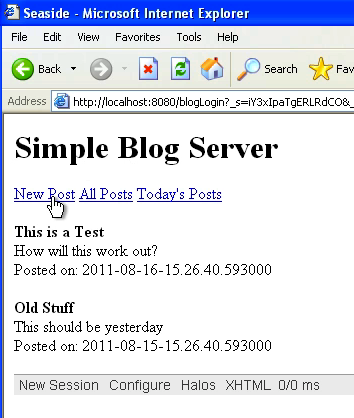
Let's take a look at how the changes operate. First, this is the main view when we didn't login. Notice the lack of the posting option:

Main View

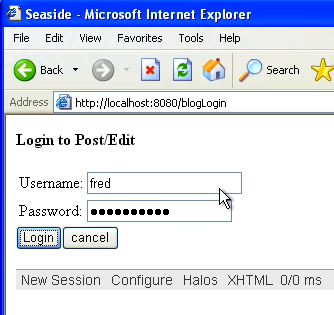
Now we'll go to the login UI and login:

Login

That takes us back to the main view, but now we show our new posting option:

Posting Option

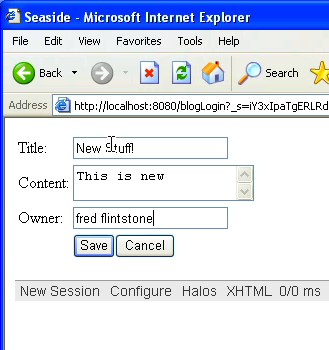
Follow that link:

Post Tool

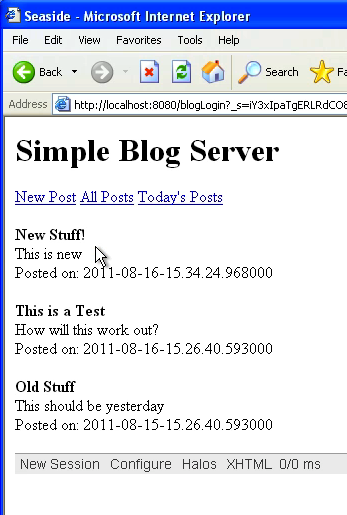
Now add the post and save it - you should see something like this:

New Post

That's it for today - but we've now seen how flow control works when using Seaside in VA Smalltalk.

Need more help? There's a screencast for other topics like this which you may want to watch. Questions? Try the "Chat with James" Google gadget over in the sidebar.

Technorati Tags: , ,

Enclosures:
[st4u121-iPhone.m4v ( Size: 7258281 )]

posted by James Robertson

 Share Tweet This

st4u

ST 4U 120: Flow in a VA Seaside App

August 15, 2011 9:49:21.910

Today's Smalltalk 4 You continues the VA Smalltalk Seaside tutorial with a closer look at the Login UI we created last time. In VA, we don't have full continuaton support, so the stock #call: usage you might normally see doesn't work - instead, we use #show:onAnswer:. That' a standard part of Seaside, but it behaves a bit differently. If you have trouble viewing it here in the browser, you can also navigate directly to YouTube. To watch now, click on the image below:

Seaside Flow.

If you have trouble viewing that directly, you can click here to download the video directly. If you need the video in a Windows Media format, then download that here.

You can also watch it on YouTube:


In this section we'll add the login UI for our posting tool (not written yet), and start making use of the custom session we set up last time. Next time, we'll get to the posting interface. One of the main things we'll look at today is how Seaside in VA differs a bit from Seaside in other Smalltalks - the lack of support for full continuations (meaning, you can't use #call:). In fact, if you try to use #call:, you'll get an exception (which can make following other tutorials a bit rough at times). As it happens, the lack of full continuation support in VA isn't much an issue with the current version of Seaside - which well see in a moment.

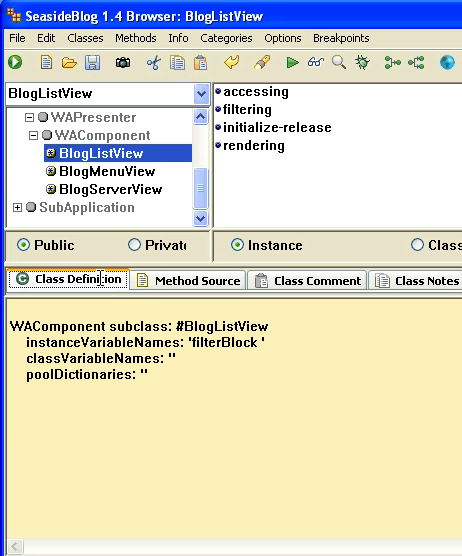
First, let's define the BlogLoginView class:


WAComponent subclass: #BlogLoginView
    instanceVariableNames: 'user '
    classVariableNames: ''
    poolDictionaries: ''

Note the user variable - we'll be checking that against the registered users (set up with workspace code in our example). That means we need to initialize that:


initialize
	"holds current user"

	super initialize.
	user := BlogUser new

Next, we'll render the form, and see how things differ a bit without #call::


renderContentOn: html
	html div
		class: 'login';
		with: [html paragraph: [html strong: [html text: 'Login to Post/Edit']].
				html form: [html table: [html tableRow: [self renderUsernameOn: html].
							html tableRow: [self renderPasswordOn: html]].
						self renderButtonsOn: html]]

renderUsernameOn: html
	html
		tableData: [html text: 'Username: '];
		tableData: [html textInput on: #username of: self user].

renderPasswordOn: html
	html
		tableData: [html text: 'Password: '];
		tableData: [html passwordInput on: #password of: self user].

renderButtonsOn: html
	html div with: 
		[html submitButton
			callback: [self validateLogin];
			value: 'Login'.
		html submitButton
			callback: [self show: BlogServerView new onAnswer: [:ans | ans]];
			value: 'cancel']

validateLogin
	| userOrNil |
	userOrNil := BlogStorage default users
		detect: [:each | each username = self user username and: [each password = self user password]]
		ifNone: [nil].
	self session currentUser: userOrNil.
	self show: BlogServerView new onAnswer: [:ans | ans]

There are a few things going on here worth noticing. First, see how we store data in Seaside forms? Using a symbol and a reference to the object, we map directly. That makes form handling in Seaside much, much easier than it is in many other web frameworks. Next, look at the password method above - note how easy it is to hide the password. Finally, in #renderButtonsOn: and #validateLogin, note the use of #show:onAnswer: rather than #call:

When using a continuation (#call:), control passes to the new component, and then the code returns to the point of the #call: when that component yields control. Using #show:onAnswer:, we don't get that behavior - instead, control passes to the block (the second argument) when the new component yields control. The end result is much the same, so Seaside operates as it normally does - but you do end up with less memory overhead due to fewer context stacks lurking in memory. The upshot at this point is this: use this pattern when developing Seaside apps in VA. You don't have to limit it to VA though; #show:onAnswer: is fully portable.

That about wraps it up for today - next time, we'll get into the posting tool itself.

Need more help? There's a screencast for other topics like this which you may want to watch. Questions? Try the "Chat with James" Google gadget over in the sidebar.

Technorati Tags: , , ,

Enclosures:
[st4u120-iPhone.m4v ( Size: 7258281 )]

posted by James Robertson

 Share Tweet This

st4u

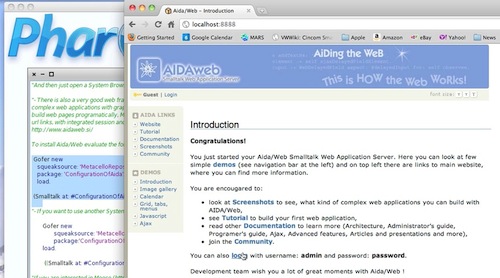
ST 4U 119: Getting Started with AidaWeb in Pharo

August 12, 2011 10:54:08.549

Today's Smalltalk 4 You looks at loading and getting started with AidaWeb in Pharo. If you have trouble viewing it here in the browser, you can also navigate directly to YouTube. To watch now, click on the image below:

AidaWeb

If you have trouble viewing that directly, you can click here to download the video directly. If you need the video in a Windows Media format, then download that here.

You can also watch it on YouTube:

Technorati Tags: , ,

Enclosures:
[st4u119-iPhone.m4v ( Size: 2657182 )]

posted by James Robertson

 Share Tweet This

st4u

ST 4U 118: Custom Sessions in Seaside

August 10, 2011 8:41:19.145

Today's Smalltalk 4 You continues the VA Smalltalk Seaside tutorial with the addition of a custom session handling class. We'll be using it for our login support in the blog server. You can download the initial domain model as a file out here. If you have trouble viewing it here in the browser, you can also navigate directly to YouTube. To watch now, click on the image below:

Seaside Session.

If you have trouble viewing that directly, you can click here to download the video directly. If you need the video in a Windows Media format, then download that here.

You can also watch it on YouTube:


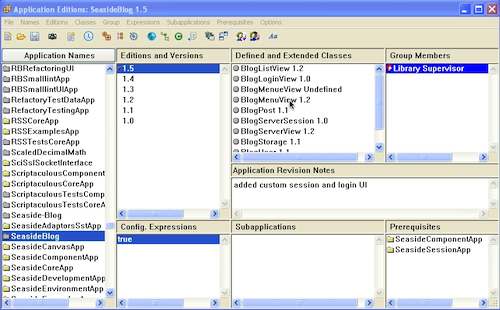
In this section, we'll add a custom session, a login screen that uses that session, and learn how to configure our Seaside application to use that custom session. Eventually, we'll be making use of this session class to manage login (to use the not yet created post editor) - but first things first - we need to add to the pre-requisites for our application. Unless we add SeasideSessionApp to that list, we won't be able to define a subclass of WASession:

Custom Session Needs

Next, we need to define our new WASession subclass:


WASession subclass: #BlogSession
	instanceVariableNames: 'currentUser'
	classVariableNames: ''
	poolDictionaries: ''

Next, we need to define a new component that will be used to login - BlogLoginView. This will be a second entry point into the application, but only for authorized users. Today, we'll be setting it and the custom session up:


WAComponent subclass: #BlogLoginView
	instanceVariableNames: 'user'
	classVariableNames: ''
	poolDictionaries: ''

We'll need to initialize new instances of our login component:


initialize
	super initialize.
	user := BlogUser new.

And now we'll see how easy it is to do form handling in Seaside:


renderContentOn: html
	html div
		class: 'login';
		with: [html paragraph: [html strong: [html text: 'Login to Post/Edit']].
				html form: [html table: [html tableRow: [self renderUsernameOn: html].
							html tableRow: [self renderPasswordOn: html]].
						self renderButtonsOn: html]]

renderUsernameOn: html
	html
		tableData: [html text: 'Username: '];
		tableData: [html textInput on: #username of: self user].


renderPasswordOn: html
	html
		tableData: [html text: 'Password: '];
		tableData: [html passwordInput on: #password of: self user].

renderButtonsOn: html
	html div with: 
		[html submitButton
			callback: [self validateLogin];
			value: 'Login'.
		html submitButton
			callback: [self call: BlogServerView new];
			value: 'cancel']

validateLogin
	| userOrNil |
	userOrNil := BlogStorage default users
		detect: [:each | each username = self user username and: [each password = self user password]]
		ifNone: [nil].
	self session currentUser: userOrNil.
	self call: BlogServerView new.

There's a lot going on in that small number of methods. First, look at how we split the rendering up - much as you might in a classic UI app. Second, note that we have callbacks set up (using blocks) for the functions (buttons) - again, a lot like a classic UI app. Finally, note that we can treat the ok/cancel pattern the same way here that we would in a classic UI. That's one of the nicer things about Seaside - constructing a basic UI is a lot like what you already know, except that you can bring in a CSS expert to make it look pretty :)

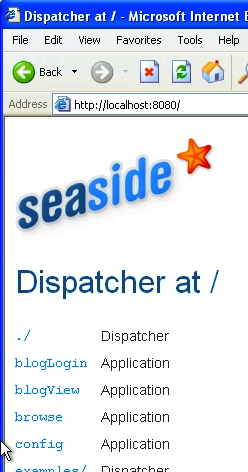
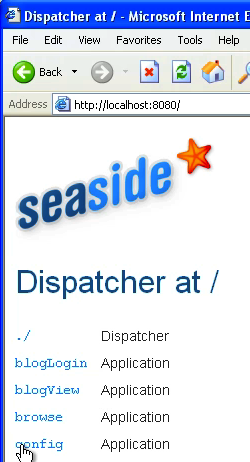
Now, before we can use the session class with our application, we need to configure things. Go to the main seaside launch page (port 8080 if you used the default port):

Session Subclass

Select config on that screen:

Application Configuration

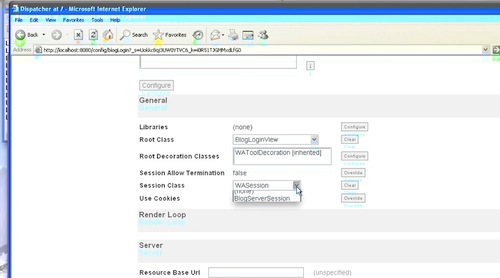
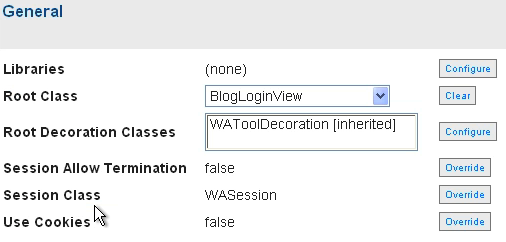
Scroll down to the Session class section, and select the override button:

Application Configuration

in the drop down menu, select the new session class we just created:

Application Configuration

Finally, scroll all the way down to the bottom, and hit the Apply button. Now, do the same thing for the blogView interface, and you'll be using the new session. Note that we aren't doing anything with this session yet; we'll get to that soon.

Need more help? There's a screencast for other topics like this which you may want to watch. Questions? Try the "Chat with James" Google gadget over in the sidebar.

Technorati Tags: , ,

Enclosures:
[st4u118-iPhone.m4v ( Size: 10780193 )]

posted by James Robertson

 Share Tweet This

st4u

ST 4U 117: Using the Method Finder in Pharo

August 8, 2011 5:05:21.706

Today's Smalltalk 4 You looks at the MethodFinder in Pharo. If you have trouble viewing it here in the browser, you can also navigate directly to YouTube. To watch now, click on the image below:

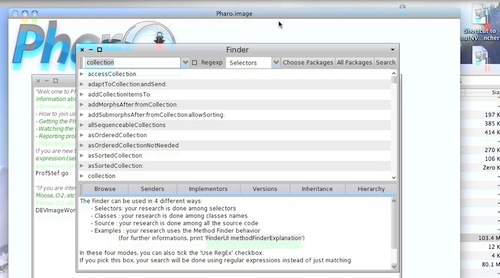
Method Finder

If you have trouble viewing that directly, you can click here to download the video directly. If you need the video in a Windows Media format, then download that here.

You can also watch it on YouTube:

Technorati Tags: , ,

Enclosures:
[st4u117-iPhone.m4v ( Size: 4508755 )]

posted by James Robertson

 Share Tweet This

st4u

ST 4U 116: Adding the Menu Component

August 5, 2011 9:20:56.093

Today's Smalltalk 4 You continues the VA Smalltalk Seaside tutorial with the addition of the menu component (a set of filtering links in this example). You can download the initial domain model as a file out here. If you have trouble viewing it here in the browser, you can also navigate directly to YouTube. To watch now, click on the image below:

Seaside Component.

If you have trouble viewing that directly, you can click here to download the video directly. If you need the video in a Windows Media format, then download that here.

You can also watch it on YouTube:


In this section of the tutorial, we're going to get the menu component working. Along the way, we'll also learn about the important #children method, which should report back all the (non call'd) components that a Seaside UI will display. So let's get started with BlogMenuView. First, you'll need to modify the #initialize method:


initialize
	super initialize.
	entries := OrderedCollection new

It will become apparent in a few minutes why that variable needs to be a collection. To set the menu options, we'll go back to class BlogServerView and flesh out the initialization of the menu component. We'll modify the #initialize method, and add #initializeMenuComponent, as shown below:


initialize
	"Initialize a newly created instance. This method must answer the receiver."

	super initialize.
	listComponent := BlogListView new.
	self initializeMenuComponent.


initializeMenuComponent
	menuComponent := BlogMenuView new.
	menuComponent addEntry: 'All Posts' withAction: [self allPosts].
	menuComponent addEntry: 'Today''s Posts' withAction: [self todaysPosts].

While you accepted that method, you'll notice that a number of the message references are red; that's because we are creating forward . First, let's create the one being called in BlogMenuView - #addEntry:withAction:


addEntry: label withAction: actionBlock

	self entries add: label -> actionBlock

What this does is create an Association object (a key/value pair) which is stored in the collection. We'll then render a set of urls using those entries. To do that, add this rendering method to BlogMenuView:


renderContentOn: html

	self entries do: [:each |
		html anchor
			callback: each value;
			with: each key]
		separatedBy: [html space]

We aren't quite ready yet - we have some menu options for filtering, but we have not specified the filtering code yet! So, we need to add an instance variable to class BlogListView called filterBlock, and add accessing methods for it, as shown below:

adding filters

Now, add the following methods to BlogListView


filterBlock
	^filterBlock

filterBlock: anObject
	filterBlock := anObject


setAllPostsFilter
	filterBlock := [Storage default posts]

setTodaysPostsFilter
	filterBlock := [Storage default posts select: [:each | each timestamp asDate = Date today ]]

Finally, we need to modify the #initialize method in BlogListView


initialize
	"set up the initial filter"

	super initialize.
	self setAllPostsFilter

Back in class BlogServerView, we left a reference to the methods we just created - so now we'll hook that up, and add the #children method mentioned back at the top of this section:


allPosts
	listComponent setAllPostsFilter

todaysPosts
	listComponent setTodaysPostsFilter

children
	^Array with: listComponent with: menuComponent

When we run that (using the Seaside menu, launch the application in the browser), it should almost work - you'll see the menu options, but selecting them has no visible effect. That's because we have not updated the rendering code in BlogListView. Make the #renderContentOn: method in that class use the current filter:


renderContentOn: html
	| posts |
	posts := self filterBlock value.
	posts do: [:each |
		self renderPost: each on: html]

It should do the right thing now! That's as far as we'll go in this section. Next, we'll look at custom sessions.

Need more help? There's a screencast for other topics like this which you may want to watch. Questions? Try the "Chat with James" Google gadget over in the sidebar.

Technorati Tags: , , ,

Enclosures:
[st4u116-iPhone.m4v ( Size: 7969139 )]

posted by James Robertson

 Share Tweet This

st4u

ST 4U 115: Rendering Components

August 3, 2011 9:40:51.501

Today's Smalltalk 4 You continues the VA Smalltalk Seaside tutorial with the addition of rendering for individual post. You can download the initial domain model as a file out here. If you have trouble viewing it here in the browser, you can also navigate directly to YouTube. To watch now, click on the image below:

Seaside Component.

If you have trouble viewing that directly, you can click here to download the video directly. If you need the video in a Windows Media format, then download that here.

You can also watch it on YouTube:


Today we'll continue building our Seaside blog server by adding rendering for posts. First though, we need to modify our domain a bit: add the following class method to BlogPost, BlogStorage, and BlogUser:


new
	^super new initialize

That will ensure that our initialize method gets invoked on instance creation. Next, add the following method to BlogLIstView:


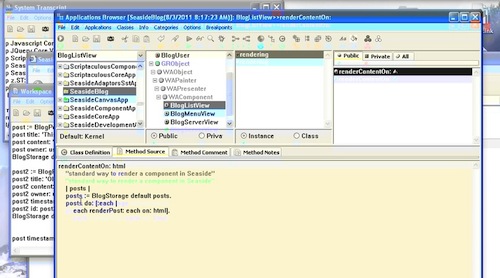
renderContentOn: html
	"standard way to render a component in Seaside"

	| posts |
	posts := BlogStorage default posts.
	posts do: [:each |
		each renderPost: each on: html].

What that does is delegate the task of rendering off to the post object. That's a good idea, as each post may have differences - attached audio/video, etc. That means we need to add this method to BlogPost:


renderPost: post on: html

	html div
		class: 'post';
		with: [html paragraph: [
			html strong: [html text: post title].
			html break.
			html html: post content.
			html break.
			html text: 'Posted on: ', post timestamp printString.
			html break]].

Note the way rendering works - it's a lot like the way we build a UI using general UI building tools. Each component renders itself on the canvas, and the placement is handled by CSS (it's easy to attach CSS, either in the image or in an external file - we'll cover that later). Now we need to run a script to create some blog posts, as we haven't created an editor yet. Open up a workspace, and execute the following:


BlogStorage default.


user := BlogUser new.
user id: 1.
user username: 'fred'.
user password: 'flintstone'.
BlogStorage default users add: user.

post := BlogPost new.
post title: 'This is a Test'.
post content: '

How will this work out?

'. post owner: user. BlogStorage default posts add: post. post2 := BlogPost new. post2 title: 'Old Stuff'. post2 content: '

This should be yesterday

'. post2 owner: user. post2 timestamp: (AbtTimestamp date: (Date today subtractDays: 1) time: Time now). post2 id: post2 timestamp totalSeconds. BlogStorage default posts add: post2.

That creates two posts objects, one from yesterday. As you look at this, you'll note that we aren't sorting the posts for display using reverse chronological order - we'll leave that as an exercise for the reader :)

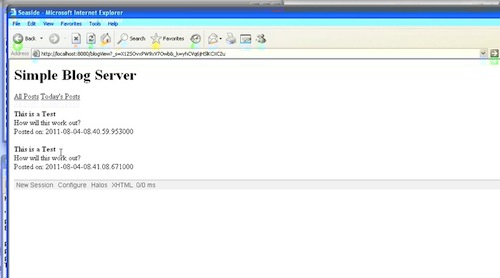
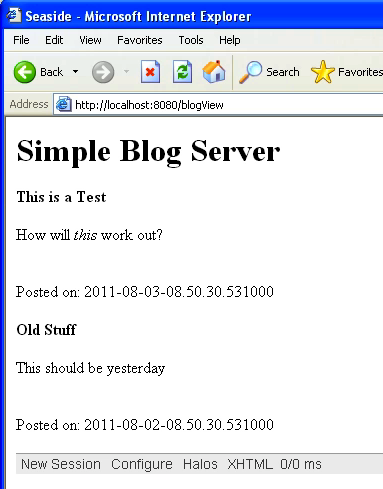
With that done, refresh the browser, and you should see this:

Posts

That wraps it up for now.

Need more help? There's a screencast for other topics like this which you may want to watch. Questions? Try the "Chat with James" Google gadget over in the sidebar.

Enclosures:
[st4u115-iPhone.m4v ( Size: 7250488 )]

posted by James Robertson

 Share Tweet This

st4u

ST 4U 114: Code Recovery in Pharo

August 1, 2011 10:23:42.844

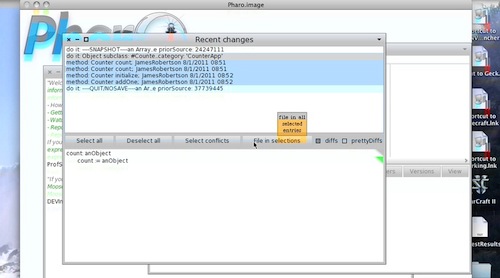
Today's Smalltalk 4 You looks at code recovery using Pharo. Sometimes, you lose an image (crash, inadvertant quit without saving, power outage...) - and you really don't want to lose whatever code you've been working on. Today we'll look at how to recover your work using tools built into Pharo. If you have trouble viewing it here in the browser, you can also navigate directly to YouTube. To watch now, click on the image below:

Code Recovery

If you have trouble viewing that directly, you can click here to download the video directly. If you need the video in a Windows Media format, then download that here.

You can also watch it on YouTube:

Technorati Tags: , ,

Enclosures:
[st4u114-iPhone.m4v ( Size: 4317416 )]

posted by James Robertson

 Share Tweet This

Previous Next (554 total)