. .

st4u

ST 4U 183: Blocks in Smalltalk

January 20, 2012 12:35:03.517

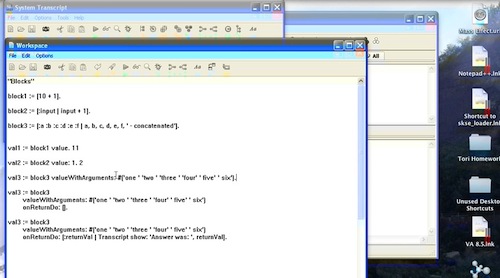
Today's Smalltalk 4 You takes a look at Blocks in VA Smalltalk. If you have trouble viewing it here in the browser, you can also navigate directly to YouTube. To watch now, click on the image below:
Blocks.

If you have trouble viewing that directly, you can click here to download the video directly. If you need the video in a Windows Media format, then download that here.

You can also watch it on YouTube:


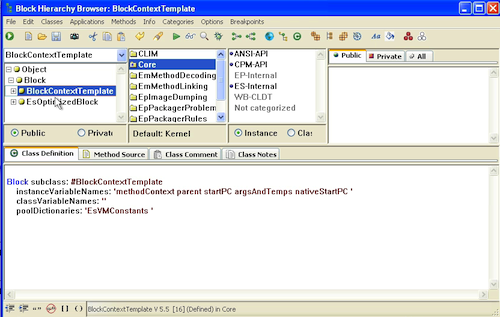
Today we'll look at block closures in VA Smalltalk. To get started, you should browse class Block, and take a look at the hierarchy. Typically, when you create a block, it will be an instance of the first subclass:
Blocks

Blocks represent a deferred bit of code - a loose method, if you will. They encapsulate pre-compiled behavior that can be passed around and executed later, by using #value (or one of the variants that take arguments). Below is the code we'll be using to explore blocks:


"Blocks"

block1 := [10 + 1].

block2 := [:input | input + 1].

block3 := [:a :b :c :d :e :f | a, b, c, d, e, f, ' - concatenated'].


val1 := block1 value. 11

val2 := block2 value: 1. 2

val3 := block3 valueWithArguments: #('one ' 'two ' 'three ' 'four' ' five' ' six').

val3 := block3 
		valueWithArguments: #('one ' 'two ' 'three ' 'four' ' five' ' six') 
		onReturnDo: [].
		
val3 := block3 
		valueWithArguments: #('one ' 'two ' 'three ' 'four' ' five' ' six') 
		onReturnDo: [:returnVal | Transcript show: 'Answer was: ', returnVal].
		

To create a block, simply encapsulate the desired code in square braces. As you can see above, using the [:arg1 :arg2 26 | ] notation, you can specify arguments to the block. To execute, you use:

  • #value - No arguments
  • #value: (up to three arguments with #value:value:value)
  • #valueWithArguments: (passing an array)

You can also specify an action block to execute when the block returns, and this block can (but does not have to) take one argument - the return result from the first block. Blocks, like methods, return the result of the last expression executed.

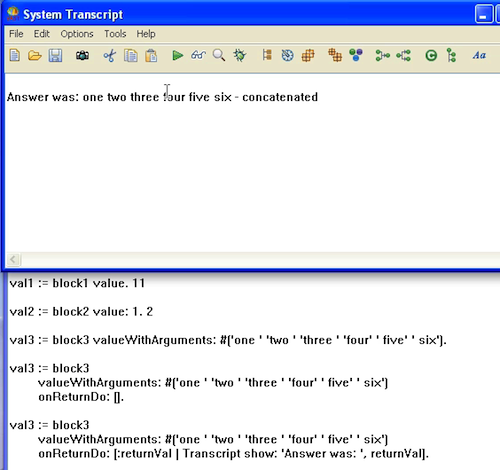
To see that last part in action, try executing the last statement above - you should see something like the following in the Transcript:
Blocks

Just try executing each line in the code above, inspecting or displaying the results - make sure you understand how each one of them works, then try a few examples of your own.

Need more help? There's a screencast for other topics like this which you may want to watch. Questions? Try the "Chat with James" Google gadget over in the sidebar.

Technorati Tags: , ,

Enclosures:
[st4u183-iPhone.m4v ( Size: 7305084 )]

posted by James Robertson

 Share Tweet This

st4u

ST 4U 182: Durations and Delays

January 16, 2012 11:03:27.485

Today's Smalltalk 4 You continues looking at the basic Smalltalk class libraries in VA Smalltalk - today it's the Delay and Duration classes. If you have trouble viewing it here in the browser, you can also navigate directly to YouTube. To watch now, click on the image below:

Timers.

If you have trouble viewing that directly, you can click here to download the video directly. If you need the video in a Windows Media format, then download that here.

You can also watch it on YouTube:


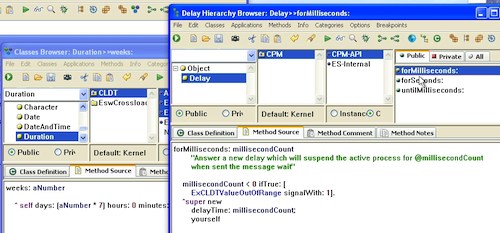
Today we'll look at class Delay and Duration. You'll need these classes anytime you want to set up a timer of some kind in VA Smalltalk (such as in a process that wakes up periodically to do some task). To get started, we want to look at the two classes:

Delay and Duration

You can use Delay without using Duration; Duration makes it easy to specify a time interval (by second, millisecond, day, or even longer time periods). That makes it easy to specify an interval, and then set up a Delay to wait for that interval. You do that via the #wait message:


"use a duration"
duration := Duration seconds: 10.
ms := duration asMilliseconds.
Transcript show: 'Now: ', DateAndTime now asMilliseconds printString; cr.
(Delay forMilliseconds: ms) wait.
Transcript show: 'End: ', DateAndTime now asMilliseconds printString; cr.


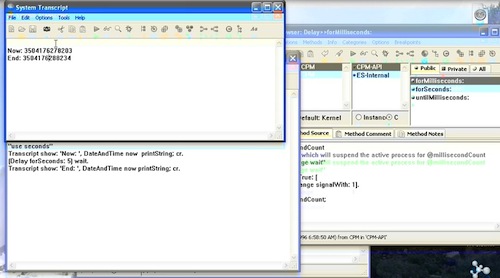
What we did above is specify a duration, and then use that duration as the interval for the Delay. If you look in your Transcript afterwards, you'll see the following:

Delays and Duration

You can simply specify a number of seconds or milliseconds in Delay, without using a Duration; Duration just makes it easy to set up a time interval:


"use seconds"
Transcript show: 'Now: ', DateAndTime now  printString; cr.
(Delay forSeconds: 5) wait.
Transcript show: 'End: ', DateAndTime now printString; cr.

Need more help? There's a screencast for other topics like this which you may want to watch. Questions? Try the "Chat with James" Google gadget over in the sidebar.

Technorati Tags: , ,

Enclosures:
[st4u182-iPhone.m4v ( Size: 4936586 )]

posted by James Robertson

 Share Tweet This

st4u

ST 4U 181: Class Extensions in VisualWorks

January 13, 2012 12:15:09.750

Today's Smalltalk 4 You looks at class extensions (as opposed to overrides) in VisualWorks Smalltalk. If you have trouble viewing it here in the browser, you can also navigate directly to YouTube. To watch now, click on the image below:

Workflow

If you have trouble viewing that directly, you can click here to download the video directly. If you need the video in a Windows Media format, then download that here.

You can also watch it on YouTube:

Technorati Tags: , ,

Enclosures:
[st4u181-iPhone.m4v ( Size: 4313614 )]

posted by James Robertson

 Share Tweet This

st4u

ST 4U 180: Write Streams in Smalltalk

January 11, 2012 8:32:04.087

Today's Smalltalk 4 You continues looking at the basic Smalltalk class libraries in VA Smalltalk - with the focus on write streams If you have trouble viewing it here in the browser, you can also navigate directly to YouTube. To watch now, click on the image below:

Streams.

If you have trouble viewing that directly, you can click here to download the video directly. If you need the video in a Windows Media format, then download that here.

You can also watch it on YouTube:


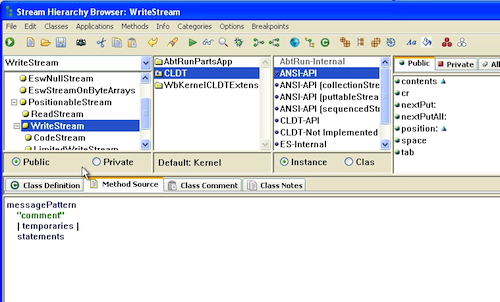
Today we'll look at the Stream class hierarchy, focusing on write streams. To get started, we want to browse the Stream hierarchy, in order to get a full picture of the local and inherited APIs:/p>

Streams

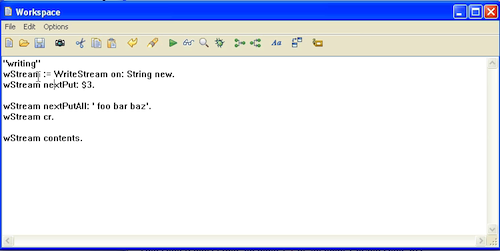
We are going to focus on the API methods (as per the ANSI specification, and experiment with a few simple examples in a workspace. The workspace code we'll use follows:

Streams


"writing"
wStream := WriteStream on: String new.
wStream nextPut: $3.

wStream nextPutAll: ' foo bar baz'.
wStream cr.

wStream contents.


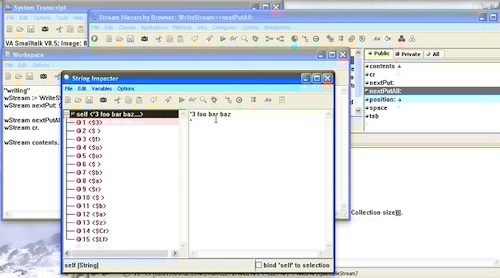
Here we are writing text (Strings and Characters) to a stream, but you can put anything on an internal stream (for external ones, make them binary to do the same thing). Here's what running the above will give you if you inspect the results:

Contents

The most important writing methods to understand are:

  • #nextPut: - write one element to the stream
  • #nextPutAll: - sent with a collection as an argument, write it to the stream
  • contents - get all elements on the stream

It's worth trying a few experiments of your own - and notice that streams are not just about text. You can stream over any collection in Smalltalk - try creating a write stream and putting numbers on it, and see what you get back with #contents

Need more help? There's a screencast for other topics like this which you may want to watch. Questions? Try the "Chat with James" Google gadget over in the sidebar.

Technorati Tags: , ,

Enclosures:
[st4u180-iPhone.m4v ( Size: 4315408 )]

posted by James Robertson

 Share Tweet This

st4u

ST 4U 179: Read Streams in Smalltalk

January 9, 2012 8:33:59.246

Today's Smalltalk 4 You continues looking at the basic Smalltalk class libraries in VA Smalltalk - today it's the Stream libraries, focusing on reading. If you have trouble viewing it here in the browser, you can also navigate directly to YouTube. To watch now, click on the image below:

Streams.

If you have trouble viewing that directly, you can click here to download the video directly. If you need the video in a Windows Media format, then download that here.

You can also watch it on YouTube:


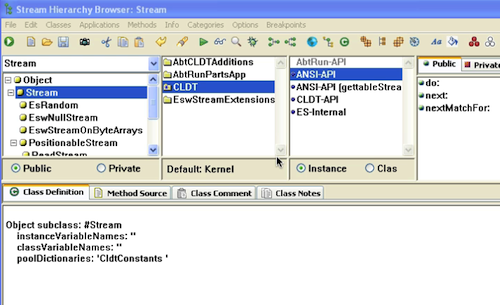
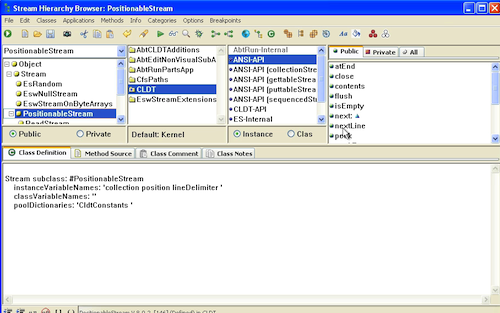
Today we'll look at the Stream class hierarchy, focusing on read streams. To get started, we want to browse the Stream hierarchy, in order to get a full picture of the local and inherited APIs:/p>

Streams

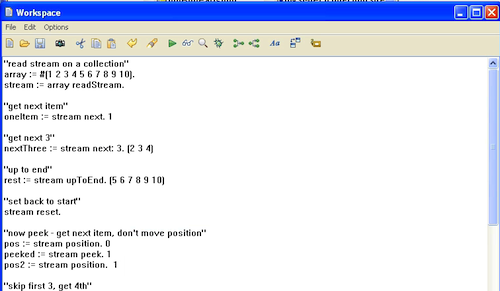
We are going to focus on the API methods (as per the ANSI specification, and experiment with a few simple examples in a workspace. The workspace code we'll use follows:


"read stream on a collection"
array := #(1 2 3 4 5 6 7 8 9 10).
stream := array readStream.

"get next item"
oneItem := stream next. 1

"get next 3"
nextThree := stream next: 3. (2 3 4)

"up to end"
rest := stream upToEnd. (5 6 7 8 9 10)

"set back to start"
stream reset.

"now peek - get next item, don't move position"
pos := stream position. 0
peeked := stream peek. 0
pos2 := stream position.  0

"skip first 3, get 4th"
stream skip: 3.
fourth := stream next. 4


You may be wondering about the text printed after each line; that's the result of doing a Display on each set of code. Try it yourself, and see if it all works the same way

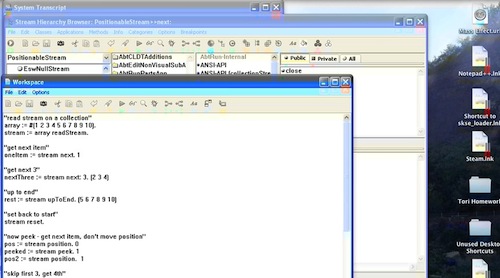
Most of the examples work with streams that are positionable - i.e., there's a cursor into the stream, and we can freely move the cursor back and forth. That's true of internal streams and of file streams - but not of things like streams over a socket. Take a look at class PositionableStream and the APIs defined in it:

Positionable Streams

Here's a screen capture of the workspace after we've tried each line:

Experiment

The most important reading methods to understand are:

  • #next - get the next element from the stream
  • #next: - get the next N elements from the stream
  • #upToEnd - get the rest of the elements on the stream
  • #reset - reset the position back to the start
  • #peek - peek ahead one element without moving the cursor

It's worth trying a few experiments of your own - and notice that streams are not just about text. You can stream over any collection in Smalltalk, as our example above shows.

Need more help? There's a screencast for other topics like this which you may want to watch. Questions? Try the "Chat with James" Google gadget over in the sidebar.

Technorati Tags: , ,

Enclosures:
[st4u179-iPhone.m4v ( Size: 7006057 )]

posted by James Robertson

 Share Tweet This

st4u

ST 4U 178: Working with Files in Pharo

January 6, 2012 13:54:41.506

Today's Smalltalk 4 You looks at basic file handling in Pharo - how to open files for reading and writing. If you have trouble viewing it here in the browser, you can also navigate directly to YouTube. To watch now, click on the image below:

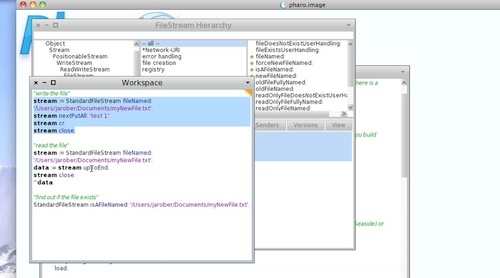
Files

If you have trouble viewing that directly, you can click here to download the video directly. If you need the video in a Windows Media format, then download that here.

You can also watch it on YouTube:

Technorati Tags: , ,

Enclosures:
[st4u178-iPhone.m4v ( Size: 4109228 )]

posted by James Robertson

 Share Tweet This

st4u

ST 4U 177: Opening Files in VA Smalltalk

January 4, 2012 11:30:05.552

Today's Smalltalk 4 You looks at opening and closing files in VA Smalltalk. If you have trouble viewing it here in the browser, you can also navigate directly to YouTube. To watch now, click on the image below:

Files.

If you have trouble viewing that directly, you can click here to download the video directly. If you need the video in a Windows Media format, then download that here.

You can also watch it on YouTube:


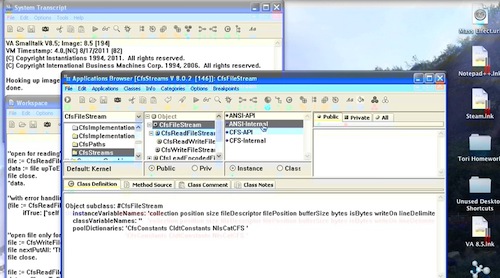
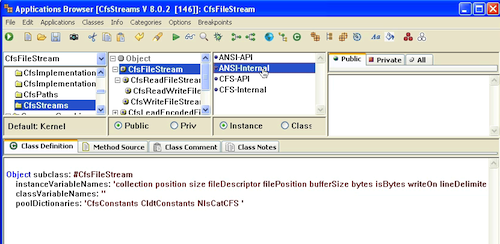
Today we'll look at opening external files from VA Smalltalk, and how to read/write them once you've done that. To start with, have a look at the application CfsStreams:

CfsStreams

This is where the classes and APIS for reading/writing files are defined in VA Smalltalk. We'll start using CfsReadWriteFileStream to open and write a small file:


"open a file for read/write - if it does not exist, create it"
file := CfsReadWriteFileStream open: 'myNewFile.txt'.
file nextPutAll: 'This is my test text'.
file cr.
file close.

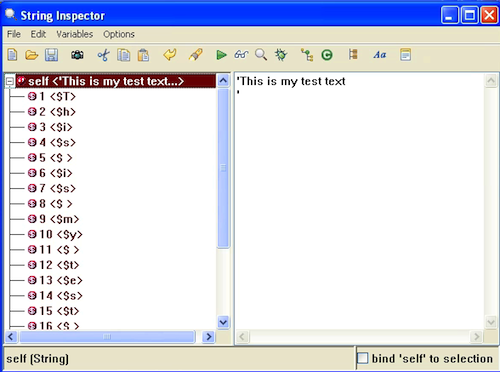
The first line opens the file - after which you can use standard stream methods to read and write text. Here we are simply writing some text, a CR, and then closing the file. The two methods of interest to us here are #open: and #close. The first you send to the class to open the file; the second you always send to close it. Once the file is out there, we can read it, and inspect the results to see what's there:

"open for reading" file := CfsReadFileStream open: 'myNewFile.txt'. data := file upToEnd. file close. ^data.

Read a File

Again, note the use of #open: and #close. Finally, what about error handling? Say a file you want to read doesn't exist? Here's the standard way to check for errors on file handling in VA:


"with error handling"
(file := CfsReadFileStream open: 'someFileNotThere.txt') isCfsError
		ifTrue: [^self error: file message].

All we're doing here is raising an exception on the error; you can, of course, do whatever handling makes sense in that block. Next time we'll get into the Stream APIs that were brushed over here.

Need more help? There's a screencast for other topics like this which you may want to watch. Questions? Try the "Chat with James" Google gadget over in the sidebar.

Technorati Tags: , ,

Enclosures:
[st4u177-iPhone.m4v ( Size: 6705853 )]

posted by James Robertson

 Share Tweet This

st4u

ST 4U 176: Exploring Class String

January 2, 2012 12:39:42.341

Today's Smalltalk 4 You starts looking at the basic Smalltalk class libraries in VA Smalltalk, starting with String. If you have trouble viewing it here in the browser, you can also navigate directly to YouTube. To watch now, click on the image below:

String.

If you have trouble viewing that directly, you can click here to download the video directly. If you need the video in a Windows Media format, then download that here.

You can also watch it on YouTube:


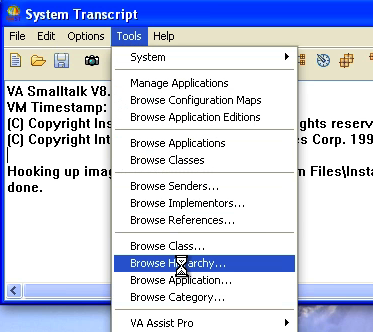
Today we'll start looking at some of the base Smalltalk class libraries in VA Smalltalk, starting with class String. To get started, we want to browse the String hierarchy, in order to get a full picture of the local and inherited APIs:/p>

Browse Hierarchy

Browse Hierarchy

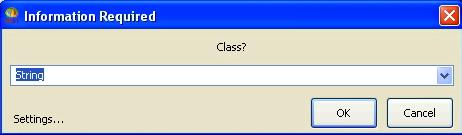
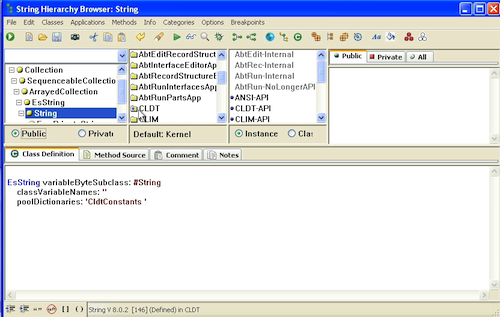
After selecting the launcher pulldown and entering String in the dialog, you should see this:

String

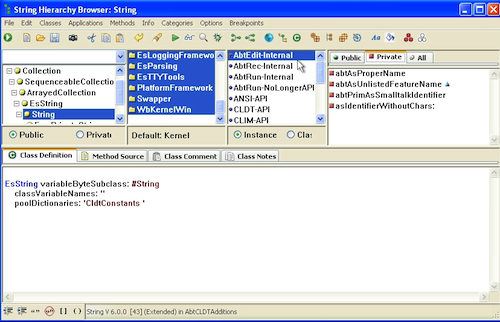
The second pane from the left contains a list of all the applications that define or extend class String. If you look at the status line, you'll see the defining application; you can also find that by scrolling through the list and looking for the application notated with an asterisk. You can see the methods for one application, or select all applications and see the full (at least based on what you have loaded) definition:

Select all Applications

Notice the asterisk in application CLDT, which tells us where class String is defined:

CLDT

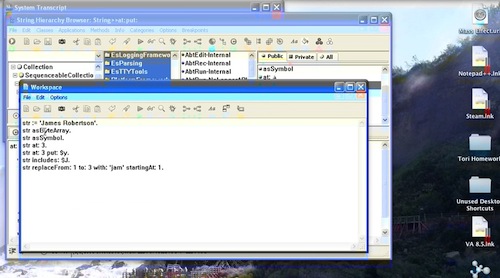
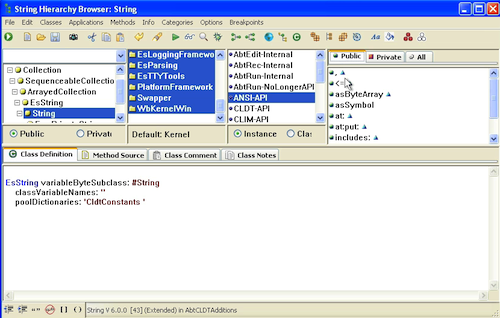
Looking at the method categories, you'll see the ANSI-API category, which contains the standard API for the class, as defined in the specification for Smalltalk. Open up a workspace, and you can try some of these messages out:


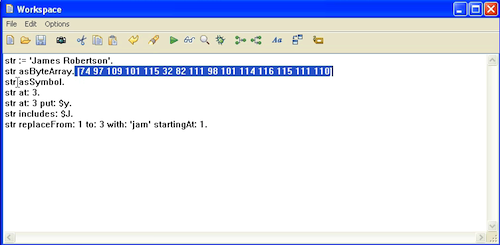
str := 'James Robertson'.
str asByteArray. 
str asSymbol. 
str at: 3. $m
str copy at: 3 put: $y.
str includes: $J. true
str replaceFrom: 1 to: 3 with: 'jam' startingAt: 1.

Try the second one; you should see this if you display the result:

Testing

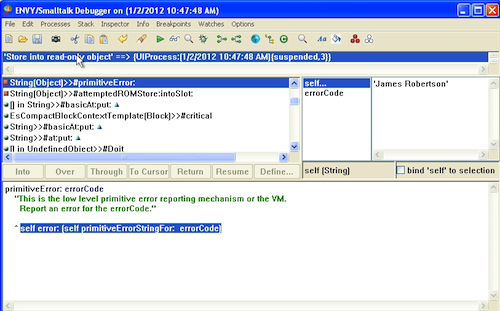
Now try the #at:put: message:

Error

one of the changes made to Smalltalk by the ANSI spec was to make Strings read-only objects - that's the exception you are seeing. To do what is being tried here, you need to make a copy first. There's a lot more to explore in Class String - just try experimenting in a Workspace.

Need more help? There's a screencast for other topics like this which you may want to watch. Questions? Try the "Chat with James" Google gadget over in the sidebar.

Technorati Tags: , ,

Enclosures:
[st4u176-iPhone.m4v ( Size: 7993629 )]

posted by James Robertson

 Share Tweet This

st4u

ST 4U 175: Using Scripy in Pharo

December 30, 2011 13:00:44.524

Today's Smalltalk 4 You looks at Scripy - a code sharing site that can be integrated into Pharo. If you have trouble viewing it here in the browser, you can also navigate directly to YouTube. To watch now, click on the image below:

Scripy

If you have trouble viewing that directly, you can click here to download the video directly. If you need the video in a Windows Media format, then download that here.

You can also watch it on YouTube:

Technorati Tags: , ,

Enclosures:
[st4u175-iPhone.m4v ( Size: 4355118 )]

posted by James Robertson

 Share Tweet This

st4u

ST 4U 174: Cloning an ENVY Repository

December 28, 2011 10:56:53.735

Today's Smalltalk 4 You covers cloning a full ENVY repository. If you have trouble viewing it here in the browser, you can also navigate directly to YouTube. To watch now, click on the image below:

Cloning an ENVY Repository.

If you have trouble viewing that directly, you can click here to download the video directly. If you need the video in a Windows Media format, then download that here.

You can also watch it on YouTube:


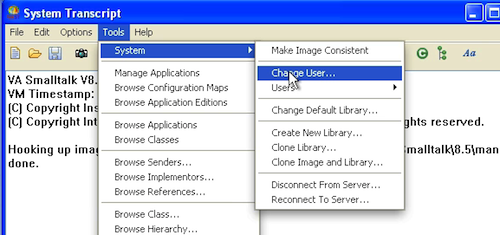
Today we'll look at how you clone an existing VA Smalltalk ENvy repository - i.e., make a full copy of it. To start, go to the System menu in the launcher and select Change User - you'll need to become Library Supervisor to do this:

Change User

Change User

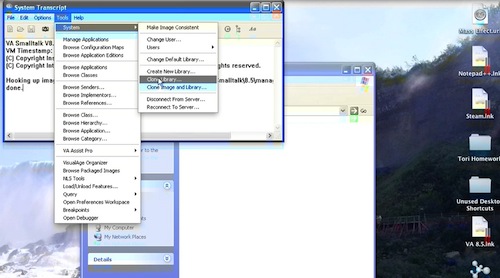
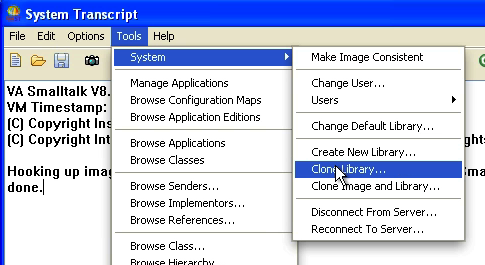
Now, pull down the System menu again, and select Clone Library:

Clone

You'll be prompted for a server address. If you have an ENVY server setup, use that - we'll be using File I/O, so we'll leave it blank:

Repository Address

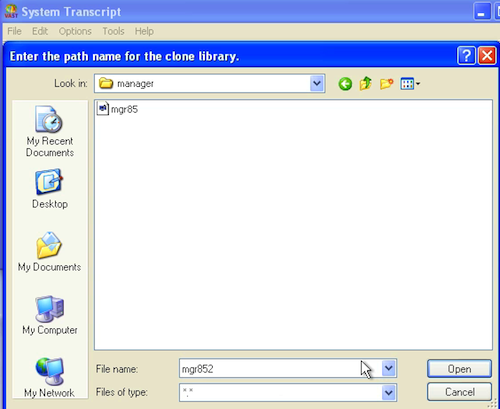
Next we'll get prompted for the file and directory to use. Do not select the current repository!

Repository Name

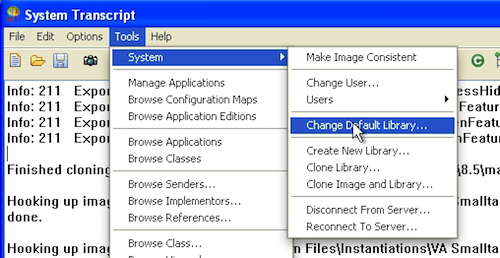
This may take awhile, depending on how large your repository is. Select 16GB as the size when prompted, and let it run. When it completes, you'll see a message in the Transcript. To show that it's a full clone, let's reconnect to the new repository:

Change Library

The system will chug for a bit, and then show you that everything is fine:

Changed Repository

At this point, you can browse your published apps and config maps to prove things to yourself. You now have a clean repository that you could hand off to another VA Smalltalk user.

Need more help? There's a screencast for other topics like this which you may want to watch. Questions? Try the "Chat with James" Google gadget over in the sidebar.

Technorati Tags: , ,

Enclosures:
[st4u174-iPhone.m4v ( Size: 6290648 )]

posted by James Robertson

 Share Tweet This

Previous Next (554 total)